- Task
- Version · 5.2
- Integration guide
MSSQL Server with Integrated Security and Kerberos Authentication for Windows
Last updated: August 11, 2026
If your application runs on a Linux or Windows-based intranet, you can use the integrated authentication to access your database. Integrated security uses the identity established on the operating system thread to access MSSQL Server.
Kerberos is an authentication protocol that works based on tickets to provide strong authentication for client/server applications by using secret-key cryptography. The Kerberos authentication protocol does not store passwords locally or send them over the Internet.
Before you begin
Ensure you have Java installed. Liquibase requires Java to run. If you used the Liquibase Installer, Java is included automatically. Otherwise, you must install Java manually.
Set up Liquibase and MSSQL Server with Windows Integrated Security by following Using Liquibase and MSSQL Server with Windows Integrated Security.
Set up Active Directory and integrate it with Kerberos.
Have the
krb5.conffile.
Procedure
Configuration
1. Open the command prompt as an administrator and set the service principal name:
setspn -s "MSSQLSvc/<dns>" "domain\username"
Note: If you use a MSSQL Server RDS instance, convert the endpoint to a fully qualified domain name (FQDN). If the endpoint is <hostname>.czd233xxxyyyyyzz.us-east-1.rds.amazonaws.com, the equivalent FQDN is <hostname>.<parent domain>.<net or com, or others>.
2. Verify that the service principal name works by running the following command:
setspn -T * -F -Q MSSQLSvc/<hostname>*
Sample output
C:\Users\admin\Desktop>setspn -T * -F -Q MSSQLSvc/mssql-kerberos*
Checking forest DC=DOMAINNAME,DC=DOMAINNAME2,DC=net
CN=EC2AMAZ-BQEU7B1,OU=RDS,OU=AWS Reserved,DC=DOMAINNAME,DC=net
MSSQLSvc/mssql-kerberos.example.net:1433
...
Existing SPN found!
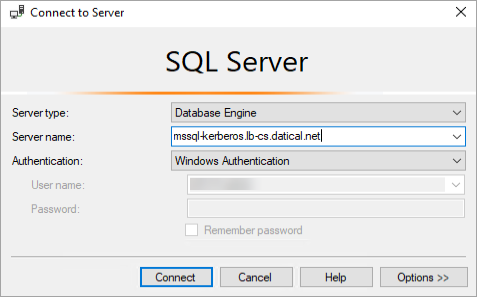
3. Open SQL Server Management Studio as an Active Directory user and log in with Authentication set to Windows Authentication.
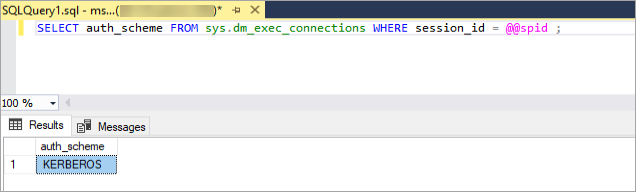
4. From the command line, run the following query to ensure authentication is running with Kerberos:
SELECT auth_scheme FROM sys.dm_exec_connections WHERE session_id = @@spid ;
Configuring the Liquibase and Kerberos connection
1. Run the kinit command to obtain and cache Kerberos ticket-granting tickets. To verify and list the new information from the krb5cc file, you can also run the klist command. For example:
kinit lbuser
Password for lbuser@MYDOMAIN.COM:
klist
Ticket cache: FILE:/temp/krb5cc
Default principal: @MYDOMAIN.COM
2. Specify the database URL in the liquibase.properties file (defaults file), along with other properties you want to set a default value for. Liquibase does not parse the URL. You can either specify the full database connection string or specify the URL using your database's standard connection format:
url: jdbc:sqlserver://<host name or endpoint>:1433;IntegratedSecurity=true;databaseName=<database name>;authenticationScheme=JavaKerberos;useTicketCache=true;doNotPrompt=true;moduleBanner=false;ServerSpn=MSSQLSvc/<hostname><FQDN>:1433@MYDOMAIN.COM;
3. Include the following JAVA_OPTS arguments to ensure you have all the necessary Java arguments.
JAVA_OPTS="-Djava.security.krb5.conf=/path/to/krb5.conf -Dsun.security.krb5.debug=true -Dcom.sun.security.auth.module.Krb5LoginModule=required -DuseTicketCache=true -Djava.security.auth.login.config=/path/to/JDBCDriverLogin.conf"
4. Run the liquibase status command to ensure the connection works.
JAVA_OPTS="-Djava.security.krb5.conf=/etc/krb5.conf -Dsun.security.krb5.debug=true -Dcom.sun.security.auth.module.Krb5LoginModule=required -DuseTicketCache=true -Djava.security.auth.login.config=/etc/JDBCDriverLogin.conf"
liquibase status --verbose
5. (Optional) If you want to use the SQLCMD native executor with Kerberos, you must first set the KRB5CCNAME environment variable
export KRB5CCNAME=<path to ticket file>
Then run Liquibase:
KRB5CCNAME=<path to ticket file>
JAVA_OPTS="-Djava.security.krb5.conf=/etc/krb5.conf -Dsun.security.krb5.debug=true -Dcom.sun.security.auth.module.Krb5LoginModule=required -DuseTicketCache=true -Djava.security.auth.login.config=/etc/JDBCDriverLogin.conf"
liquibase status --verbose
Sample output
Starting Liquibase at 14:56:40
Liquibase Version: 4.5.0
Liquibase Community 4.5.0
>>>KinitOptions cache name is /tmp/krb5cc_1000
>>> KeyTabInputStream, readName(): MYDOMAIN.COM
>>> KeyTabInputStream, readName(): lbuser
>>> KeyTab: load() entry length: 68; type: 16
>>> KeyTabInputStream, readName(): MYDOMAIN.COM
>>> KeyTabInputStream, readName(): lbuser
>>> KeyTab: load() entry length: 60; type: 23
>>> KeyTabInputStream, readName(): MYDOMAIN.COM
>>> KeyTabInputStream, readName(): lbuser
>>> KeyTab: load() entry length: 52; type: 8
>>> KeyTabInputStream, readName(): MYDOMAIN.COM
>>> KeyTabInputStream, readName(): lbuser
>>> KeyTab: load() entry length: 52; type: 3
>>> KeyTabInputStream, readName(): MYDOMAIN.COM
>>> KeyTabInputStream, readName(): lbuser
>>> KeyTab: load() entry length: 52; type: 2
Looking for keys for: MYDOMAIN.COM
Java config name: /etc/krb5.conf
Loading krb5 profile at /etc/krb5.conf
...
...
>>> DEBUG: ----Credentials----
client: MYDOMAIN.COM
server: MSSQLSvc/xxx:1433@MYDOMAIN.COM
ticket: sname: MSSQLSvc/xxx:1433@MYDOMAIN.COM
startTime: 1635951401000
endTime: 1635987401000
----Credentials end----
Subject is readOnly;Kerberos Service ticket not stored
Using builtin default etypes for default_tgs_enctypes
default etypes for default_tgs_enctypes: 18 17 20 19 16 23.
>>> EType: sun.security.krb5.internal.crypto.ArcFourHmacEType
>>> CksumType: sun.security.krb5.internal.crypto.HmacMd5ArcFourCksumType
>>> EType: sun.security.krb5.internal.crypto.ArcFourHmaEType
>>> KrbKdcReq send: kdc=MYDOMAIN.COM TCP:88, timeout=30000, number of retries =3, #bytes=1482
>>> KDCCommunication: kdc=MYDOMAIN.COM TCP:88, timeout=30000,Attempt =1, #bytes=1482
>>>DEBUG: TCPClient reading 1442 bytes
>>> KrbKdcReq send: #bytes read=1442
>>> KdcAccessibility: remove MYDOMAIN.COM
>>> EType: sun.security.krb5.internal.crypto.ArcFourHmacEType
>>> EType: sun.security.krb5.internal.crypto.Aes256CtsHmacShaEType
>>> KrbApReq: APOptions are 00100000 00000000 00000000 00000000
>>> EType: sun.security.krb5.internal.crypto.Aes256CtsHmacShaEType
Krb5Context setting mySeqNumber to: 00000
Created InitSecContextToken:
0000: 01 00 6E 82 0B 91 30 82   0B 8D A0 03 02 01 05 A1  ..n...0.........
0010: 03 02 01 0E A2 07 03 05   00 20 00 00 00 A3 82 04  ......... ......
0020: EA 61 82 04 E6 30 82 04   E2 A0 03 02 01 05 A1 13  .a...0..........
0030: 1B 11 4C 42 2D 43 53 2E   44 41 54 49 43 41 4C 2E  ..MYDOMAIN.
0040: 4E 45 54 A2 3D 30 3B A0   03 02 01 00 A1 34 30 32  com.=0;......402
0050: 1B 08 4D 53 53 51 4C 53   76 63 1B 26 6D 73 73 71  ..MSSQLSvc.&mssq
...
Entered Krb5Context.initSecContext with state=STATE_IN_PROCESS
>>> EType: sun.security.krb5.internal.crypto.Aes256CtsHmacShaEType
Krb5Context setting peerSeqNumber to: 1481374XX
username@jdbc:sqlserver://xxx:1433;maxResultBuffer=-1;
sendTemporalDataTypesAsStringForBulkCopy=true;delayLoadingLobs=true;
useFmtOnly=false;useBulkCopyForBatchInsert=false;cancelQueryTimeout=-1;sslProtocol=TLS;
jaasConfigurationName=SQLJDBCDriver;statementPoolingCacheSize=0;serverPreparedStatementDiscardThreshold=10;
enablePrepareOnFirstPreparedStatementCall=false;fips=false;socketTimeout=0;authentication=NotSpecified;
authenticationScheme=JavaKerberos;xopenStates=false;sendTimeAsDatetime=true;trustStoreType=JKS;trustServerCertificate=false;
TransparentNetworkIPResolution=true;serverSpn=MSSQLSvc/xxx:1433@MYDOMAIN.COM;serverNameAsACE=false;sendStringParametersAsUnicode=true;
selectMethod=direct;responseBuffering=adaptive;queryTimeout=-1;packetSize=8000;multiSubnetFailover=false;loginTimeout=15;lockTimeout=-1;
lastupdate-count=true;encrypt=false;disableStatementPooling=true;databaseName=WF_DEV;columnEncryptionSetting=Disabled;applicationName=Microsoft JDBC Driver for SQL Server;
applicationIntent=readwrite; is up to date
Liquibase command 'status' was executed successfully.