- Task
- Log in to Liquibase Secure server
Log in to Liquibase Secure server
Last updated: September 29, 2026
Before you begin
Use this walkthrough when someone else at your company already runs Liquibase Secure server and you want to start using the web app.
Get the web address of your company’s Liquibase Secure server from your administrator.
Use your work email address. Your administrator may already expect an account under it.
If you are setting the server up yourself, start with what Liquibase Secure server is.
If you would rather try Liquibase from the command line first, run Liquibase against the H2 sandbox.
Procedure
Open the web app
Open the address your administrator gave you in a browser, and the sign-in page appears. Liquibase Secure server runs inside your own network, so the address is your company’s own rather than a Liquibase one.
Sign in or create your account
If your administrator has already created an account for you, enter your email address and password and select Sign In.
If you do not have an account yet, select Create one, then enter your name, your work email address and a password of at least eight characters. You are signed in as soon as the account is created.
When your administrator has set up single sign-on, a Continue with Microsoft button appears on the same page. Use it instead of a password, and sign in with the Microsoft account your company issued you.
Note: if you have an account but cannot remember the password, select Forgot password? and follow the link that arrives by email.
Find your way around
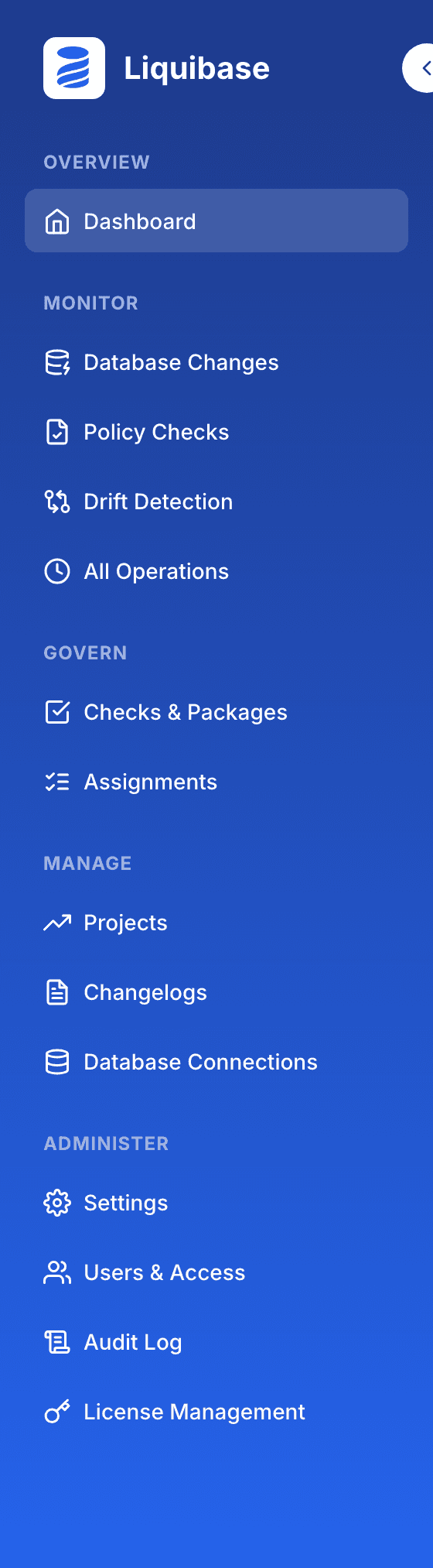
The left navigation is grouped by what you are doing, and it is the fastest way to get your bearings:
Overview opens the dashboard, which summarizes recent deployments and how they went.
Monitor holds the record of what has run, including database changes, policy check results, drift, and every operation.
Govern is where policy checks are organized into packages and assigned to the databases and changelogs they apply to.
Manage lists the projects, changelogs and database connections your team has registered.
Administer covers settings, user access, the audit log and licensing.
You see the groups your workspace has enabled and your account can reach, so your navigation may be shorter than this one. Your own account lives behind your name in the top-right corner, along with the light and dark theme switch.
Check what you can reach
What you can see and do depends on the access your administrator has given your account. If a section you expect is missing, or a page is empty where you expected data, ask your administrator to check your access rather than assuming the server is broken. Administrators grant access from manage users and access.