- Concept
- Manage your account
Manage your account
Last updated: September 29, 2026
Update your profile, manage API keys, and sign out of Liquibase Secure server.
Select your profile image in the top-right corner of the dashboard to access your account options: Profile & Settings, API Keys, and Log out.
Before you begin
Your account lives in the Liquibase Secure server web application. You need a running server and its URL from your administrator. If you have not set up the server already, you can run Liquibase Secure server locally on your own machine, or use an internally deployed server. Both guides are under Set up and configure Liquibase Secure server.
Profile & Settings
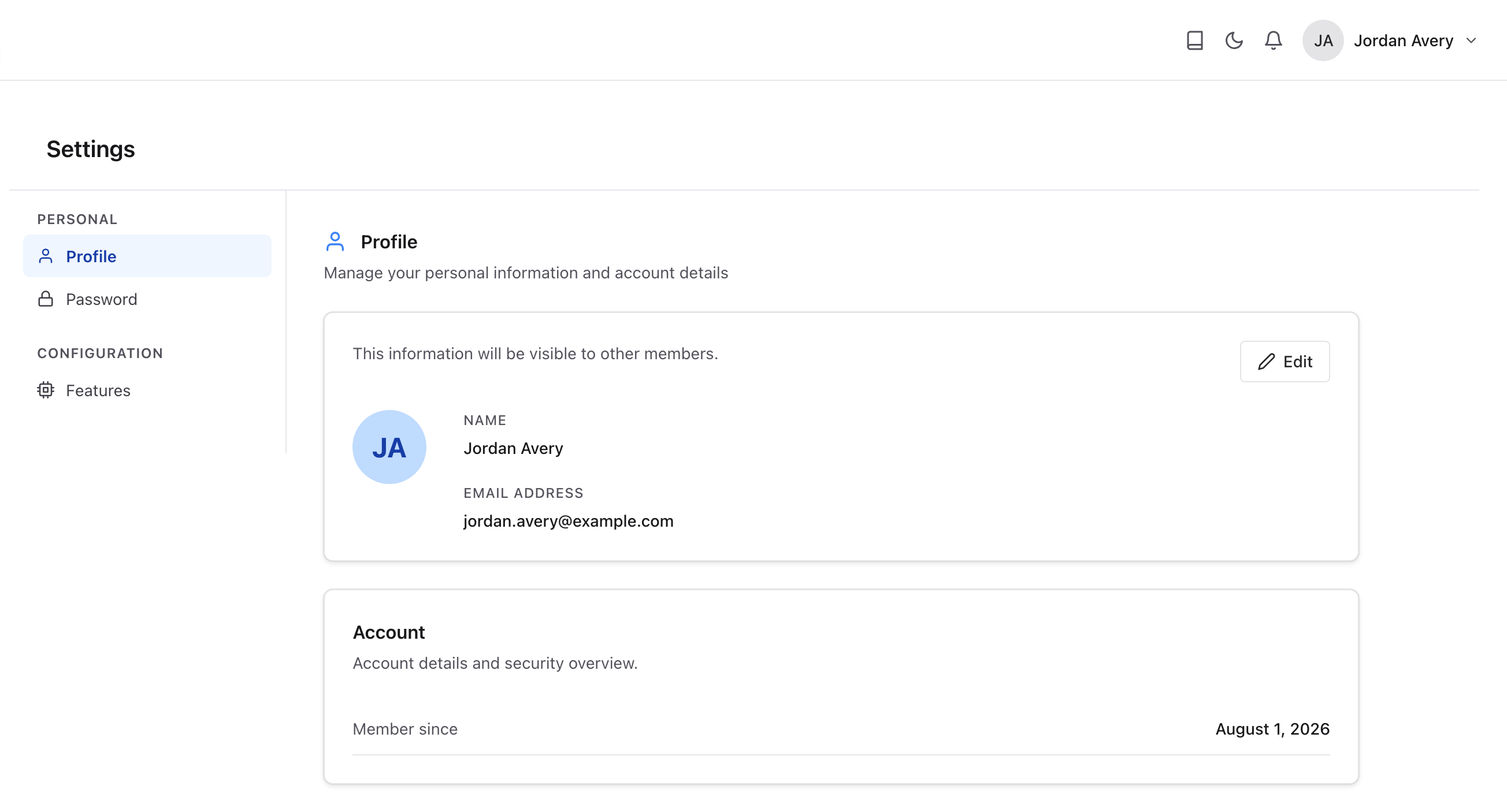
Profile & Settings opens the Settings page. The left sidebar is organized into two sections: Personal, which holds the Profile and Password tabs, and Configuration, which holds the Features tab.
Profile
The Profile tab shows the personal information visible to other workspace members: Your name and email address. Select Edit to update them.
Your account's Member since date is shown in the Account section below your profile information.
Password
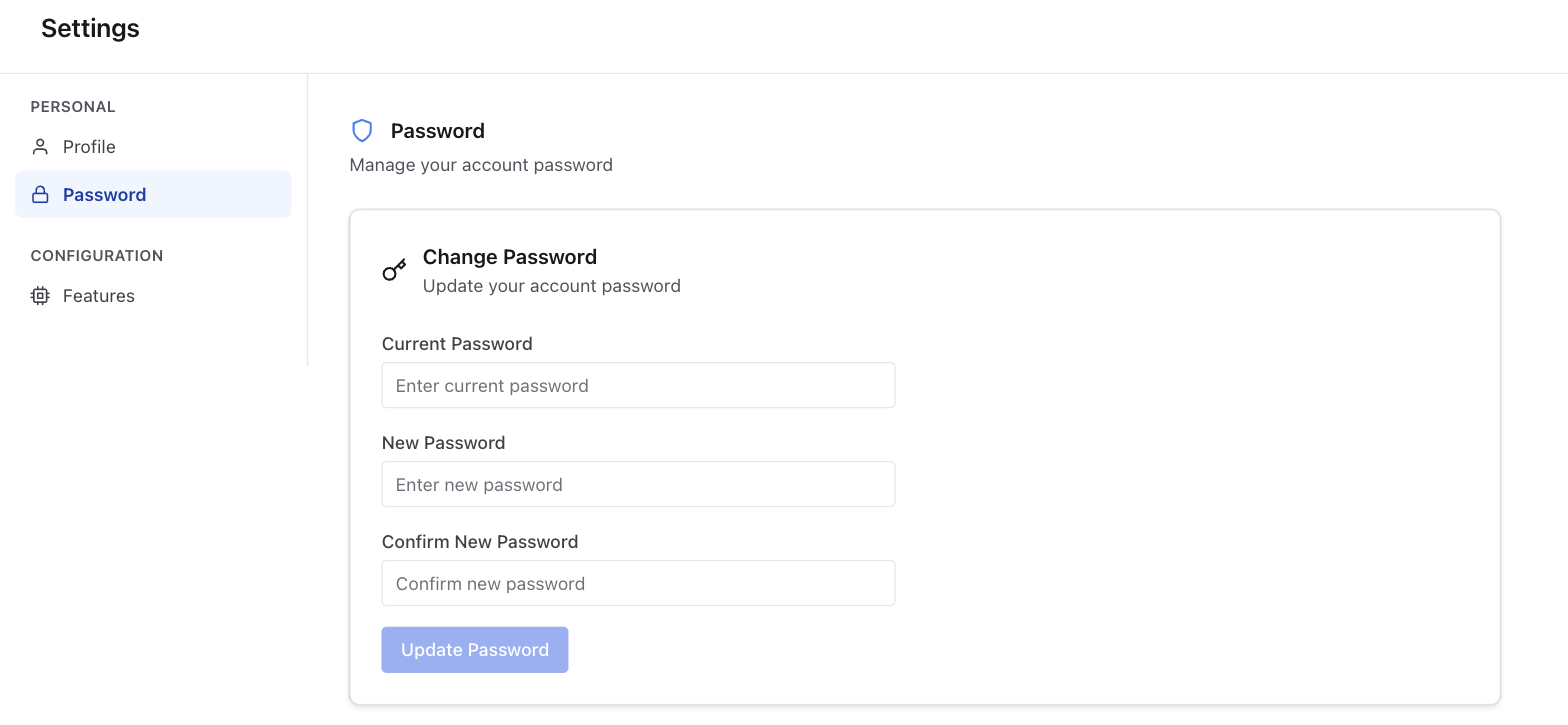
The Password tab lets you update your account password. Enter your current password, then enter and confirm a new password, and select Update Password.
Note: Liquibase Secure server does not provide its own two-factor authentication. If your organization requires multi-factor authentication, your identity provider enforces it when you sign in.
Features
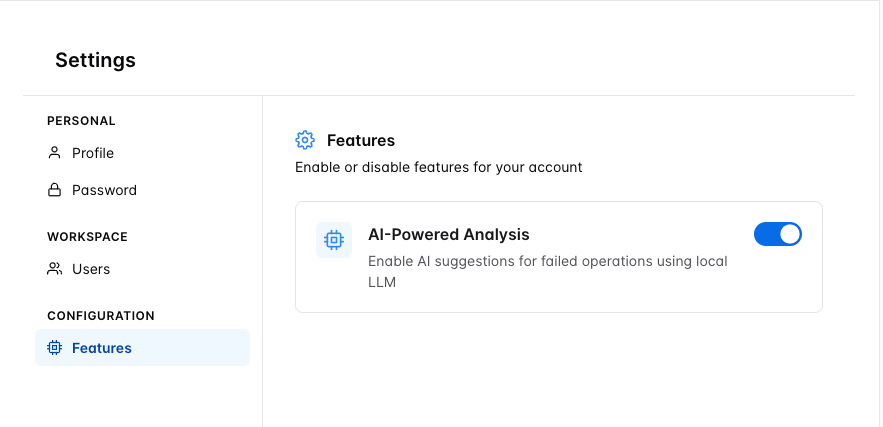
The Features tab controls optional features for your account. AI-Powered Analysis enables AI suggestions for failed operations using a local LLM. Toggle it on or off to enable or disable the feature.
Users and access
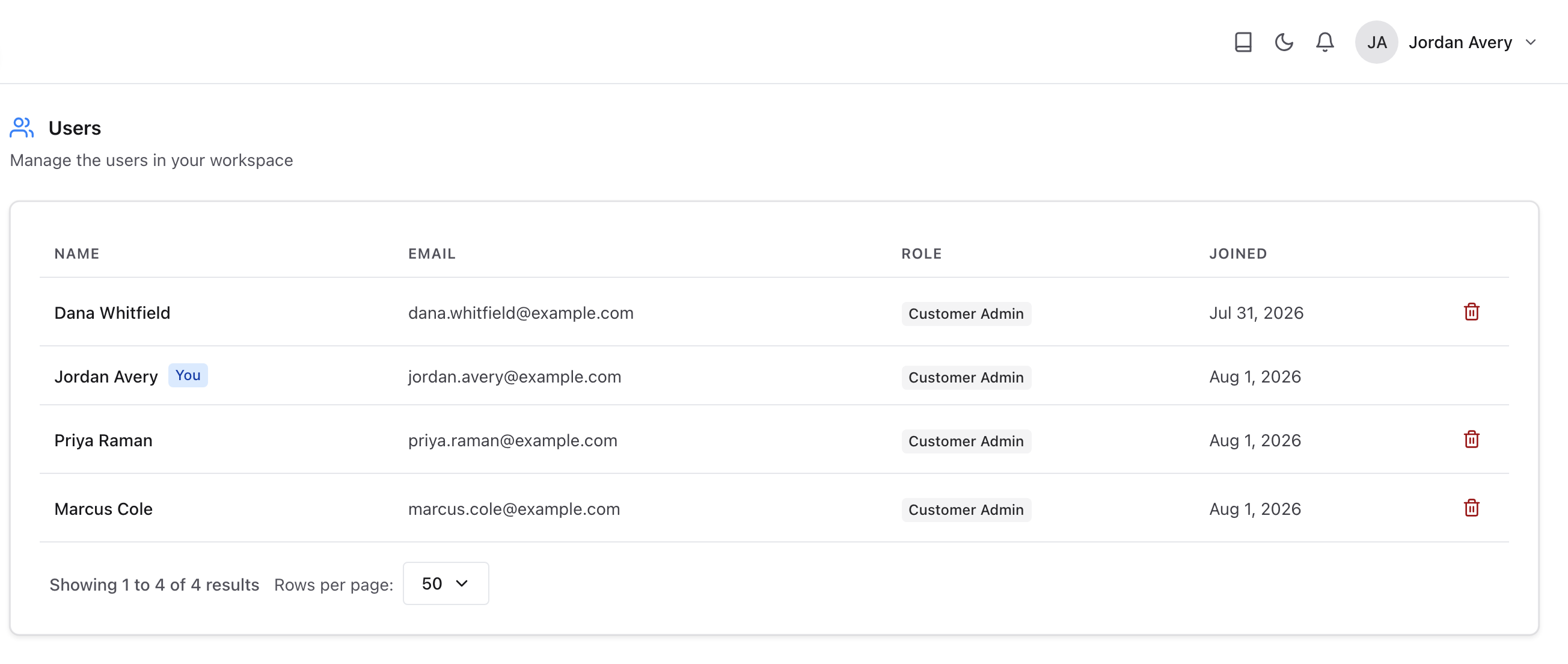
Users & Access is its own item in the left navigation, under Administer. It is not part of Settings. The Users page lists every member of your workspace, with columns for Name, Email, Role, and Joined date. Your own row is marked You.
API keys
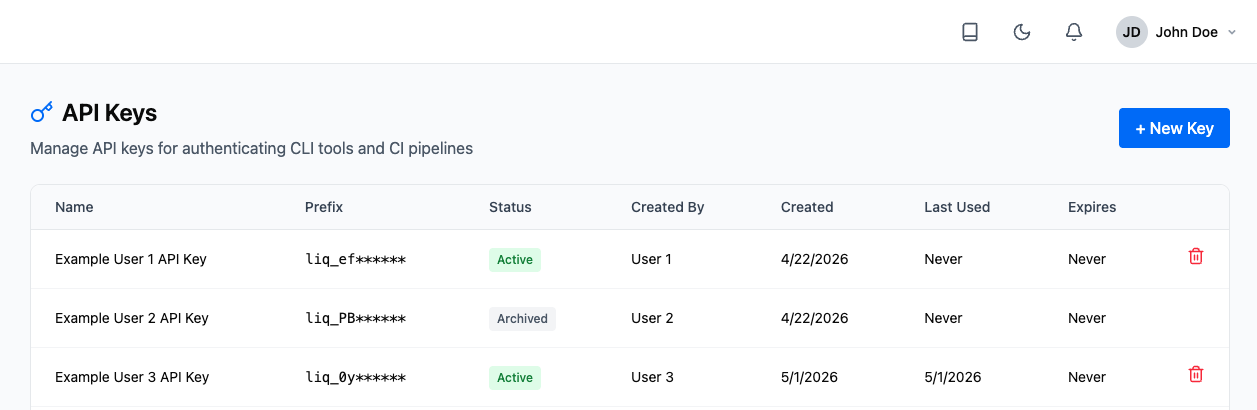
API Keys opens the API Keys page, where you can manage the keys used to authenticate the Liquibase CLI and CI pipelines with the server.
The table shows each key's name, prefix, status, the user who created it, creation date, last used date, and expiration date. Keys can have a status of Active or Archived. Select the delete icon to archive a key.
To create a new key, select + New Key. The full key value is shown only once at creation time. Copy and save it before closing the dialog.
Log out
Select Log out to end your session and return to the sign-in page.