- Task
- Version · 5.0
- User guide
Produce the Liquibase Secure License Tracking Report
Last updated: August 11, 2026
Liquibase License Tracking is currently in Public Preview. Features and capabilities may change based on customer feedback. For assistance or updates, contact Liquibase Support.
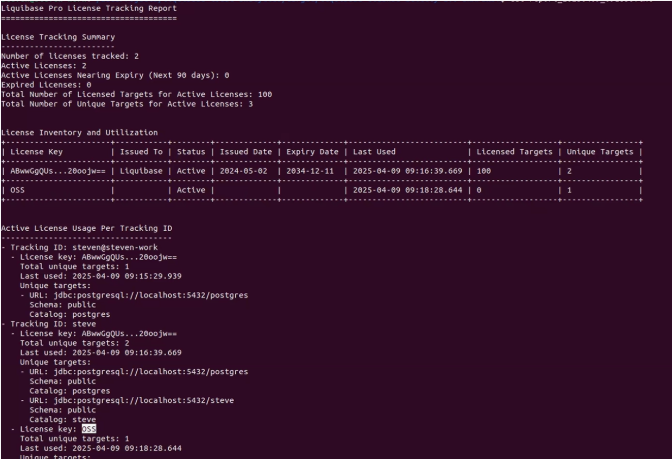
The Liquibase Secure License Tracking report allows you to produce all of the data retrieved by Liquibase License Tracking (LLT). The License Tracking Summary includes the number of licenses tracked, active licenses, active licenses nearing expiry, expired licenses, total number of licenses, and total number of unique targets for active licenses. It also includes the License inventory and utilization, and the active license usage per tracking ID breakdown.
Users must configure Liquibase to transmit license data to the LLU; it is not enabled automatically.
Prerequisites
Procedure
Open the CLI and navigate to where your Liquibase project is located.
Run this command in the CLI:
Navigate to the license tracking server directory in the CLI
Run cd <path-to-your-liquibase-installation>/dist/liquibase-license-tracking
Produce a list of files in your directory
lsdirIn that list, you will see that we have two report files:
report.shreport.batSave a text file of the report
./report.sh./report.batA unique report name will appear, such as: report_203948573948_234985.txt
(Optional) Save a JSON or HTML file of the report
To produce an HTML or JSON file, specify the format in the command.
Run ./report.sh --format=json or ./report.sh --format=html
Run ./report.bat --format=json or ./report.bat --format=html
A unique report name will appear, such as: report_203948573948_234985.json
Produce the Liquibase Secure License Tracking Report
Run cat report_<unique_id>.txt
Note: If Liquibase was unable to determine the unique identifier for a database target (for example, because the database extension does not yet support uniqueness identification, or an error occurred during identification), those targets appear in the Unresolved Targets section of the report.
The section only appears if there are unresolved targets.
Each entry shows the tracking ID (team), the number of times the error occurred, and the date of the last occurrence.
Only errors from the last 30 days are shown.
The section displays a maximum of 25 entries.
If an error recurs frequently or recently, it indicates a real issue to investigate. Isolated one-time errors can generally be ignored.
Results
Notice the License Tracking Summary includes the number of licenses tracked, active licenses, active licenses nearing expiry, expired licenses, total number of licenses, and total number of unique targets for active licenses. It also includes the License inventory and utilization, and the active license usage per tracking ID breakdown.
Note: An error will appear in the logs if the endpoint is not reachable.