Obtain the Liquibase AI Changelog Generator from the VSCode Extension hub
Last updated: June 11, 2026
The AI Changelog Generator is currently in Early Access, and we're actively seeking customer feedback to help shape its development. If you would like to learn more about this feature, please contact us here.
The Liquibase AI Changelog Generator is available through the GitHub MCP Registry, making it searchable and installable directly from VS Code's Extension Hub. This guide walks you through finding and installing the server from within VS Code.
Before you begin
Liquibase Secure is installed on your machine.
VS Code is installed on your machine.
GitHub Copilot is installed and enabled in VS Code.
Procedure
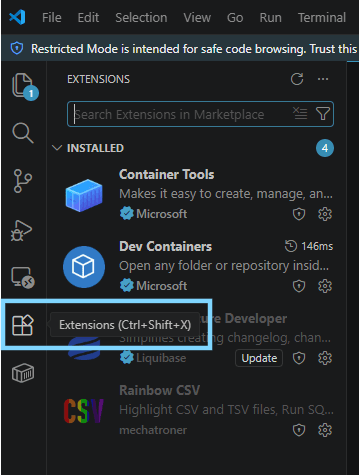
Navigate to the Extensions tab on the left side of VS Code.
Find the MCP Servers section within the Extensions window.
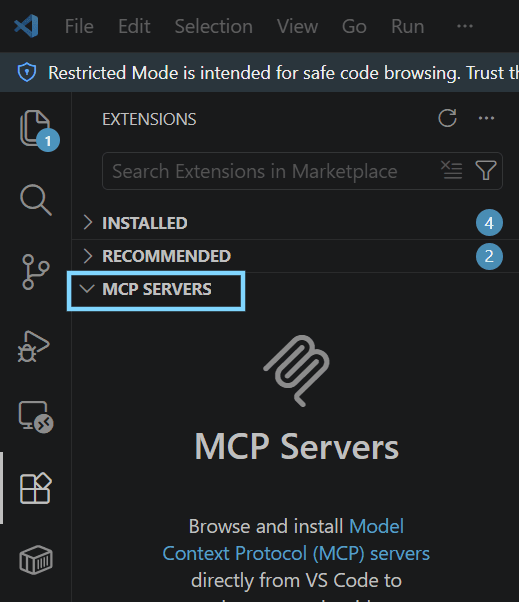
Search for Liquibase and install the AI Changelog Generator server.
Type in Liquibase and select the Liquibase AI Changelog Generator server within the list. Select the Install button next to it to begin installing.
Next steps
Now that you've installed the Liquibase AI Changelog Generator from the VS Code Extension Hub, you're ready to Configure the Liquibase AI Changelog Generator in VS Code.