- Concept
- Version · 6.0.2
- Manage
Review the system log
Last updated: November 17, 2026
Review the record of every change to users, groups, permissions, tokens, and licensing on Liquibase Secure server.
Liquibase Secure server records every change to who can do what. The system log is the evidence trail for a compliance review: it answers who made a change, when, what it applied to, and what the setting was before and after.
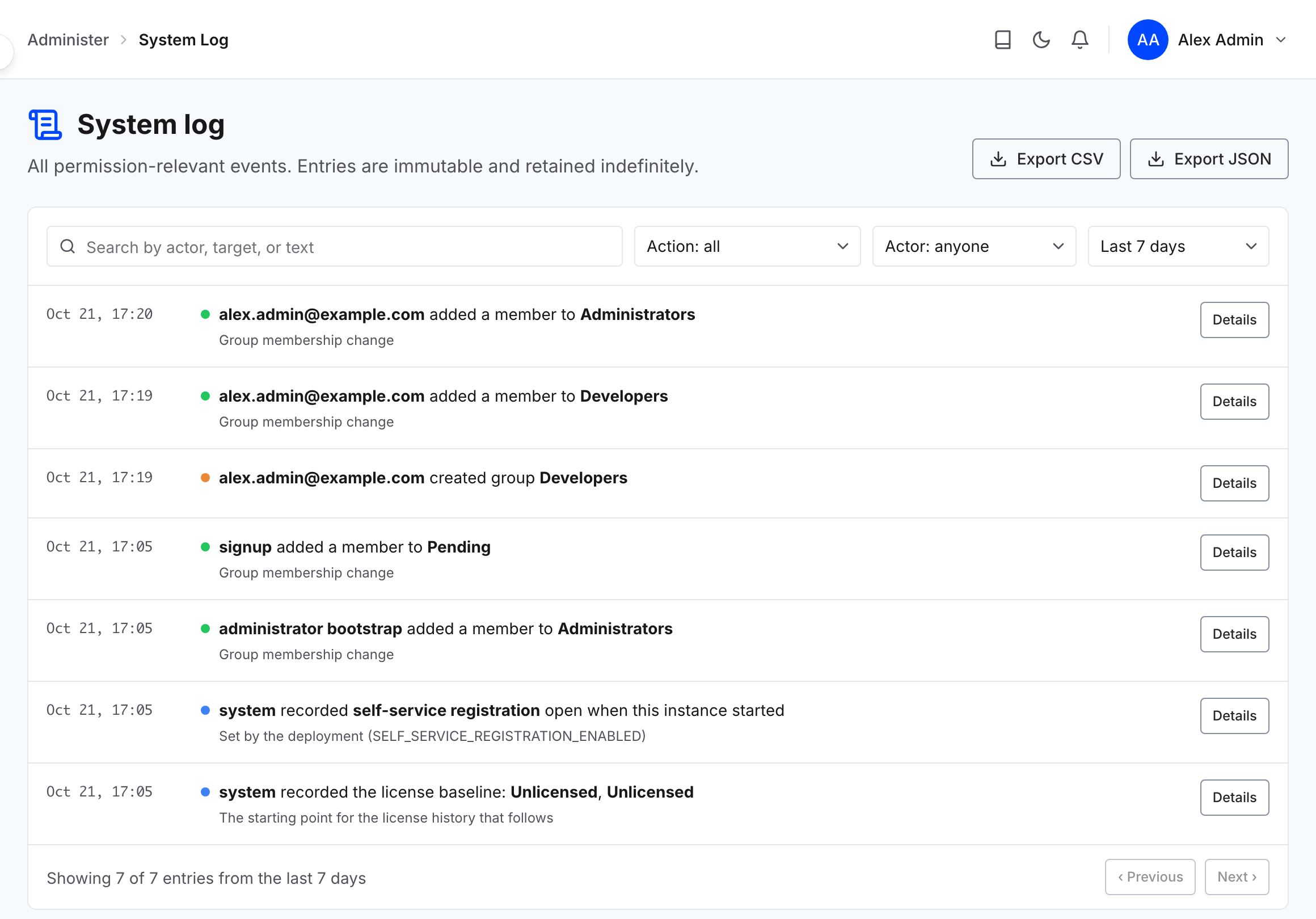
To open it, go to Administer and select System Log. The log is stored in the server's own database, so there is no log file to find and nothing to configure.
Who can see the system log
Reading the system log needs a permission of its own, separate from the permissions that let someone use a project. The Customer Admin and Security Reviewer templates carry it. Anyone else does not see System Log in the sidebar at all, so a reader who cannot find it is missing the permission rather than looking in the wrong place.
What is recorded
An entry is written for each of the following.
Users: inviting a user, revoking an invitation, deactivating a user, reactivating one, and deleting one.
Groups: creating, renaming, and deleting a group, and adding or removing a member.
Assignments: creating an assignment, changing its targets, removing it, and changing what it customizes.
Direct grants and denies: creating one and revoking one.
Ownership: adding an owner, removing an owner, and transferring ownership.
Access tokens and service principals: creating a personal access token, revoking one, and the first refused use of one that has expired, plus creating a service principal, rotating its service token, revoking a service token, and deleting a service principal.
Workspace settings: turning personal access tokens off or on, and changing the maximum token lifetime.
Note: A grant and a deny are the same kind of entry, and which one it was is part of the entry's detail rather than its name. Filtering by action alone does not separate them.
What an entry contains
Every entry names the actor, the time it happened, the target it acted on, and the state before and after the change. The before and after are the fields that make that particular action meaningful, not a copy of the whole record, so a setting that has nothing to do with the change does not appear.
Two details matter when you are reading an old entry. The target's name is stored with the entry, so it stays readable after the target has been renamed or deleted. And the actor can be the server itself rather than a person: promoting the first administrator and placing a new user in the Pending group both happen with nobody signed in, so they are recorded with the server as the actor rather than with a blank.
Entries are never edited or removed. They are kept indefinitely in the initial release.
Find an entry
Search runs across the actor and target names, their identifiers, and the action. You can also filter by action, by actor, by target, and by a date range, and entries are listed newest first.
The list shows the last 7 days until you change the date range. To keep a copy outside the server, select Export CSV or Export JSON. An export includes the entries your filters match, up to the 10,000 most recent, so narrow the filters to export more than that.
SSO configuration changes
Changes to a single sign-on provider are recorded in this same log rather than in a separate one. An entry is written when a provider is created, enabled, disabled, renamed, removed, or has its credentials rotated.
Note: A secret is never recorded as a value. A rotation entry tells you that credentials changed and when, not what they changed to.
Access token entries
Every entry about an access token says whether it was a Personal access token or a Service token, and shows the token's state before and after the change, such as active → revoked. A revocation also gives the reason, which is that the owner or an administrator revoked it, that its owner was deactivated or deleted, or that its service principal was deleted.
To see only token activity, select the Service tokens or Personal access tokens tab above the list. All entries shows everything. While one of the token tabs is selected, the action filter becomes an event filter. It offers Created, Revoked, Rotated, Expired, Suspended, and Restored, except that the Personal access tokens tab has no Rotated event but adds Converted, which records a per-user API key that became a personal access token when the deployment was upgraded to 6.0.2, and the Service tokens tab has no Suspended or Restored event. Exports include each entry's credential type.
A few token entries are written by the server or by another action rather than by someone acting on the token:
Expiry: An expired token is recorded the first time someone uses it after it expires, with the server as the actor. A token that is never used again after it expires has no expiry entry.
Deactivation: Deactivating a user writes one revocation entry for each personal access token it revoked, and the deactivation entry records how many tokens were revoked.
Workspace settings: Turning personal access tokens off records how many tokens were suspended, and turning them back on records how many were restored. Changing the maximum token lifetime records the old and new values, and existing tokens keep their expiry.
Note: Entries written before Liquibase Secure 6.0.2 have no credential type, so they appear only under All entries. A request refused because of its token is not recorded, apart from that first use of an expired token.
License changes
License Management activity is recorded in the system log. An entry is written for each of the following events.
License files
License file imported
License file import rejected, with the reason shown at upload. When a file is refused because it failed verification, such as a bad signature or an untrusted key, the entry also records the verification result, so it reads apart from a file that is malformed, too large, or unsupported
License file import skipped, when an identical file is already stored
License file removed
License files re-verified
License file verdict changed, one for each file whose verdict a re-verify changed
The effective license
License status changed, between Valid, Grace, Expired, and Unlicensed
Licensed capabilities changed, when a module, add-on, or capability is granted or withdrawn, or a capacity limit changes
Governing license changed
Trusted signing keys changed
License state baseline recorded, written once, the first time the server runs this version
License data leaving the server
License file downloaded
License data exported, which names the dataset, the format, and the utilization window
To see only these entries, choose All license events in the action filter. The export follows the same filter.
Note: A license entry identifies the file or license by name, license ID, customer, tier, and term. A file refused at upload has no stored record, so its entry carries only the file name, the reason, and the verification result when there is one. A file the server stored but could not verify with its trusted keys keeps its full record, so a later re-verify can still accept it. No entry ever contains file contents, signatures, key material, or the data that was exported.
Changes nobody made
A license can expire, or a grace period can end, without anyone doing anything. Those changes are recorded with system as the actor. The server checks for them when it starts, every 6 hours while it runs, and whenever it evaluates compliance, such as when someone opens License Management or a Change Automation node checks its license. While the server is running, an entry is recorded within 6 hours of the change. A change that happened while the server was stopped is recorded when it starts again.
The time shown for an entry is when the server recorded it. When that is later than the change, the entry also shows Took effect with the time the change happened, in UTC.
The License state baseline recorded entry gives the log a starting point. It holds the license status and capabilities at the moment the server first ran this version.
Find the licensed capabilities on a past date
Every license status, capability, and baseline entry carries the complete license state that followed it. To see what the installation was licensed for on a given date, choose All license events in the action filter and a date range that reaches back past that date. Entries are listed newest first, by the time they were recorded. The first License status changed, Licensed capabilities changed, or License state baseline recorded entry that took effect on or before that date shows the license that applied. Where an entry has a Took effect line, go by that time rather than the time in the list, because an entry can be recorded hours after the change, or later still if the server was stopped.