- Concept
- Version · 6.0.2
- Manage
Invite and manage users in Liquibase Secure server
Last updated: November 17, 2026
Users & Access is where you bring people into the workspace, give them access through groups, and deactivate them when they leave. You must be a member of the Administrators group to manage users. The account that set up the server is a member.
Find a user
Go to Administer and select Users & Access.
The list covers everyone in the workspace. Use the All, Active, Pending, and Deactivated tabs to filter by state. You can also search by name or email, and filter by group or by sign-in method.
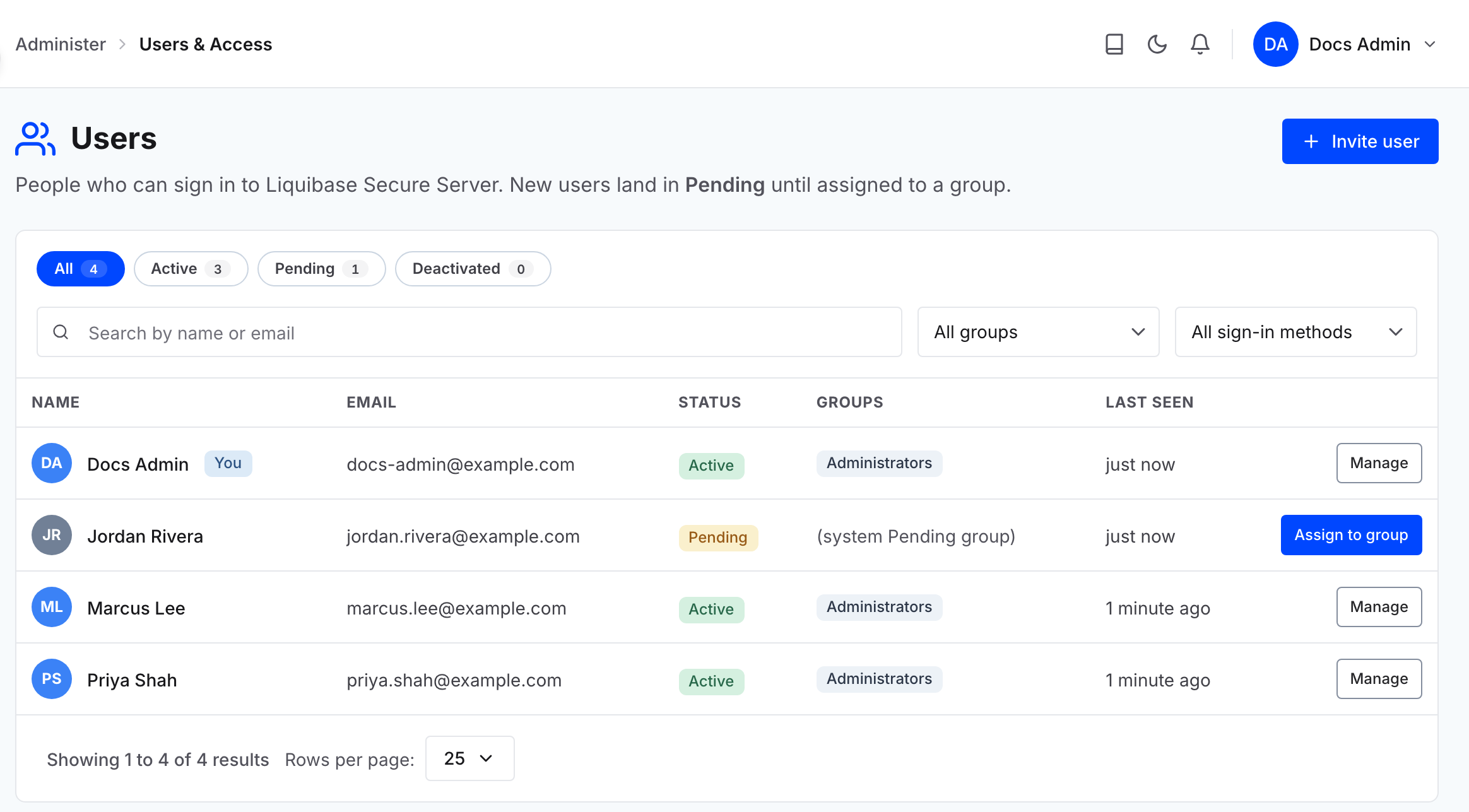
Sign-in method filters by family rather than by a single provider, so Entra matches any Microsoft Entra provider registered for the workspace.
If you have the View access tokens permission, the list also has a Tokens column. It shows how many active personal access tokens each person has, how many inactive ones when none is active, or None. Select the count to open the Access tokens page filtered to that person's personal access tokens.
Invite a user
Select Invite user and fill in the dialog:
Full name and Email address identify the person.
Groups is optional and assigns their starting access.
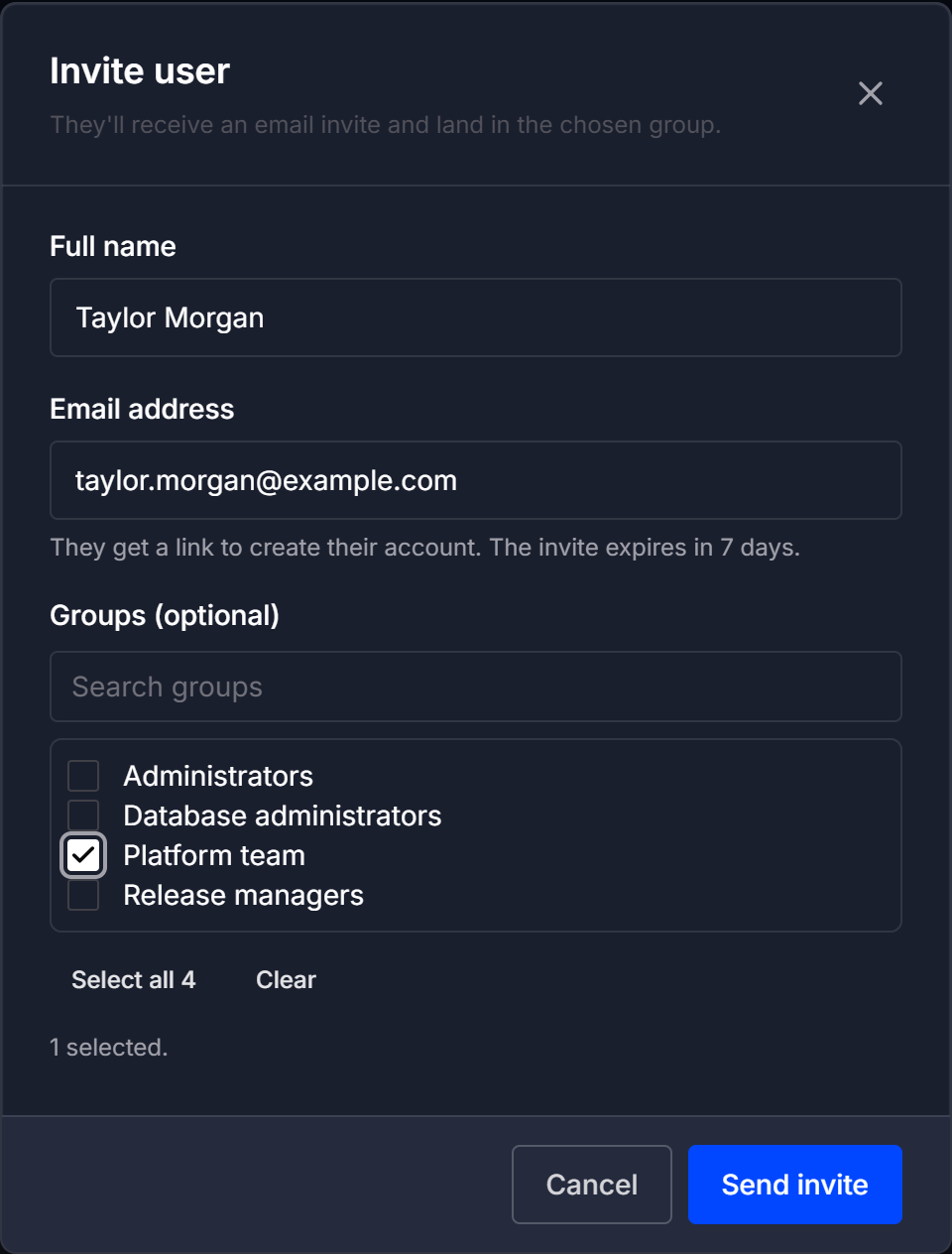
Select Send invite. The person receives a link to create their account. The invite expires in 7 days.
Note: When outbound email is not set up, the dialog warns that the invitation email will not be sent. The invitation is still created and listed under Pending invitations. Select Resend there once email works. See Manage authentication settings.
If single sign-on is enabled, the person can sign in with it at the invited address instead. They join the groups you chose on their first sign-in.
Note: Decide which groups a new person should join before you invite them, and assign at least one if you want them productive immediately. With no groups they land in the Pending group, which grants nothing, until someone assigns them.
The invitation appears under Pending invitations on the Users page until it is accepted. From there you can select Resend, or select Revoke so the link no longer works.

Change a user's groups
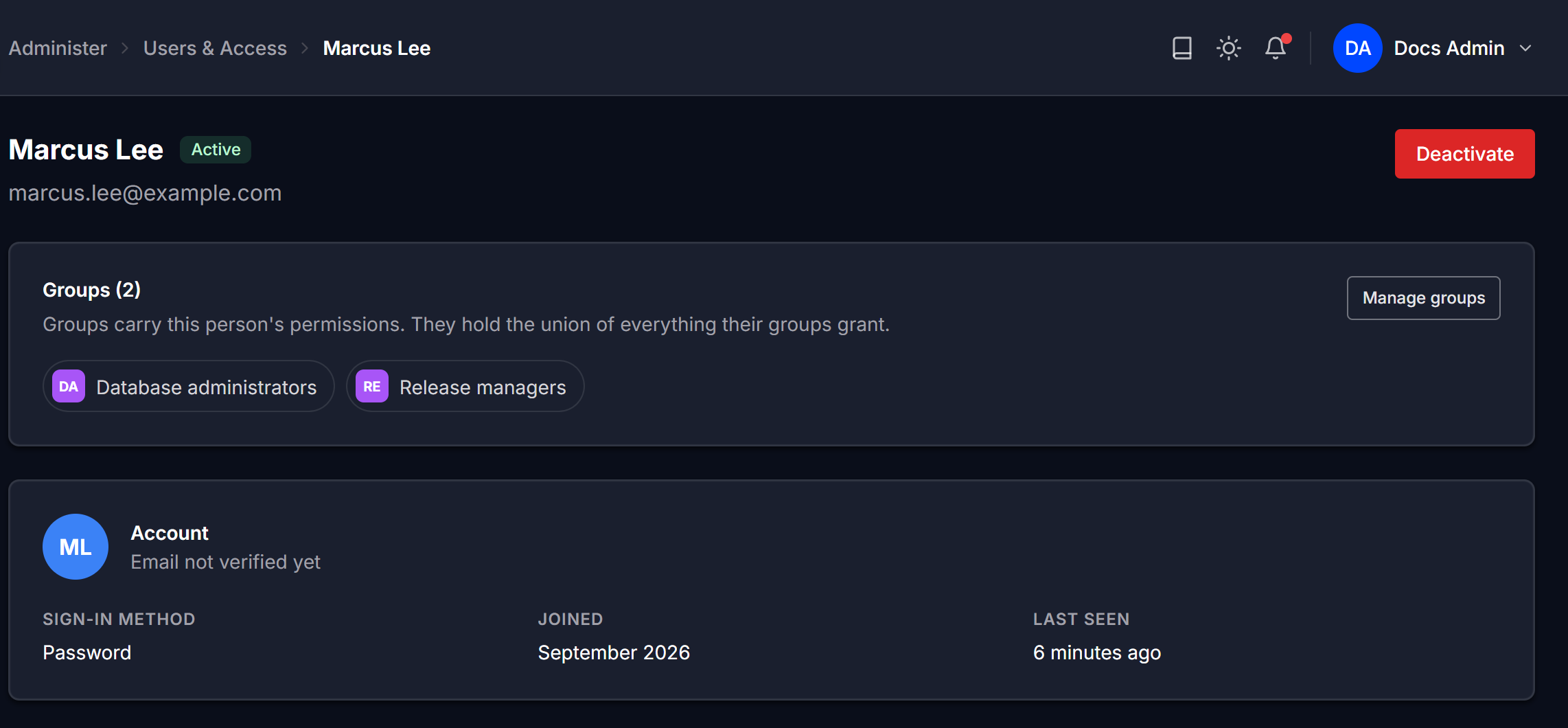
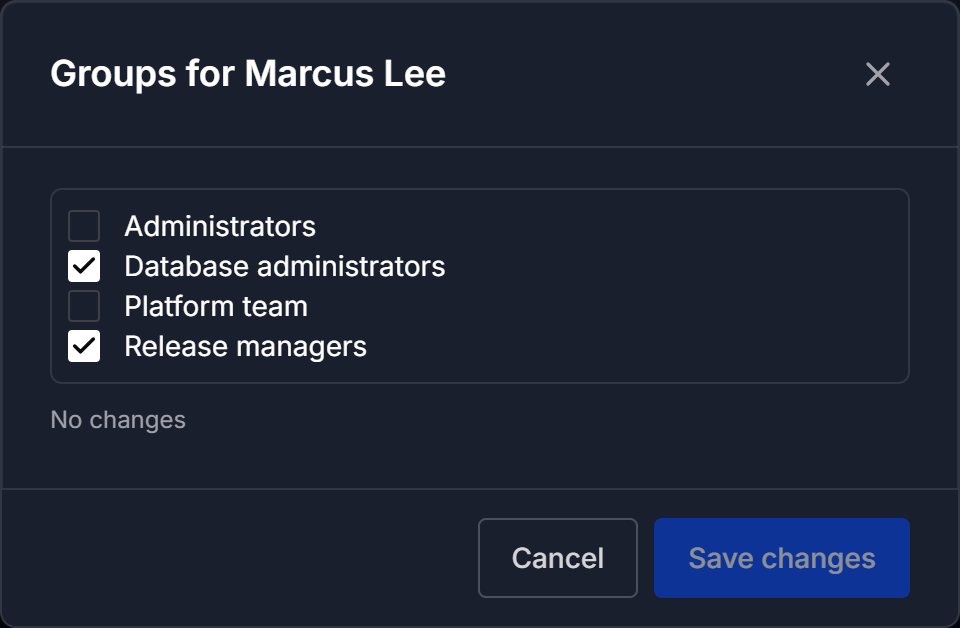
Select Manage next to the user to open their page, then select Manage groups. Select or clear groups and select Save changes.
For a user in the Pending group, you can select Assign to group directly in the user list.
A user's access is the combination of everything their groups grant, plus anything they own and any direct grants made to them on a single entity. Adding a group usually widens access, but a direct deny can name a group, so joining a group that is denied a permission on an entity removes that permission there unless a direct grant restores it. Denies never apply to members of the Administrators group.
Deactivate a user
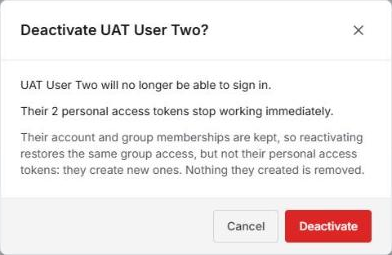
Open the user's page and select Deactivate. The dialog tells you how many of their personal access tokens stop working immediately. Deactivating someone revokes every personal access token they own, and a revoked token never works again. Their account and group memberships are kept, so reactivating them restores the same group access but not their tokens, and they create new ones. Service tokens belong to a service principal rather than to the person who created it, so they keep working. Select Deactivate to confirm.
If the person is the sole owner of anything, the dialog changes to Cannot deactivate and lists the entities blocking it. The blocking list is not a dead end. Each blocked entity carries a Transfer to selector, so you can pick a new owner for every entity in the same dialog. The action stays disabled until each one has a new owner.
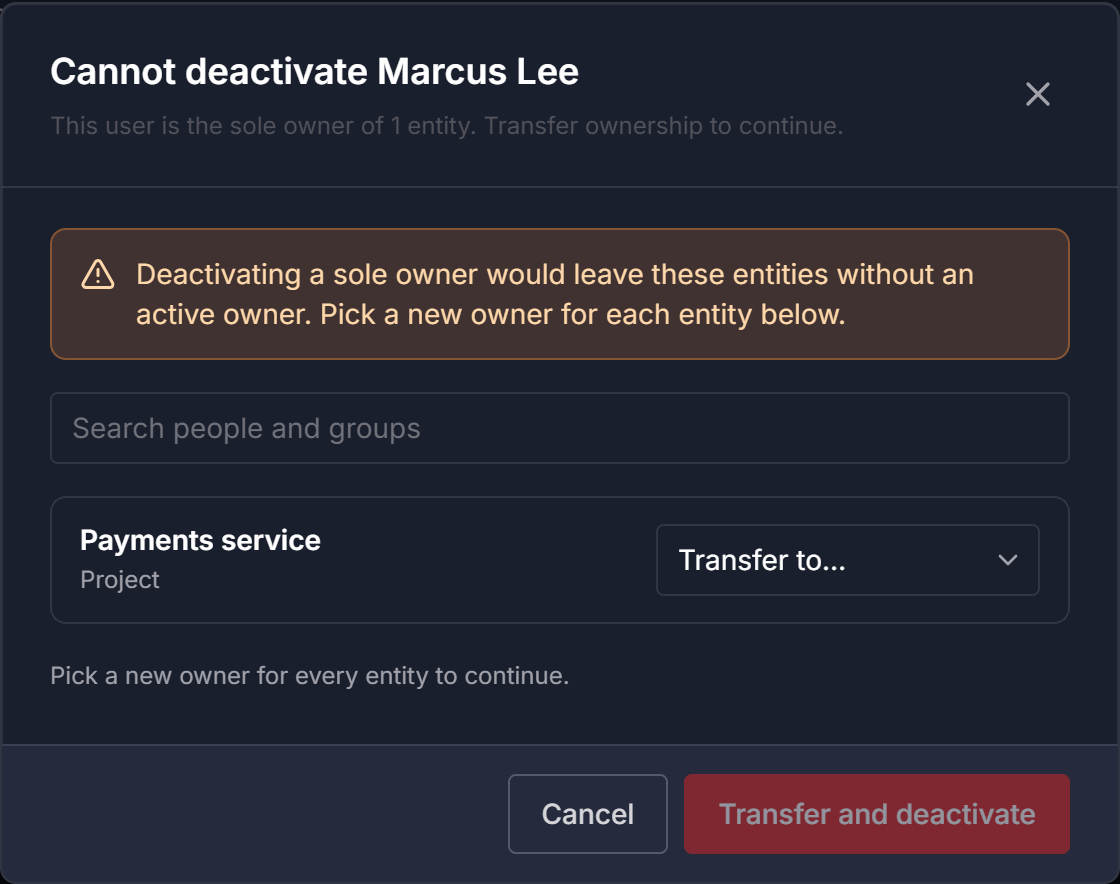
Select Transfer and deactivate to reassign the entities and complete the deactivation in one step. Their personal access tokens are revoked as in any deactivation, and the dialog says how many stop working.
Catalogs, packages, and assignments under Govern have owners too, and whoever creates one becomes its owner. A person who is the sole owner of one blocks the deactivation in the same way, and it appears in the list as a Catalog, Package, or Assignment for you to transfer with everything else. Checks have no owners of their own, so they never block a deactivation. Anything the person owns together with someone else does not block it either.
Catalogs, packages, and assignments created before 6.0.2 are given owners when you upgrade. Each one goes to the person who created it, or to the Administrators group when that person is no longer active.
Note: Permanently deleting a user through the API is blocked in the same way while they are the sole owner of anything. Deleting them revokes their personal access tokens, and the catalogs, packages, and assignments they created show Deactivated User as their creator. Service tokens keep working, even when the deleted user created their service principal.
Reactivate a user
A deactivated user stays in the list on the Deactivated tab and can be reactivated from there. Reactivating restores their group access. The personal access tokens revoked when they were deactivated stay revoked, so they create new ones.