- Task
- Version · 6.0
- Deliver
Run Liquibase commands as task definitions
Last updated: August 11, 2026
There are multiple ways to operate Liquibase container within AWS. The example provided is specific to containers in ECS, and is one of several solutions. A task definition is a JSON text file that outlines how your containers operate in ECS. In the context of Liquibase, you write task definitions to run Liquibase commands on AWS. Follow the guide below to learn how to create Liquibase specific task definitions.
Before you begin
Be familiar with AWS Task Definitions. Learn more about AWS from this guide: Creating an Amazon ECS task definition using the console.
Create an S3 bucket or a GitHub repository to store configuration files. It is important to know the changelog, liquibase.properties, JDBC drivers, and any file associated with your AWS project can be placed in the S3 bucket or GitHub repository.
If you are using S3, create an IAM user which has access to the S3 bucket. Generate the security credentials for the same user.
Required additional AWS Resources:
MySQL RDS Instance - If you are using MySQL DB
AWS Fargate ECS cluster
IAM role to access the CloudWatch Logs, create Task Definitions, etc.
Procedure
Navigate to the Task definitions section on the left side navigation. Here you can define the Task definitions for the Liquibase commands you wish to run.

Optional: Place the full image URL in a task definition to extend the Docker image
You may want to extend your Docker image if you have several services that reuse a common set of configuration options or you use external tools like SQL Plus or SQLCMD. To extend our docker image and add other databases for a specific task definition, you must use the image URL that displays the ECR repository.
Here is the repository URL that can be extended: 709825985650.dkr.ecr.us-east-1.amazonaws.com/liquibase/liquibase/liquibase-secure:4.33.0
Note: You must use the ECR image URL displayed in the task definition to extend our docker image.
Check the box next to the specific definition you want to revise.

Click the Create new revision drop down menu and select Create new revision with JSON.

From the Create new revision page you will see the line that starts with image; place the URL here to extend the docker image.

Run a task definition by selecting the radio button next to the desired definition. In this example we will use connect-command.
Select the Deploy button at the top of the screen.
From the drop-down menu, select run task.

Select the Compute options that you desire. In this example we will toggle Launch type on.

Click the Create button.
AWS will bring you to the tasks in your cluster. You will be able to see the task that is running in the Tasks tab below the Cluster Overview.

Click on the task that is running in the Tasks tab.
Click on the Logs tab to see all log events on any container you have specified in the Task Definition.

Result
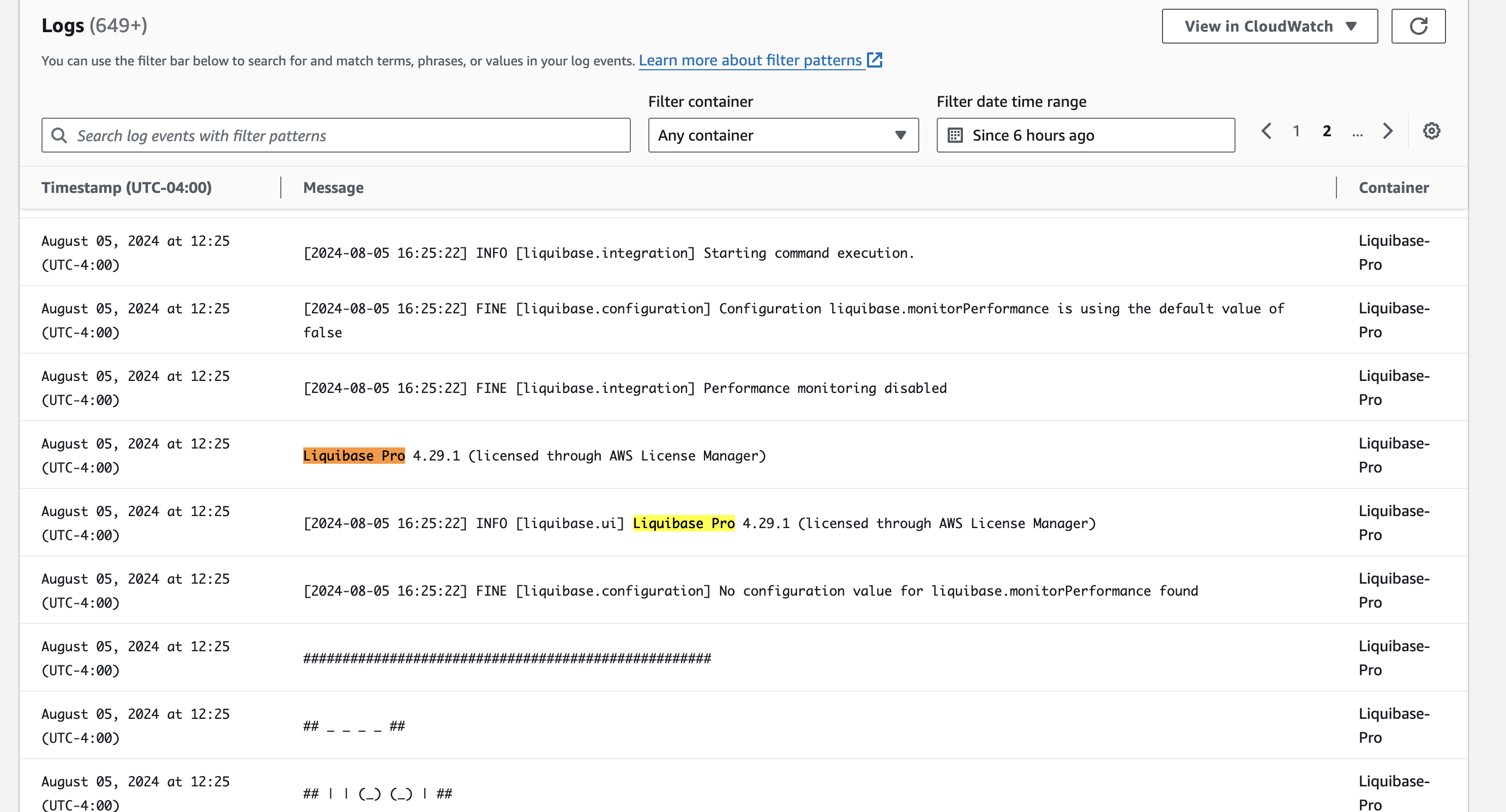
This message will display if you have a license: Liquibase Secure 4.33.0 (license through AWS License Manager)
You have successfully run and viewed the logs of a Liquibase command on AWS.