- Task
- Version · 6.0
- Create
Install and configure the Liquibase Secure Developer VS Code extension
Last updated: August 11, 2026
The Liquibase Secure Developer VS Code IDE extension integrates database change management directly into your development environment. You'll need to install the extension and configure four essential settings to use Liquibase Secure Developer in VS Code. Upon installation, the extension automatically detects these settings and uses them when running Liquibase commands. All auto-detected properties serve as defaults, but can be overridden if needed.
Required settings
Liquibase Home: The location of your Liquibase installation
Java Home: Your Java runtime environment path
Secure Key: Your Liquibase Secure license key
Configuration Path: Where your settings are stored (defaults to ".liquibase")
Before you begin
Required software
Visual Studio Code: Latest stable version recommended
Java: Version 17 or higher
Liquibase Secure License key: Version 5.0+
Database Drivers: For your target database platforms
Procedure
Open Visual Studio Code.
Select the Extensions icon in the sidebar.
Or press:
Windows: Ctrl+ Shift+X
MacOS: Cmd + Shift + X
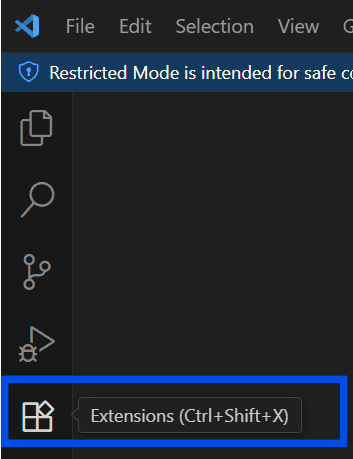
Search for Liquibase.
Select the official extension published by Liquibase and select Install.
Open VS Code and select the Extensions icon in the left side navigation.
Find the Liquibase Secure Developer extension in your installed extensions.
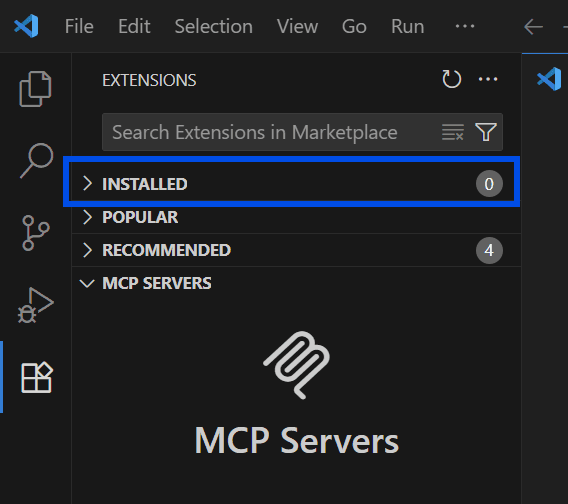
Select the gear icon next to Liquibase Secure Developer.
Select Settings from the drop-down menu.
This opens the Liquibase Secure Developer extension settings page, which contains all user-supplied and auto-detected configuration options for the extension.
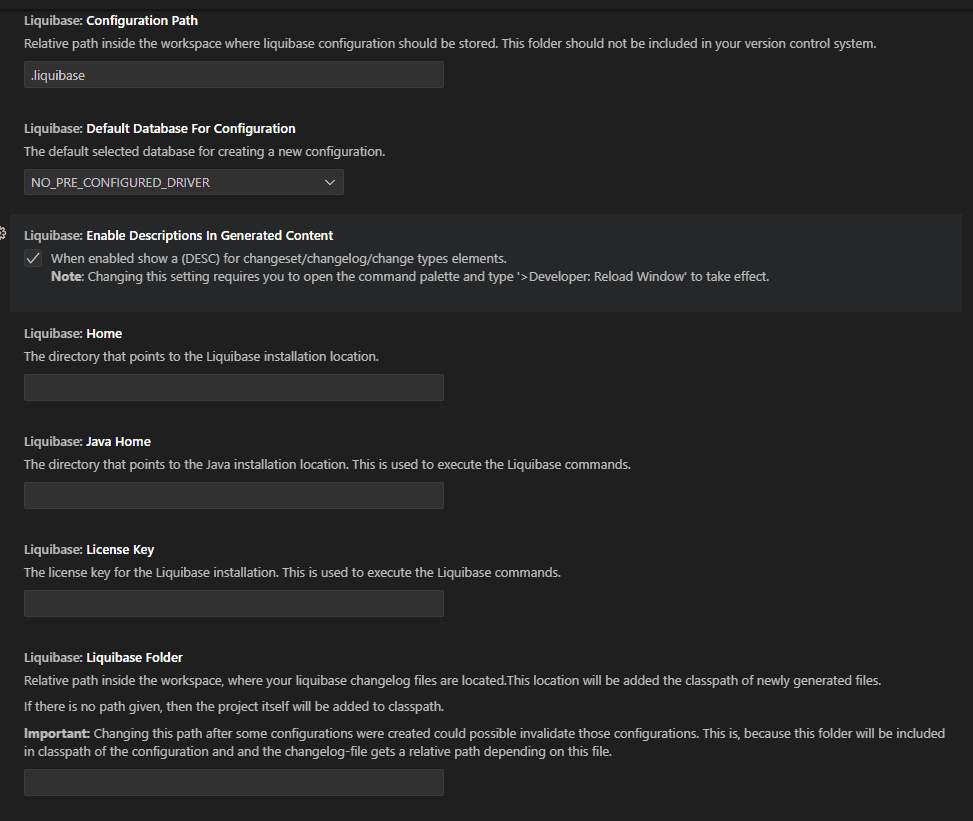
In this dialog, review these four settings and ensure they are correct.
Liquibase Home: The location of your Liquibase installation
Java Home :Your Java runtime environment path
Secure Key :Your Liquibase Secure license key
Configuration Path :Where your settings are stored (defaults to ".liquibase")
Results
Liquibase Secure Developer is installed and configured in VSCode and ready to use in your environment.