- Task
- Version · 6.0
- Create
Run commands in Liquibase Secure Developer with the Command Palette
Last updated: August 11, 2026
The Liquibase Secure Developer Command Palette is designed for experienced VS Code and Liquibase users who know exactly what task they need to perform. Use this method when you know the Liquibase operation you want, and do not need to browse options.
Use the Command Palette when:
You know exactly which command you need
You want to work quickly without navigating menus
You prefer keyboard-driven workflows
You are comfortable with command names and shortcuts
If you don't know which path will yield the desired results, use the Context menu method.
Procedure
Use your keyboard shortcut to activate the searchbar.
MacOS/Linux: On your keyboard, hold down Cmd + Shift + P
Windows: On your keyboard, hold down Ctrl + Shift + P
Begin typing liquibase for the auto-completion menu to appear.
In this example, we will type the liquibase update command and navigate down to the Liquibase Status: List pending updates option.

Navigate through the command palette prompts to configure Required and Optional settings.
Select your liquibase.properties file.
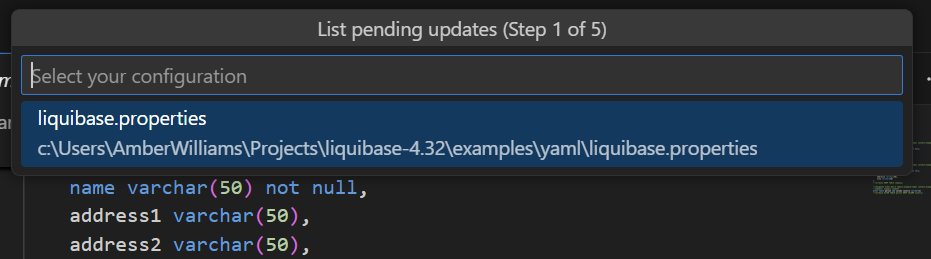
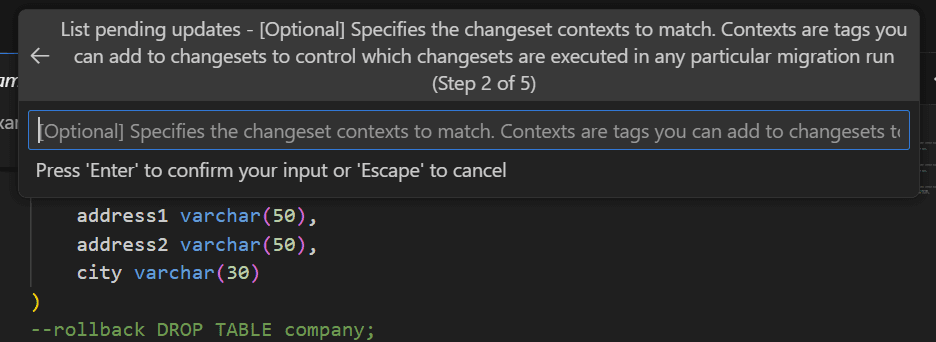
(Optional) Specify the contexts for Liquibase to narrow down your search.
If you do not want to specify any contexts, press Return or Enter to leave it blank.
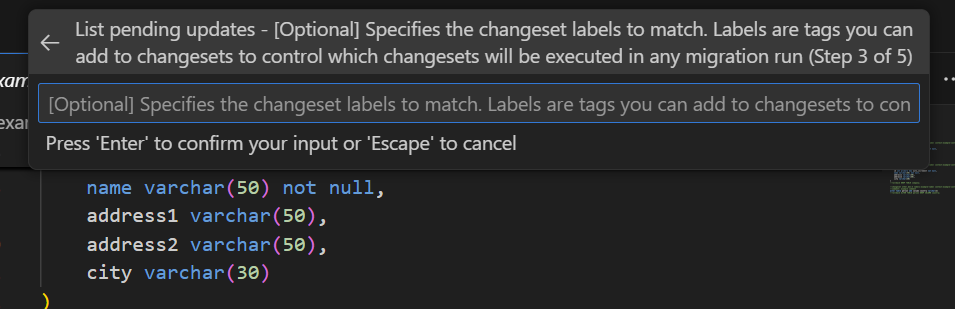
(Optional) Specify the changeset labels for Liquibase to narrow down your search.
If you don't need to specify any labels, press Return or Enter to leave this blank.
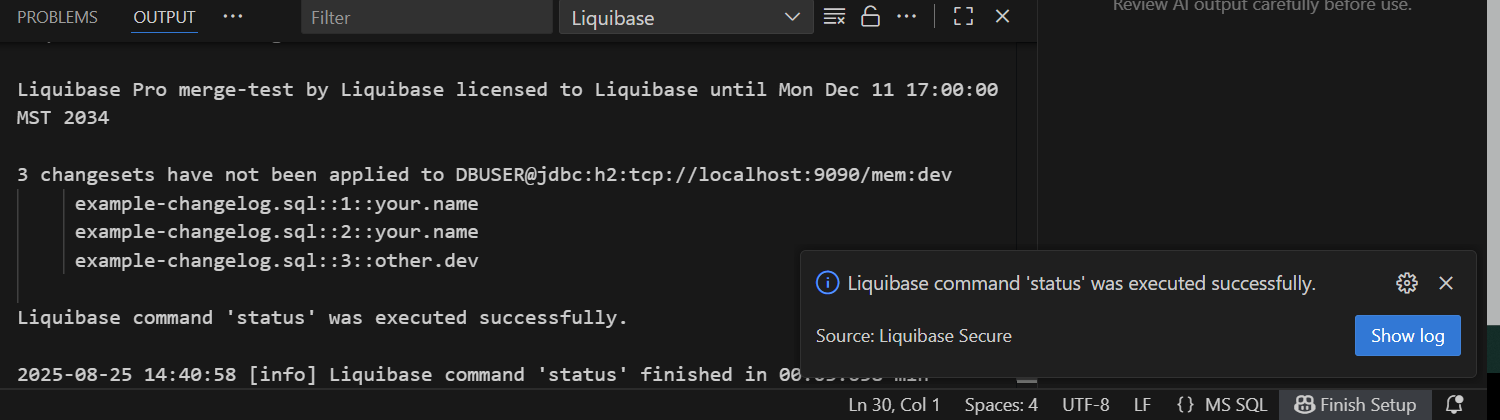
When the command runs successfully, you will see the notification in the bottom-right corner of VS Code that states:
Liquibase command 'status' was executed successfully.
You will also see the un applied changes in your Output window. In this example, we see three changesets that have not been applied.
Update your changelog with the pending changesets.
Use your keyboard shortcut again to activate the searchbar.
Linux: On your keyboard, hold down Cmd + Shift + p
Windows: On your keyboard, hold down Ctrl + Shift + p
Type liquibase update for the auto-completion menu to appear.
In this example, from this menu, we will select Liquibase Update: Update ommand (use existing defaults)
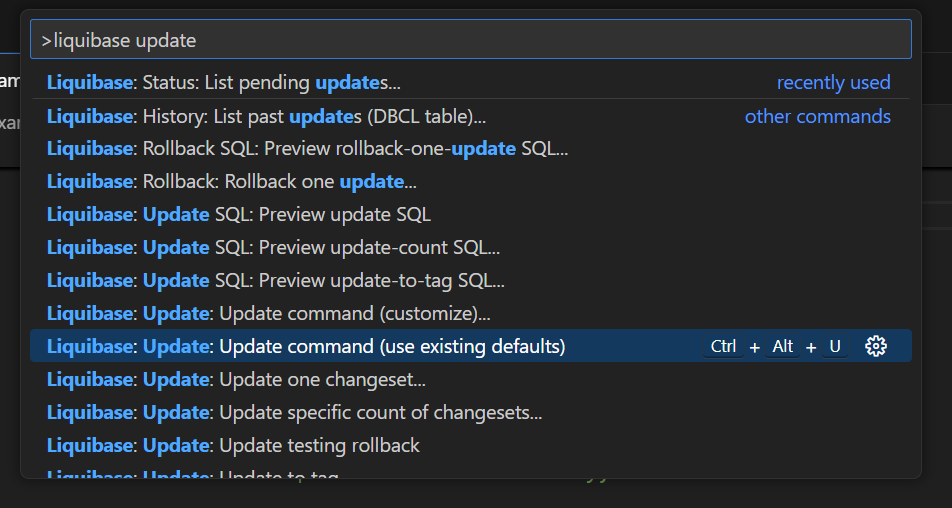
Select the liquibase.properties file that your project is using.

Results
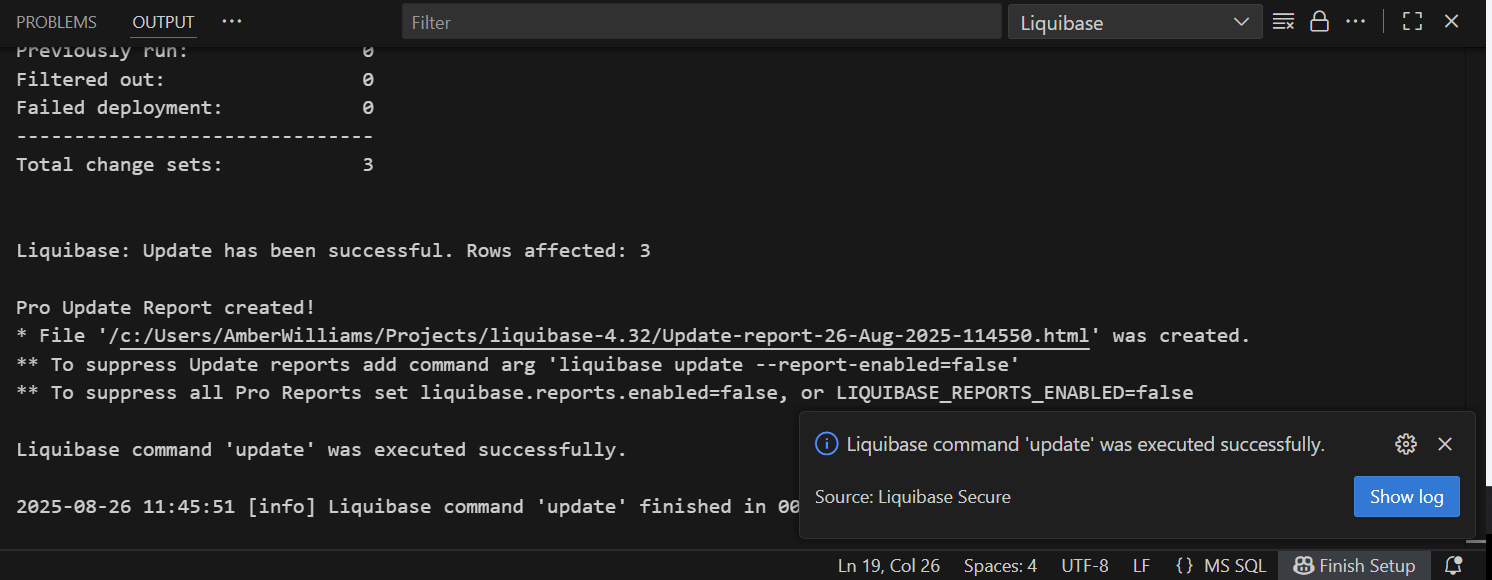
In the Output window, you will see the total change sets that were updated.
The Liquibase command 'update' was executed successfully message will appear.
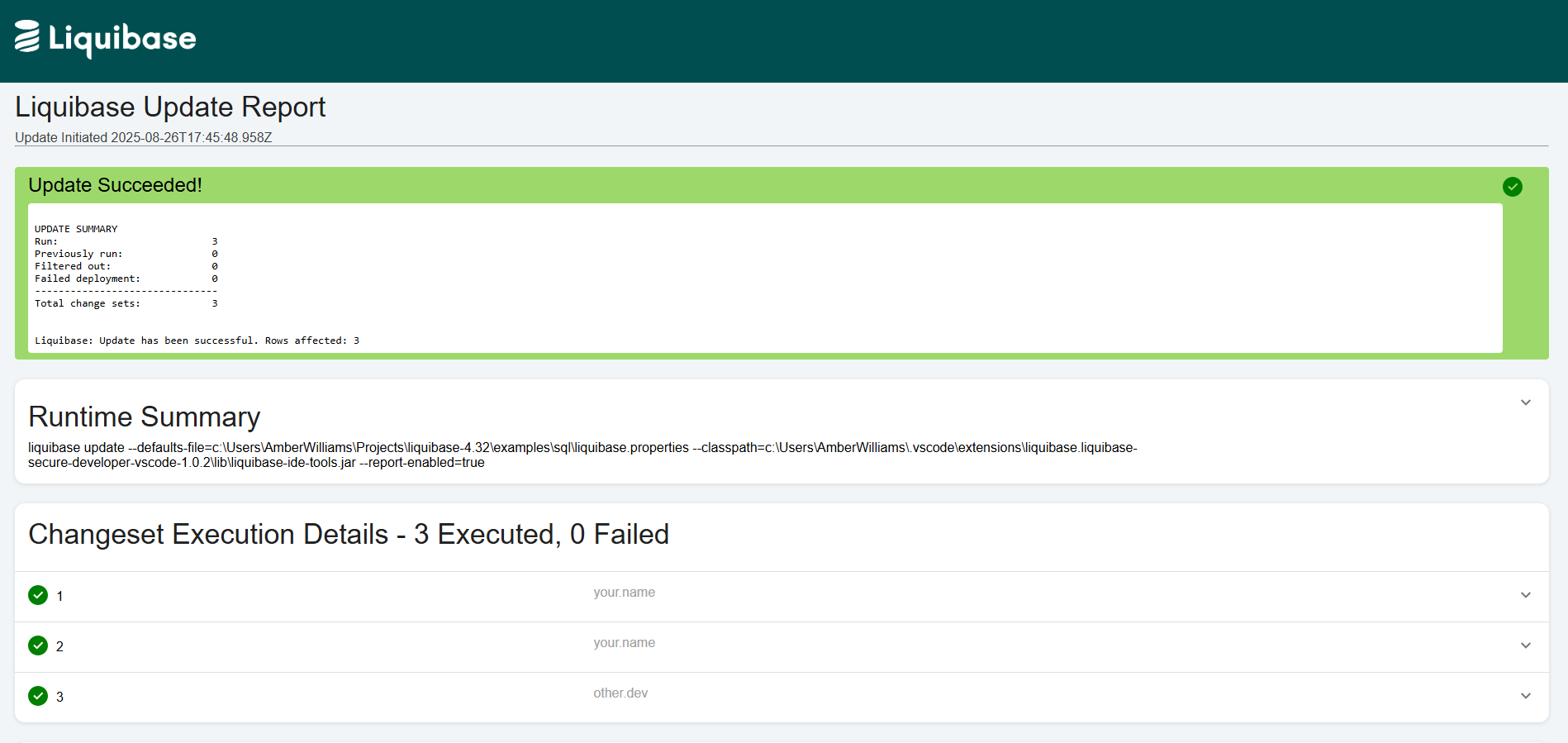
The Update report will display in a browser window.
Now you can use your combined Liquibase and VS Code knowledge to run other commands against your database in the IDE environment.