- Task
- Version · 6.0
- Govern
Organize checks and packages
Last updated: September 29, 2026
A catalog holds packages, and a package holds checks. Together they shape the check library into your organization's own rule sets, such as a compliance baseline, a per-platform standard, or a team convention. The built-in catalog is read-only, so organizing means creating your own catalogs and packages and copying checks into them.
If your team already runs policy checks from a file, importing that file builds the catalog and its packages for you instead.
Procedure
Create a catalog
Under Govern, select Policies to open Manage All Catalogs.
Select + New Catalog, give it a name, for example Payments Guardrails, and select Create catalog.
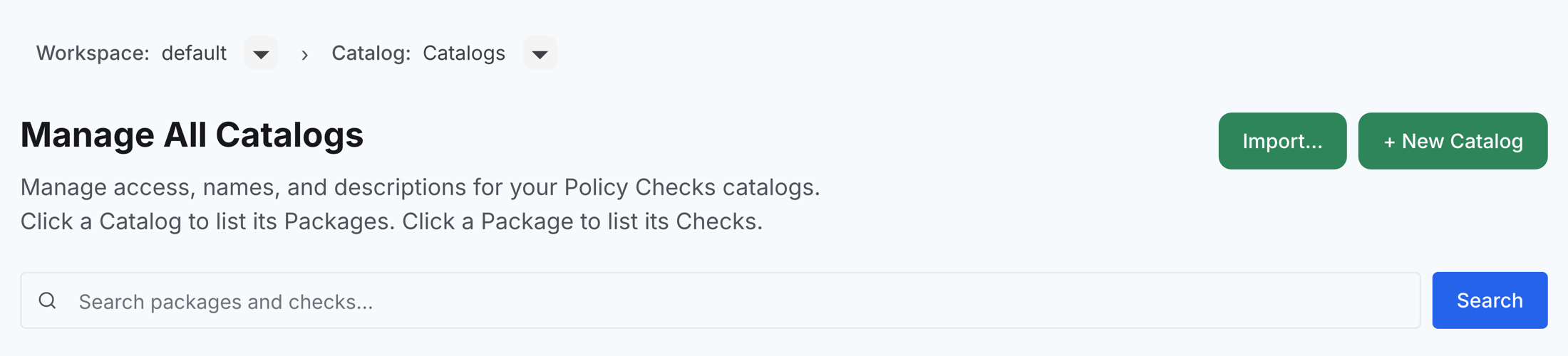
The new catalog appears in the list. Select Manage on it to open it, which is where the next step starts.
Copy packages into your catalog
A new catalog is empty, so its page offers Copy checks into this catalog to get started. Select it to open the Copy packages into dialog.
Copying a package brings its checks with it and creates the package in your catalog, so this is the quickest way to fill a new one. Under Source, pick the catalog you are copying from, select the packages you want, and confirm. The dialog counts your selection as you go, so the confirm button names how many packages it will copy and the catalog they are going into, and nothing is copied until you select it.
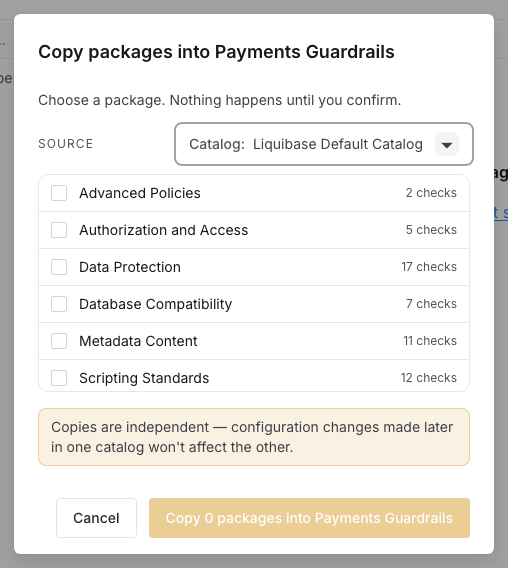
An empty package offers Copy a full package, which opens the same dialog.
Note: Copies are independent. Configuration changes made later in one catalog or package do not affect the other.
Build a package of your own
When the built-in grouping is not what you want, build the package yourself and choose the checks that go in it.
Open a catalog you created, select + New, and choose New Package.
Note: New Package and New Check are greyed out while the Liquibase Default Catalog is open, because it is read-only. Switch to one of your own catalogs first.
Give it a name, for example Compliance Rules, and an optional description of what the package covers, then select Create package.
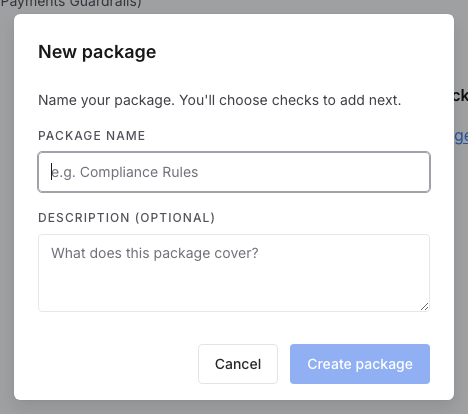
To fill the package with checks that already exist, select them on another package's page or in search results, and choose Copy to…. In the dialog, pick the destination catalog and package, then confirm with the button that names how many checks it copies. You can copy up to 500 checks at a time.
To add checks one at a time, open the package and choose + New Check, which opens Copy a single check with that catalog and package already set as the destination. Under Source, pick the catalog, package, and check to copy, then select Copy Check. While a package is still empty it offers the same dialog as a Copy a single check button, alongside Copy a full package.
Results
Your catalog and its packages now hold the checks your organization enforces. Nothing is being enforced yet, because a package takes effect only once an assignment carries it.
What to do next
Your catalog holds the packages you will enforce, and nothing runs until an assignment carries them. Define policy assignments to map them to the projects, pipelines, and changelogs they govern. After that, run checks with a policy assignment from your pipeline.