- Concept
- Version · 6.0
- Govern
Tune your policy checks
Last updated: September 29, 2026
This is the page you come back to. Nothing here is needed to get your first runs going. It is what you do once your practice moves on, when your changesets start carrying contexts and labels, when you settle on a row threshold, or when you adopt a naming standard. Read the results first. The Policy Checks dashboard under Monitor shows which checks fire constantly and which never fire, Review policy coverage shows which assets your policies reach, and Understand policy outcomes covers how severity, exit codes, and status relate.
Where tuning happens
You change a check in your own catalog, not in the assignment. Severity and parameters belong to the check in the catalog, which is why Enabled, Configure and Edit are greyed out in the read-only Liquibase Default Catalog. An assignment keeps its own enabled state per check, so turning a check off for one assignment leaves every other assignment alone.
In Policies, open your catalog and then the package. A package lists its checks as cards, and each card shows the short name, description, category, severity, and an Enabled toggle, which you switch one check at a time or all at once.
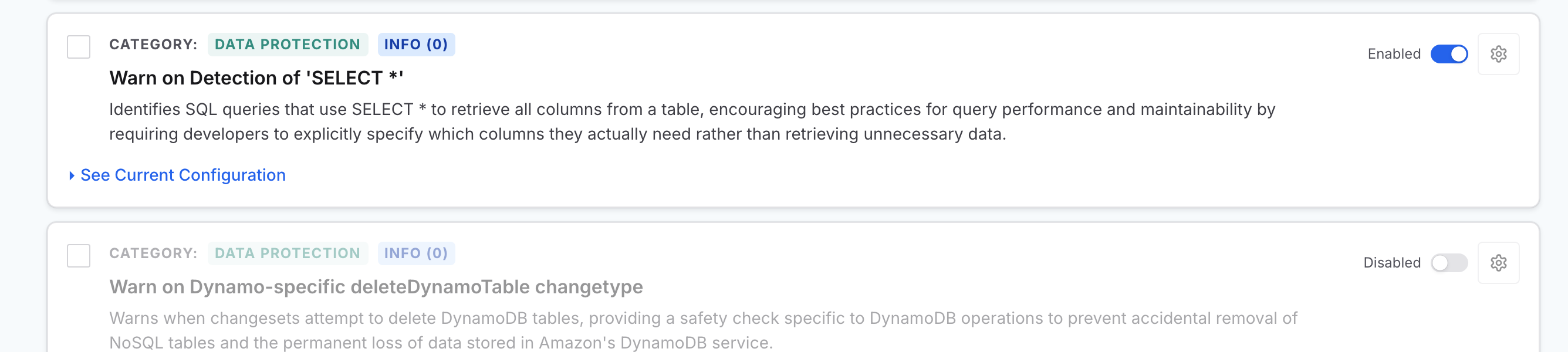
Note: Toggling Enabled saves on its own. There is no save button, and the change applies to that check in that package straight away.
Switch off the checks that flag nothing useful yet
If you copied the default packages, a few checks fire on every run until your practice, or a parameter, catches up with them. Each line names the package it lives in.
Metadata Content: Changesets Must Have a Comment Assigned and Changesets Must Have a Label Assigned. Switch these off unless every changeset already carries comments and labels. When should I use contexts, labels, or filter attributes? helps you work out which of them your team needs.
Data Protection: Check Affected Rows Count on Delete, Check Affected Rows Count on Insert, and Check Affected Rows Count on Update. Each one compares the rows a statement touches against a threshold you set, so it flags nothing useful until you choose that number. If you already know the limit your team wants, leave them on and set the threshold on each check instead.
Enable or disable a policy check walks through the toggle.
Turn on the checks you skipped
Come back for these as they start to fit. If you began from the default packages you switched some of them off, and if you imported a file some may never have been in it.
Metadata Content: the two checks above, once every changeset carries comments and labels.
Data Protection: the three Check Affected Rows Count checks, once you have chosen a row threshold and set it on each check.
Scripting Standards: Object name pattern match and Object name pattern not match. These are already in your catalog and ship disabled. Turn them on if you adopt a naming standard.
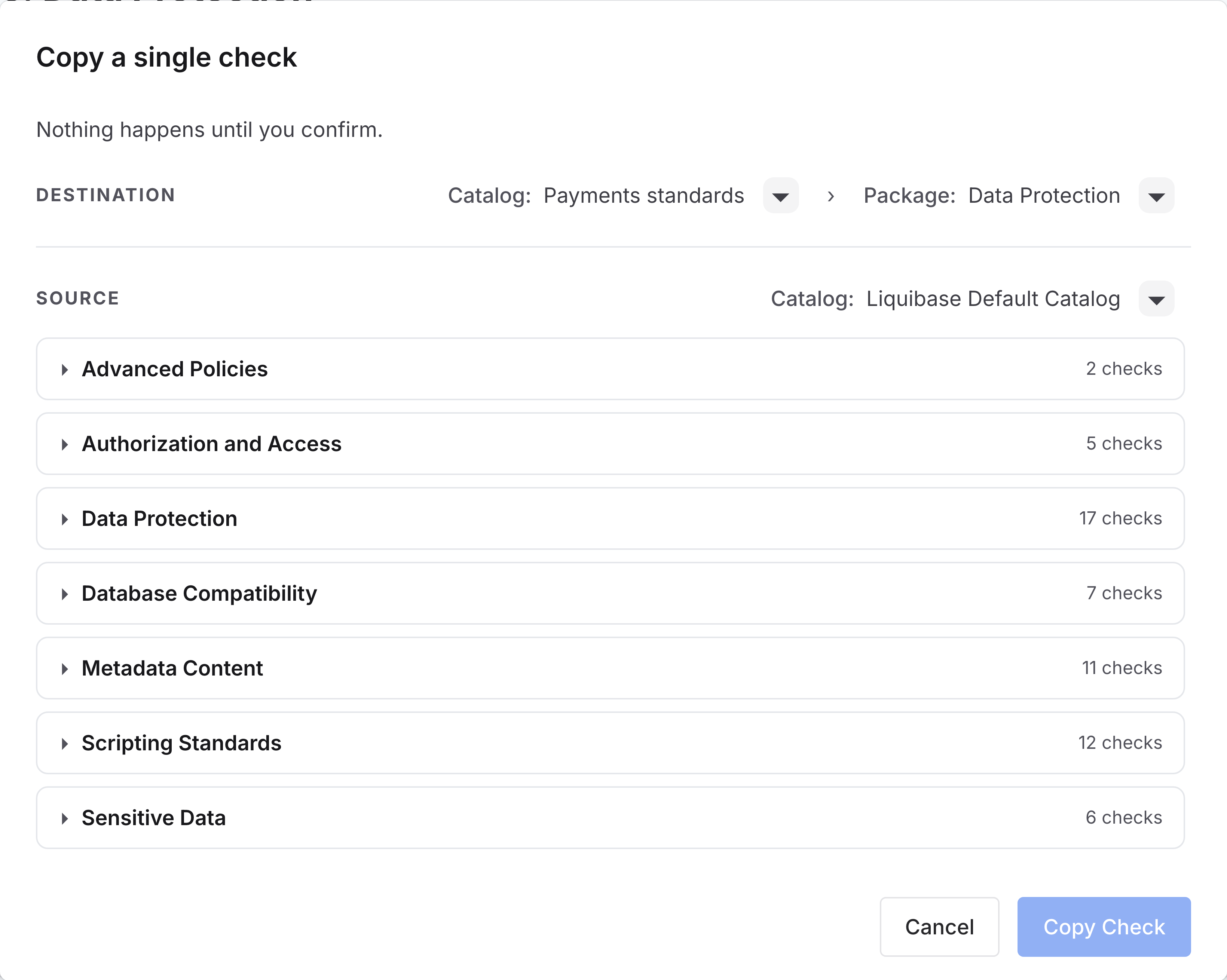
Database Compatibility: copy the package in and enable the reserved keyword check for your database platform.
Sensitive Data: copy the package in if you store personal data. All six of its checks ship disabled, so enable the ones you want.
What is in the Liquibase Default Catalog? lists every check in every package, so you can see what else is there before you go looking.
Change a check's parameters
To change a check's parameters:
On the check's row, open the gear menu and choose Configure. The configuration panel opens ready to edit. To read the current values first, choose See Current Configuration on the row instead, then choose Edit.
Set each parameter.
Choose Save…, then pick Save to overwrite the check or Save As to create a new check in any catalog and package.
Copies are independent, which is how a tuned library gets shared across teams. Configure a policy check and Customize a built-in check walk through both.
Raise severity when a check has earned your trust
Every check in the default catalog starts at the lowest severity, so the first runs report rather than block. When a check has earned your trust, raise it.
In Policies, open your catalog and then the package, and choose See Current Configuration on the check's row. The Severity row shows the current level with its exit code, for example
INFO (0).Choose Edit, pick the level you want, and choose Save….
The level decides the exit code your pipeline sees: 0 for INFO, 1 for MINOR, 2 for MAJOR, 3 for CRITICAL, and 4 for BLOCKER. Anything above INFO returns a nonzero code, so it can stop a job.
Note: When several checks trigger, Liquibase returns the highest exit code among them, and the same holds inside a flow file. Automation reads it with echo $? on Linux or echo %ERRORLEVEL% on Windows. These per-check codes are separate from the exit code Liquibase returns for a failed command.
Raise severity one environment at a time, warning in development before blocking in production. Policy check roll out best practices covers staging it that way. When a policy blocks a change, the developer responds to the failure and corrects and resubmits the change.
Add a rule of your own
You do not write code for this. Scripting Standards holds pattern checks that work as templates. Copy one into your package, give it a name, and set its search string to a regular expression. A rule that flags INSERT, UPDATE, DELETE, and MERGE statements in a changelog meant to hold schema changes only is one example. Create a policy check walks through it.
Note: Custom Python checks run from an assignment like any other check. The server delivers the script path with the check's configuration, not the script itself, so the script must be accessible at that path from the machine running checks run, and --checks-scripts-enabled must be set to true. The path can be a local file or a remote location such as S3.
What to do next
Your library now enforces what your practice is ready for. When a check has earned your trust, set policy check severity and exit codes to raise it, and stage the change one environment at a time with policy check roll out best practices.