- Task
- Version · 6.0
- Improve
Investigate detected drift
Last updated: September 29, 2026
Drift means a database changed outside Liquibase. Someone applied a hotfix by hand, another tool altered the schema, or an environment fell behind its reference. Drift checks are diff and diff-changelog operations, and the Liquibase extension reports them to the server automatically.
This guide takes you from a drift flag in the dashboard to a database that is back in a governed state. You find the drifted database, read exactly what changed, choose a remediation, and verify the fix.
Before you begin
Contact us to enable Change Intelligence.
The Liquibase extension is configured to report operations to the server. Drift checks appear in the dashboard whenever a
diffordiff-changelogcommand runs.You have Liquibase CLI access to the target database to run the remediation commands.
Procedure
Find the drifted database
Open the Drift Detection view and scan the Drift column. It reads Drift when a check found differences and Clean when it did not. Ignore the Status column for this question. Status says whether the diff command completed, and a check that found extensive drift still reports success.
The Changes column counts what was found as added, removed, and modified objects, and the Database column carries the connection's environment, so production drift stands out. Every field is described in What is the Drift Detection dashboard?.
Read what changed
Open the operation. The Drift Detection Results section organizes every detected change into All, Added, Removed, and Modified tabs. Each entry shows the object's fully qualified name, its type, and its drift age, for example first detected 5d ago. A large age means the drift is long-standing, not new.
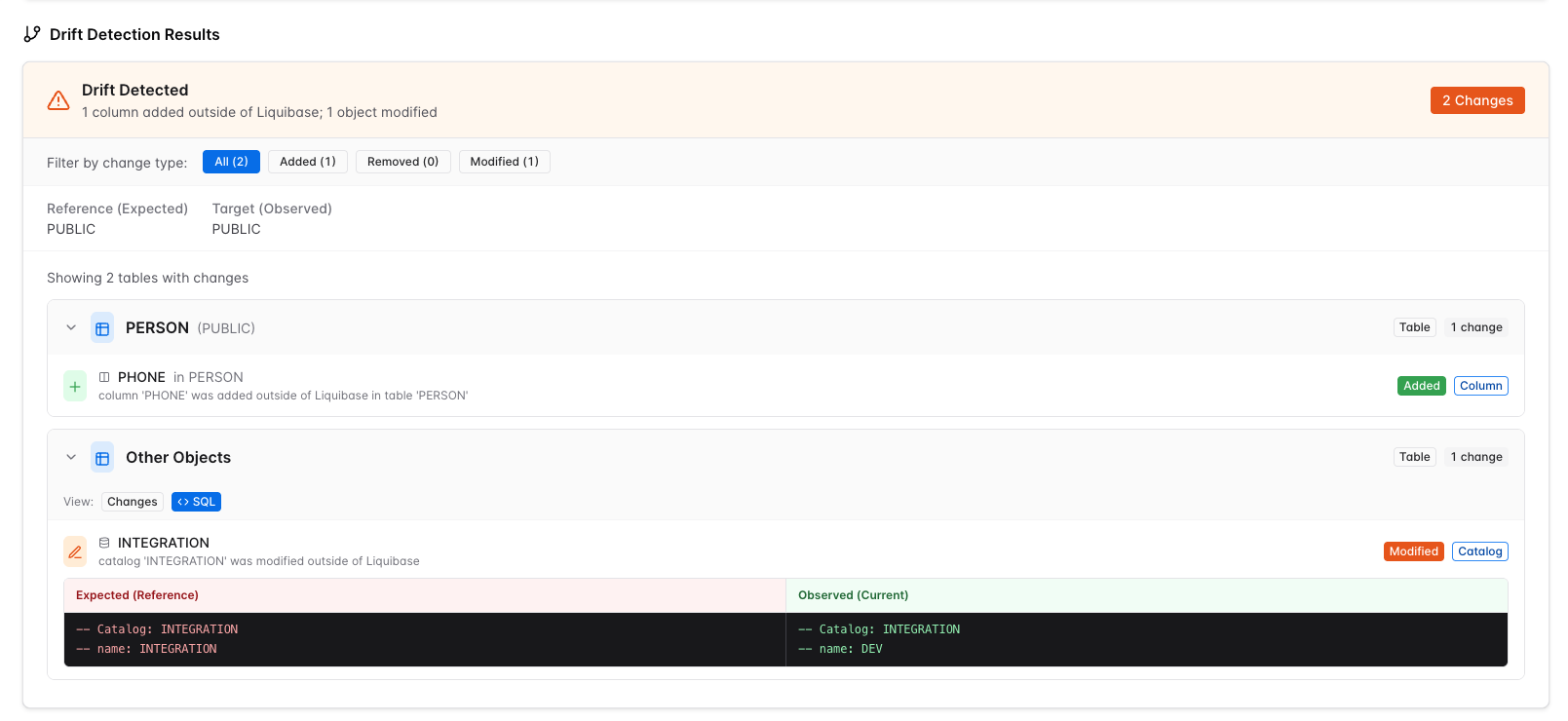
Select an entry to expand it and see the object's definition as a source-control diff. Added objects show their complete new definition. Removed objects show what disappeared. Modified objects show an inline diff of the prior and new versions. This is the statement-level answer to what changed.
Establish what changed and why
Confirm what the check compared before treating a difference as drift. The Target Database section shows the database that was observed, and the Reference section shows what it was expected to look like, either another live database or a captured snapshot. A comparison against the wrong environment produces differences that are not drift.
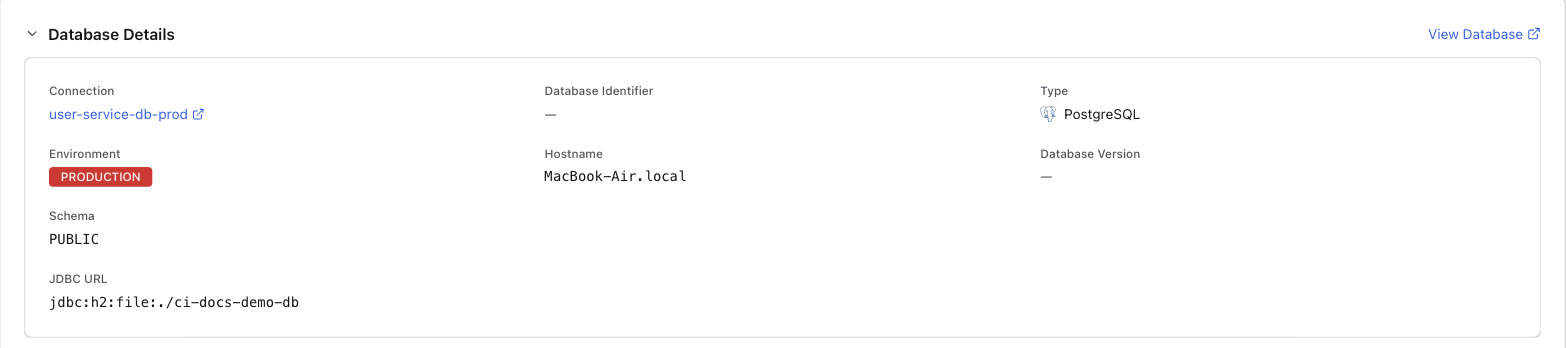
Then establish why. The drift age tells you when the change first appeared, which narrows who and what to ask. A hotfix during an incident, another tool with schema access, and a missed deployment all look the same in the diff. They differ in what should happen next.
Remediate the drift
Remediation is a choice between two paths.
Keep the change. If the out-of-band change should stay, capture it. Run
diff-changelogto generate the changesets that describe it, add them to your changelog, and mark them as already run to bring the tracking table in line. See Track and append manual changes with snapshots and diff-changelog.Restore the expected state. If the change should not have happened, write the correcting change as a changeset and deploy it through the pipeline. Do not fix drift by hand. A manual correction is itself an out-of-band change, and the next check finds it again.
Verify the database is back in sync
Rerun the drift check against the same connection and confirm the new operation reports Clean. The earlier detection stays in the history, which is your record of the incident and its resolution. If the same database keeps drifting, the problem is process rather than schema. See Understand drift history.