- Concept
- Version · 6.0
- Deliver
Configure policy checks
Last updated: September 29, 2026
Configuring policy checks is file-based. Settings are stored in a standard YAML file named liquibase.checks-settings.conf. You can keep the file in a centralized repository or another storage solution, giving teams and automation jobs a single consistent source to validate changes against.
Keeping it central is the point. A checks file that lives in each team's own repository is a suggestion; one that lives in a repository they read but cannot write is a policy.
Create the checks file
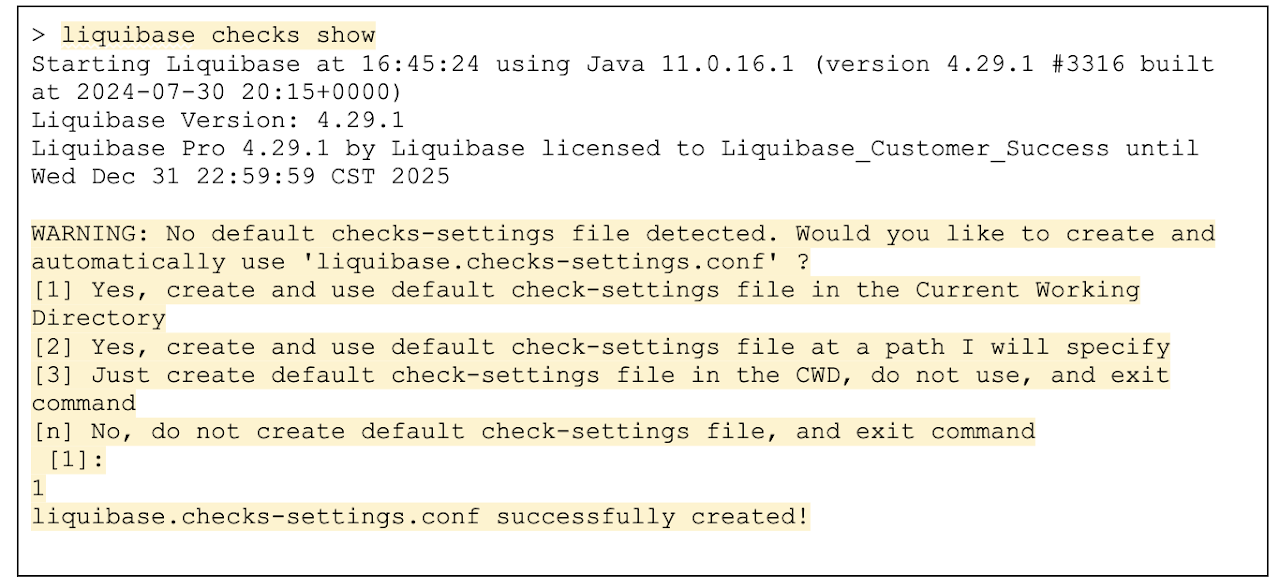
To build your own liquibase.checks-settings.conf, run liquibase checks show in your local repository. The command prompts for the location of the checks file.
Type 1 to create the checks file in the current working directory:
The default checks associated with your Liquibase version are then displayed in the console:
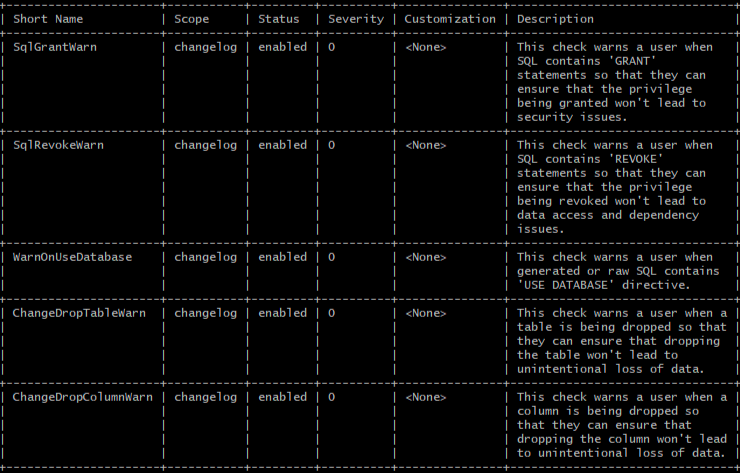
Note that every check arrives at severity 0, which reports but does not fail a run. Enabling a check is not the same as enforcing it; see the severity step below.
Enable or disable a check
liquibase checks enable --check-name=<check_short_name>
liquibase checks disable --check-name=<check_short_name>
Change the severity level
liquibase checks customize --check-name=<check_short_name>Severity determines the return code, which is what makes a pipeline stop. See Severity and exit codes in policy check automation for the levels and their codes, and Set policy check severity and exit codes for how to apply them.
Create a new check from a regular expression
liquibase checks copy --check-name=SqlUserDefinedPatternCheckCopying SqlUserDefinedPatternCheck gives you a check that matches any Java regular expression, which covers most organization-specific naming and pattern rules without writing Python.