- Task
- Version · 6.0
- Manage
Configure license alerts and thresholds
Last updated: September 29, 2026
Decide when the installation should warn you about license utilization, expiry, and nodes that have stopped reporting.
Before you begin
To change thresholds, you need to be a member of the Administrators group. Members of a group with the Security Reviewer template can read the Alerts tab but cannot save or reset the thresholds. See Liquibase Secure Role-Based Access Control.
At least one license file must be imported, so there is a license for the thresholds to be measured against.
Procedure
Open the Alerts tab
Go to Administer, select License Management, and open the Alerts tab.
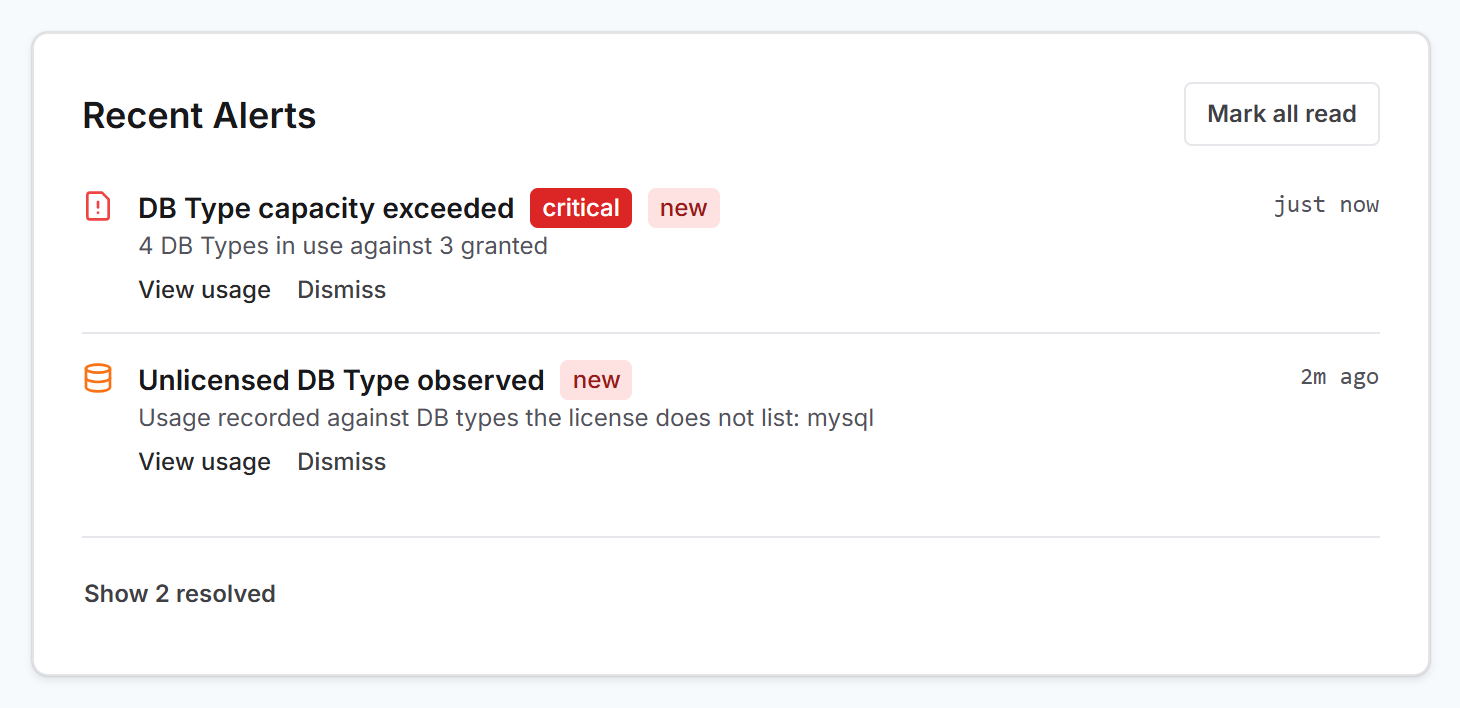
The tab lists the risk conditions compliance monitoring has raised. When nothing needs attention it says so, and reminds you that alerts also appear in the banner, on the notification bell, and on the Compliance tab.
Review the current alerts
Each alert names the condition and has a button that opens the tab where you can look into it:
View usage opens the Utilization tab. It appears on alerts about usage and reporting, such as
DB Target capacity exceeded,Unlicensed DB Type observed, andNodes stopped reporting.View license files opens the License Files tab. It appears only on alerts about license terms:
License expired,License expiring soon, andAdd-on expired while in use.
A resolved or dismissed alert shows no button.
Use Dismiss to clear a single alert, or Mark all read to clear them together.
View the thresholds
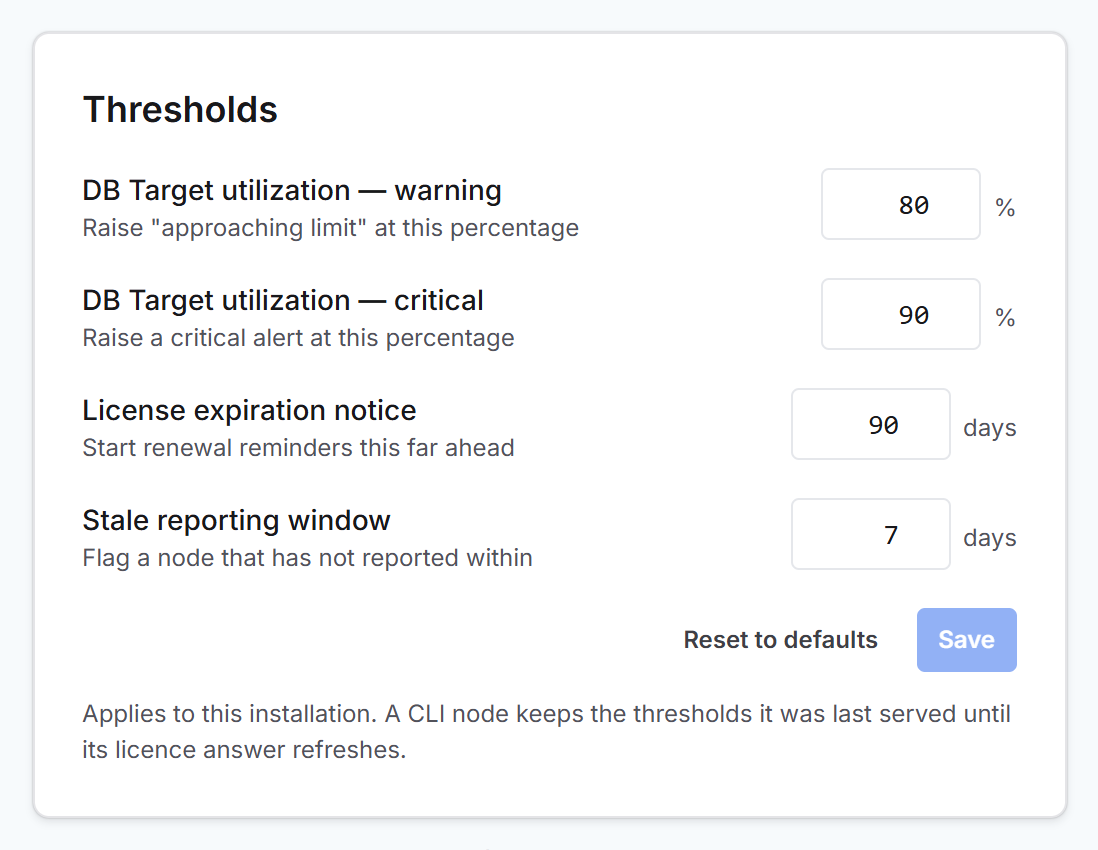
The Thresholds card is always shown below the alerts on the same tab. It holds the four settings that decide when an alert is raised.
Set the utilization thresholds
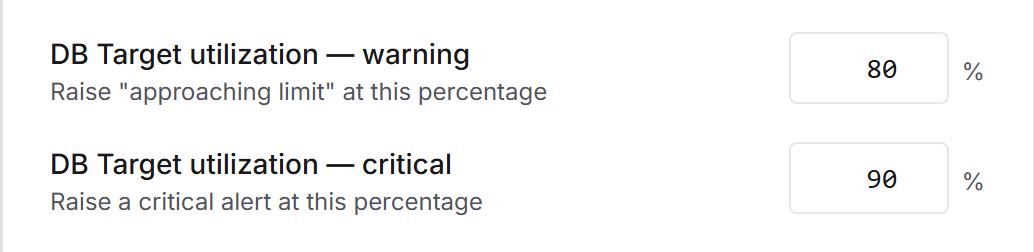
The first two rows of the card, both labeled DB Target utilization, decide when you are warned that database target usage is nearing your licensed capacity. Type a percentage of your licensed DB Targets in each box:
Warning (default 80): when usage reaches this percentage, Liquibase raises the
Utilization crossed the warning thresholdalert as a warning.Critical (default 90): when usage reaches this higher percentage, the same alert becomes critical.
For example, with a license for 1,000 DB Targets and the default settings, the alert appears as a warning at 800 targets in use and turns critical at 900. Once usage goes over 100 percent, the DB Target capacity exceeded alert replaces it.
Be sure to:
Enter whole numbers from 0 to 100.
Keep the warning percentage below the critical percentage. Otherwise the card shows
The warning percentage must be below the critical percentageand you cannot save.
Set the expiration notice
The License expiration notice row decides how many days before your license term ends Liquibase starts reminding you to renew. Type a number of days in the box. The default is 90.
When the term end date falls within that many days, Liquibase raises the License expiring soon alert. For example, with the default of 90, a license that ends on December 31 raises the alert from October 2 onward.

Enter a whole number from 0 to 3650.
Set the stale reporting window
The Stale reporting window row decides how many days a Change Automation node can go without reporting usage before Liquibase flags it. Type a number of days in the box. The default is 7.
When a node goes quiet for longer than this, Liquibase raises the Nodes stopped reporting alert. If no node at all has reported within the window, it raises Tracking data is stale. The Utilization tab uses the same window to judge the nodes in its Reporting Nodes table, and the Compliance tab uses it for the tracking data freshness check.

Enter a whole number from 0 to 365.
Save or reset
Select Save to apply your changes. Alerts are then re-evaluated against the new thresholds. Save stays unavailable until you change a value, and while any box holds a value the card cannot accept.
Select Reset to defaults to return all four settings to the defaults right away. You do not need to select Save afterward, and any changes you typed but did not save are discarded. The defaults are 80, 90, 90 days, and 7 days, unless your server administrator changed them in the server configuration.
The thresholds apply to this installation. A Change Automation node keeps the thresholds it last received until it next checks its license with the server.