- Task
- Version · 6.0
- Manage
Import license files into Liquibase Secure server
Last updated: September 29, 2026
Add the signed license files your contract came with, so the installation knows what it is entitled to run.
Before you begin
You need to be a member of the Administrators group. Members of a group with the Security Reviewer template can open License Management and see the stored files, but cannot import, remove, or re-verify them. See Liquibase Secure Role-Based Access Control.
Have the signed
.licfiles Liquibase issued you. Base, custom renewal, add-on, and consolidated files are all imported the same way.No internet access is required. Files are verified locally and nothing is sent to Liquibase.
Procedure
Open License Management
Go to Administer and select License Management.
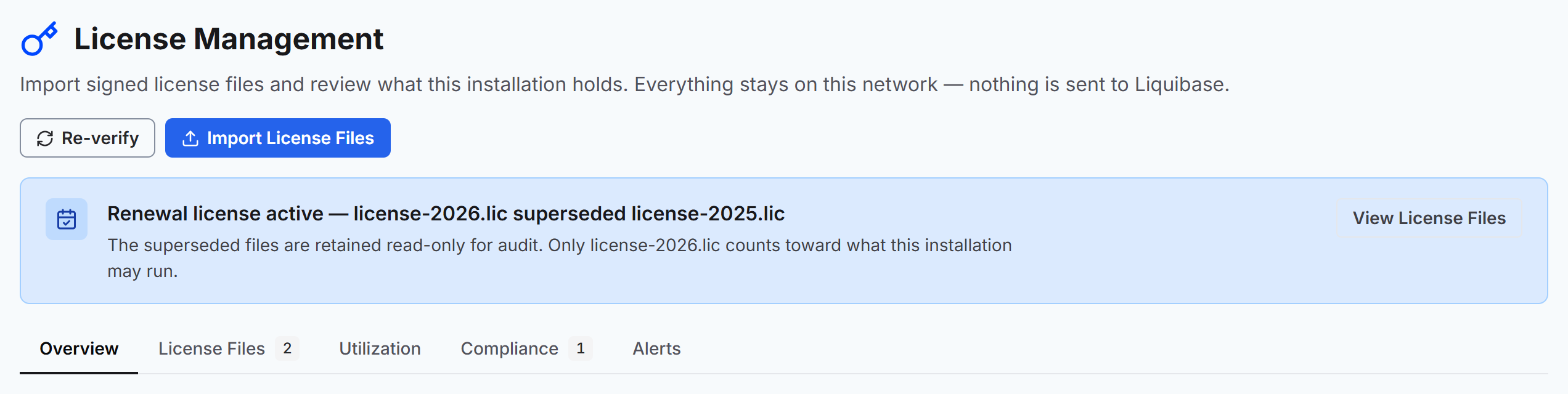
An installation holding no files shows a No license imported message with an Import License Files button. One that already holds files shows the license banner, the tab bar, and the stored file list.
Open the import dialog
Select Import License Files.
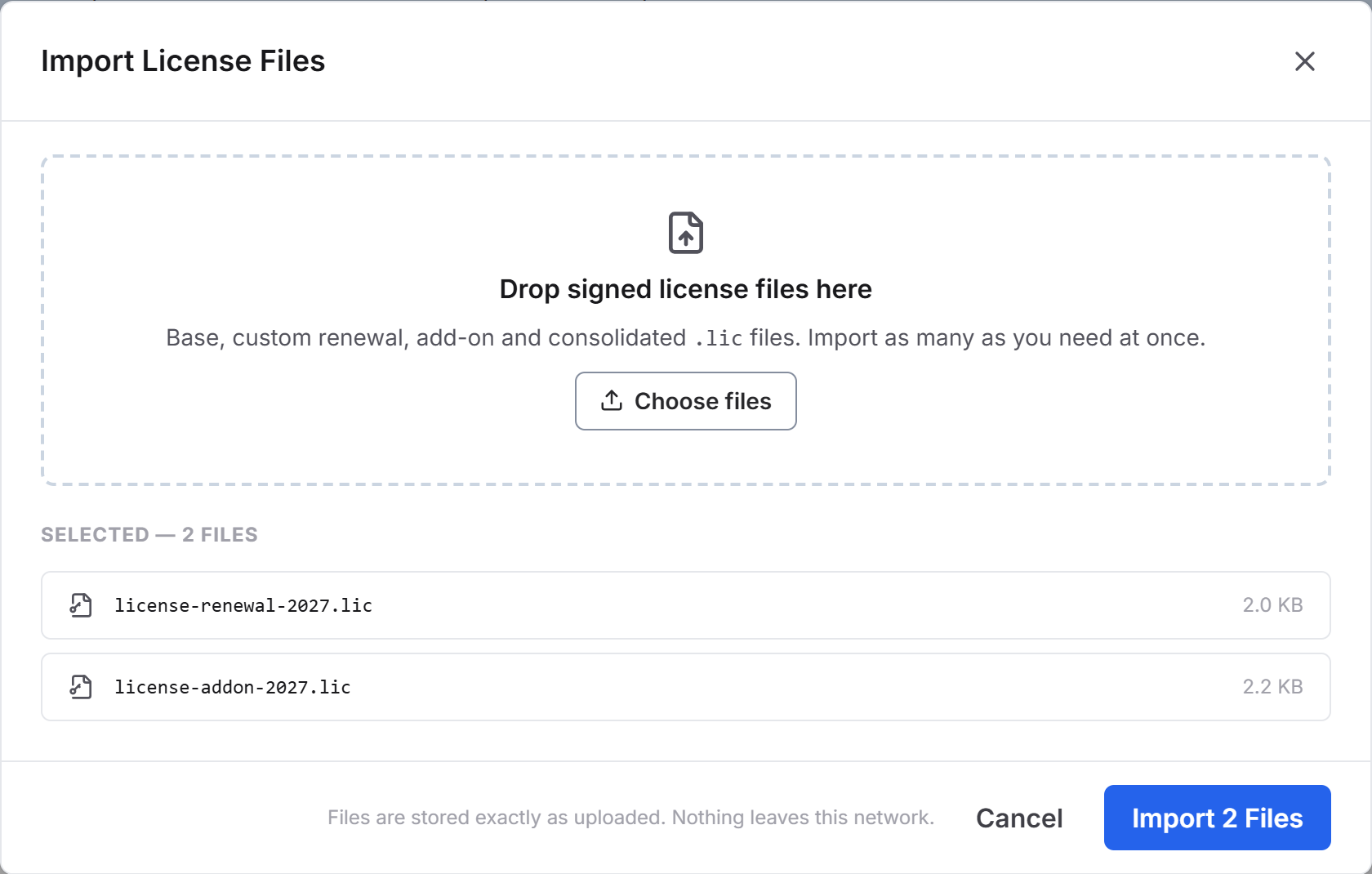
The dialog accepts base, custom renewal, add-on, and consolidated .lic files, and takes as many at once as you need.
Add the files
Drag the files onto the drop zone, or select Choose files and pick them from your file system.
Files are stored exactly as uploaded and never leave your network.
Import
Select Import to store the staged files. The button names the count, so a single file reads Import 1 File and three read Import 3 Files.
Check what was stored
If any file was refused, a warning appears above the tab bar naming each file and the reason it was not stored. Everything else in the batch is still imported.
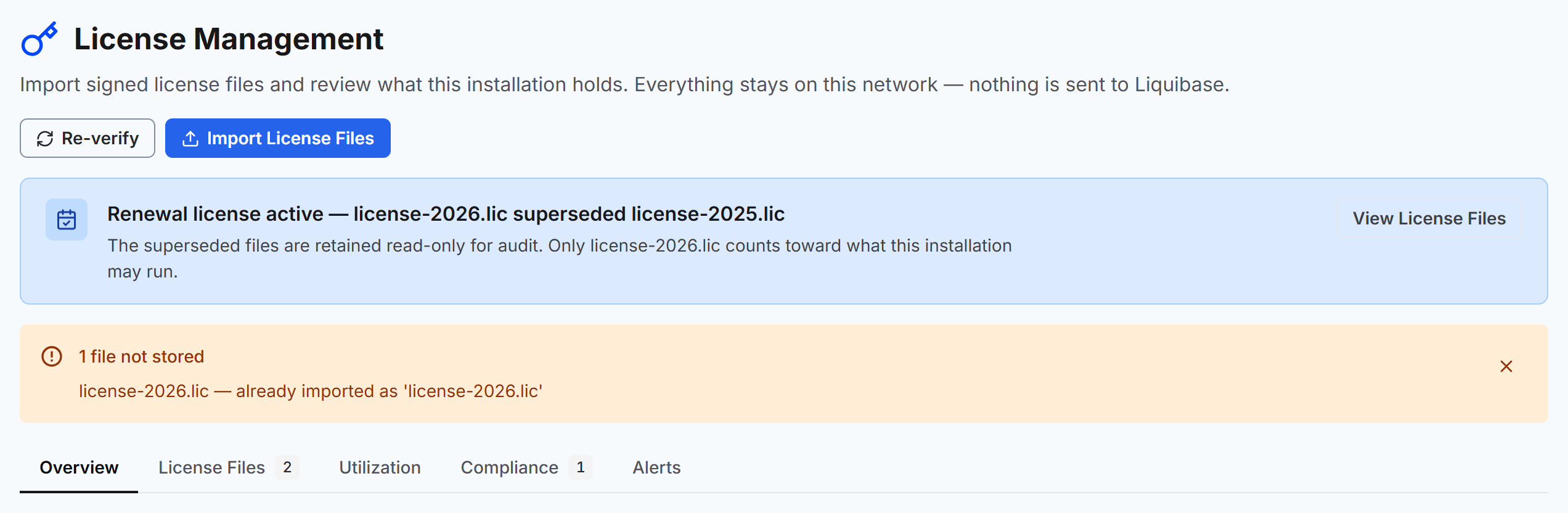
The most common reason is a duplicate. If one batch carries the same file more than once, every copy past the first is rejected under the name they share.
Review the standing of each file
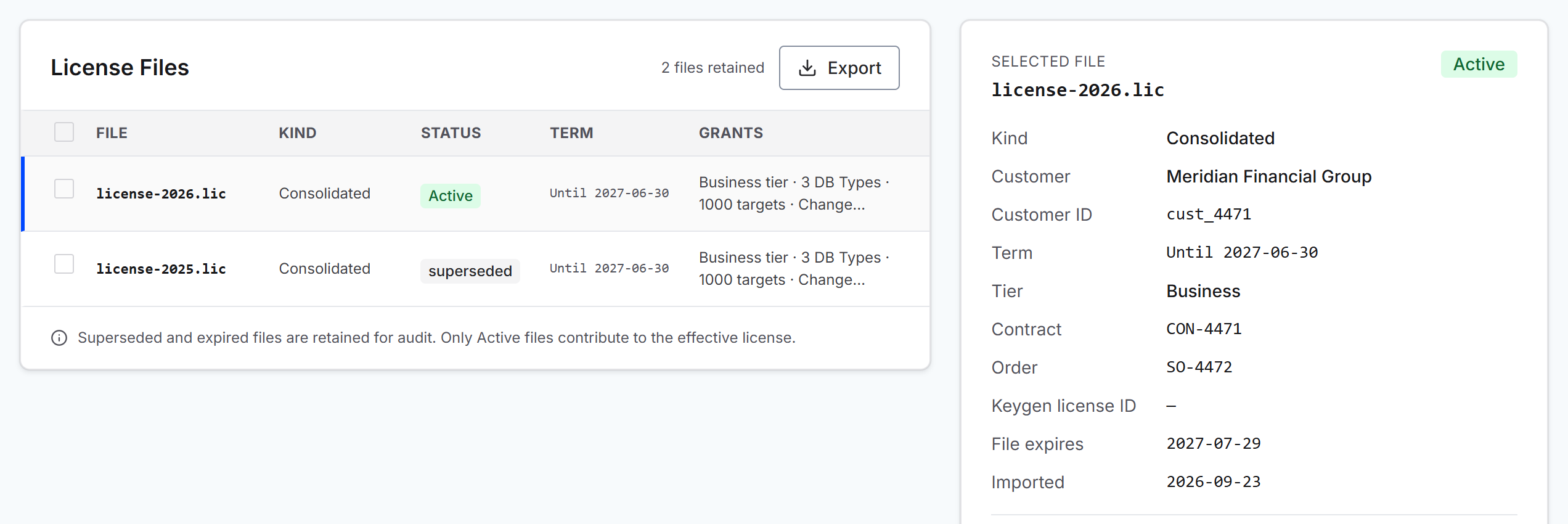
Open the License Files tab. Each row carries a standing:
Active means the file is one the resolution kept and it counts toward what the installation may run.
Any other value names why the file does not count, such as
superseded,term expired, or Invalid for a file whose signature did not verify.
Importing a newer file supersedes an older one rather than replacing it. Superseded files stay in the list read only, so an audit can see the whole history, but only the governing file feeds the effective license.
The panel beside the list shows the details of the selected file. Two dates appear, and they mean different things:
Termis the commercial term. It is the only date that decides whether the license is in effect.File expiresis when this copy of the file goes stale. Passing it does not end your license or change its standing. If you need a fresh copy of the file, contact Liquibase Support.
Re-verify after a signing key change
If the installation's trusted key set changes, the stored verdicts go stale. Select Re-verify in the page header to re-check every stored file at once.
Verification is a property of the installation's key set rather than of one file, so there is no per file equivalent.
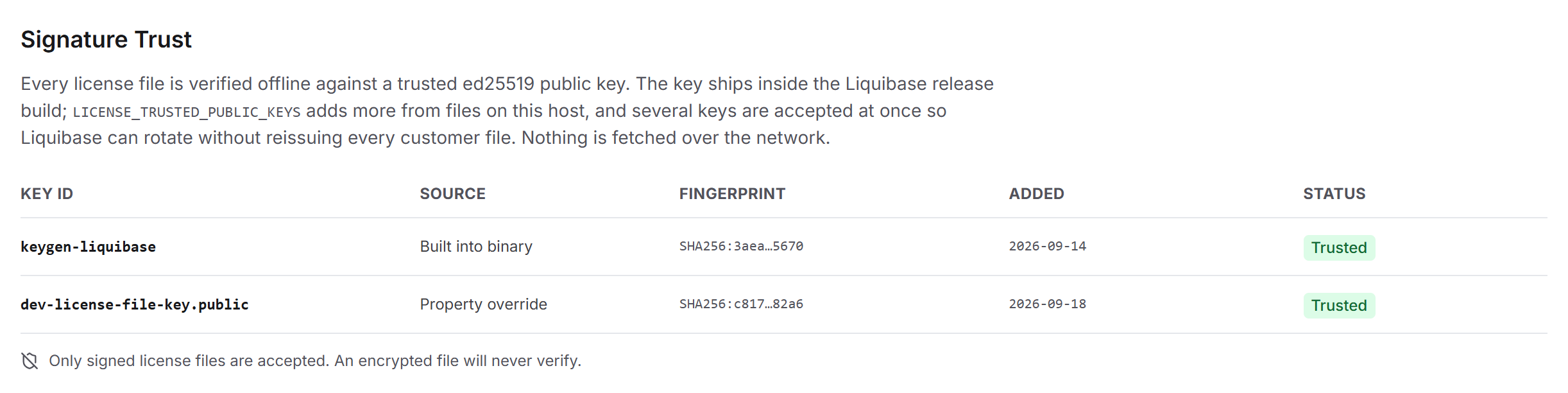
The Signature Trust card at the bottom of the License Files tab shows which keys the installation trusts, with the columns KEY ID, SOURCE, FINGERPRINT, ADDED, and STATUS. The key that ships with Liquibase reads Built into binary, so a new installation verifies production license files with nothing to configure. A key an operator added reads Property override.