- Task
- Version · 6.0
- Manage
Monitor license compliance
Last updated: September 29, 2026
Check the installation against every term its license carries, and see exactly which condition is at risk.
Before you begin
You need to be a member of the Administrators group, or of a group with the Security Reviewer template, which gives read only access. See Liquibase Secure Role-Based Access Control.
At least one license file must be imported.
Procedure
Open the Compliance tab
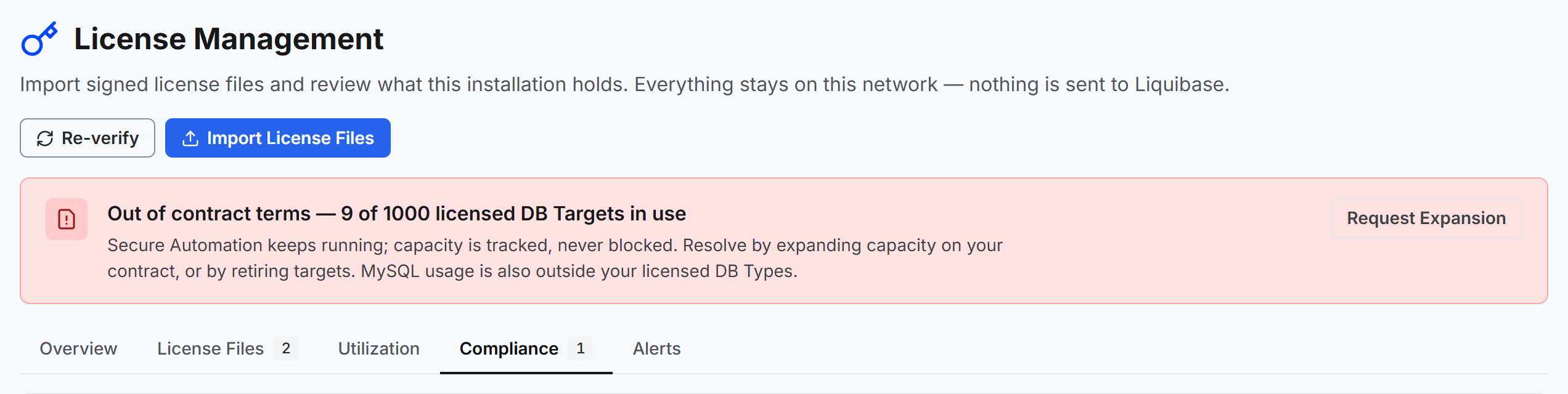
Go to Administer, select License Management, and open the Compliance tab.
The tab carries a badge counting the checks that are not passing, so you can see there is something to read without opening it.
Read the compliance checks
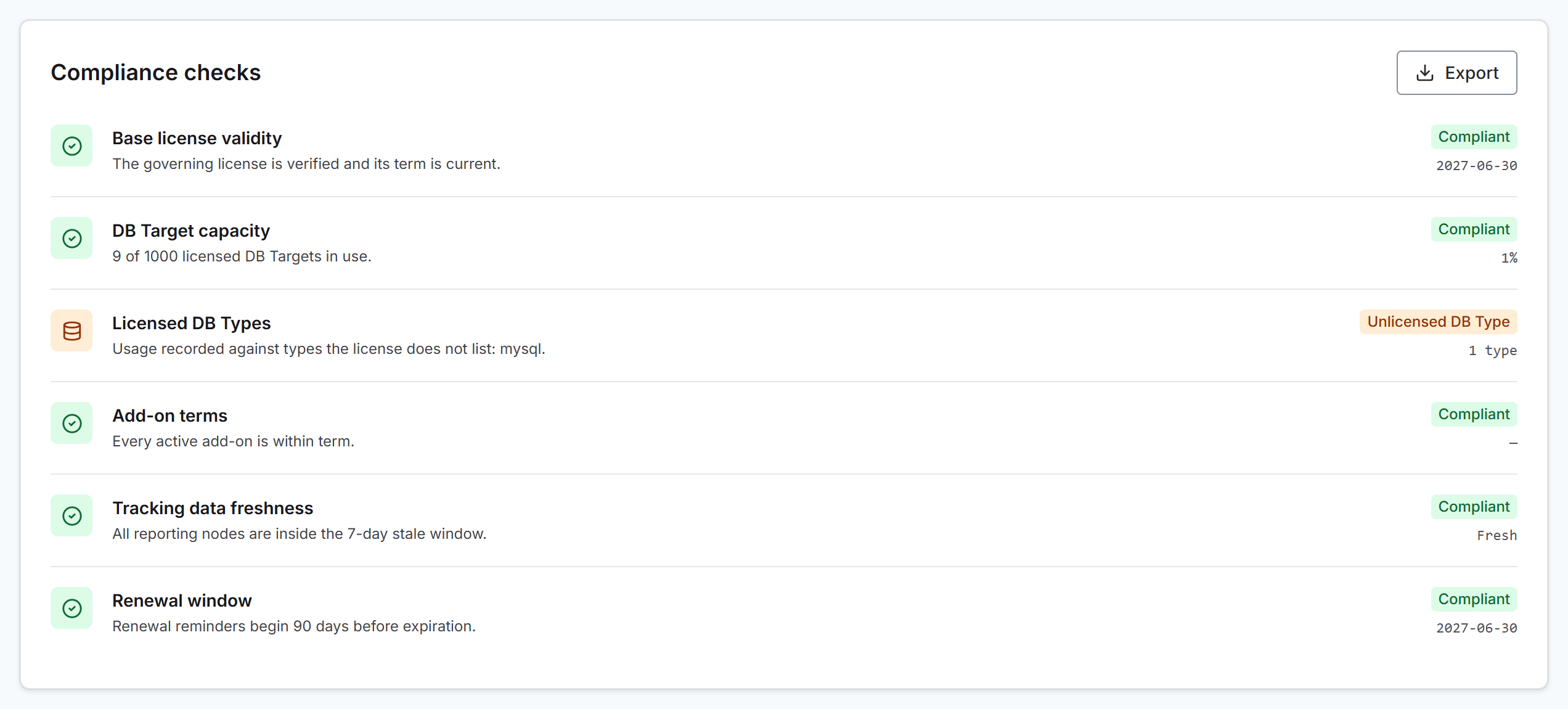
The tab lists six checks. Each one reads Compliant, or states what is wrong and what to do about it.
Check | What it confirms | Statuses when it is not Compliant |
|---|---|---|
Base license validity | The governing license is verified and its term is current. | Expired: The term has ended. Nothing may run until you renew and import the renewal file. Unlicensed: Nothing stored licenses the installation. |
DB Target capacity | Unique targets are within the licensed capacity. | Approaching limit: Utilization has passed the warning threshold. Over capacity: Unique targets exceed the licensed capacity. Execution continues. |
Licensed DB Types | The database types in use are ones the license grants. | Unlicensed DB Type: A type in use is not listed in the license. Over capacity: More types are in use than the license grants capacity for. Both are tracked and reported, and execution continues. |
Add-on terms | Every active add-on is within its term. | Expired add-on: An add-on is past its term. |
Tracking data freshness | Something reported inside the stale window. | Stale tracking: Nothing reported inside the window, so targets may be undercounted. If no usage has ever been recorded, the posture reflects the license alone. |
Renewal window | The term is not close to ending. | Action recommended: The term ends inside the notice period. Start the renewal conversation now. Renewal overdue: The term has ended. |
A check that cannot apply reads Not applicable. For example, with no governing license there is nothing to measure usage against.
Act on a failing check
Find the status the failing check shows, then follow its action.
Status | What to do |
|---|---|
Expired or Renewal overdue Base license validity, Renewal window | Import the renewal license file. If you do not have one, contact Liquibase Support. See Import license files. |
Unlicensed Base license validity | Import a base, renewal, or consolidated license file. An add-on file on its own does not license the installation. See Import license files. |
Action recommended Renewal window | Start the renewal with your Liquibase account team. When the renewal file arrives, import it. It takes over from the current base when its own term begins. |
Approaching limit or Over capacity DB Target capacity | Open the Utilization tab to see which targets and nodes make up the figure. See Review license utilization. Then either expand capacity with your Liquibase account team and import the add-on file you receive, or stop managing targets you no longer need. A target stops counting once the utilization window no longer includes a report of it. |
Unlicensed DB Type or Over capacity Licensed DB Types | Add the database type to your license through your Liquibase account team and import the add-on file you receive, or stop running Liquibase against that type. |
Expired add-on Add-on terms | Renew the add-on with your Liquibase account team and import the new add-on file. Until you do, the capacity or modules that add-on granted no longer count. |
Stale tracking Tracking data freshness | Open the Utilization tab and check the Reporting Nodes table for nodes that have stopped reporting. On each one, run |
The state banner above the tabs carries the same conclusion with one action. An expired or missing license offers View License Files. An over capacity result offers Request Expansion, which opens the Utilization tab so you have the figures in front of you when you contact your Liquibase account team. It does not send a request itself.
After you act, open the Compliance tab again to confirm the check reads Compliant. Checks based on utilization change only as the utilization window moves forward, so a capacity result can take time to clear.

Export the compliance report
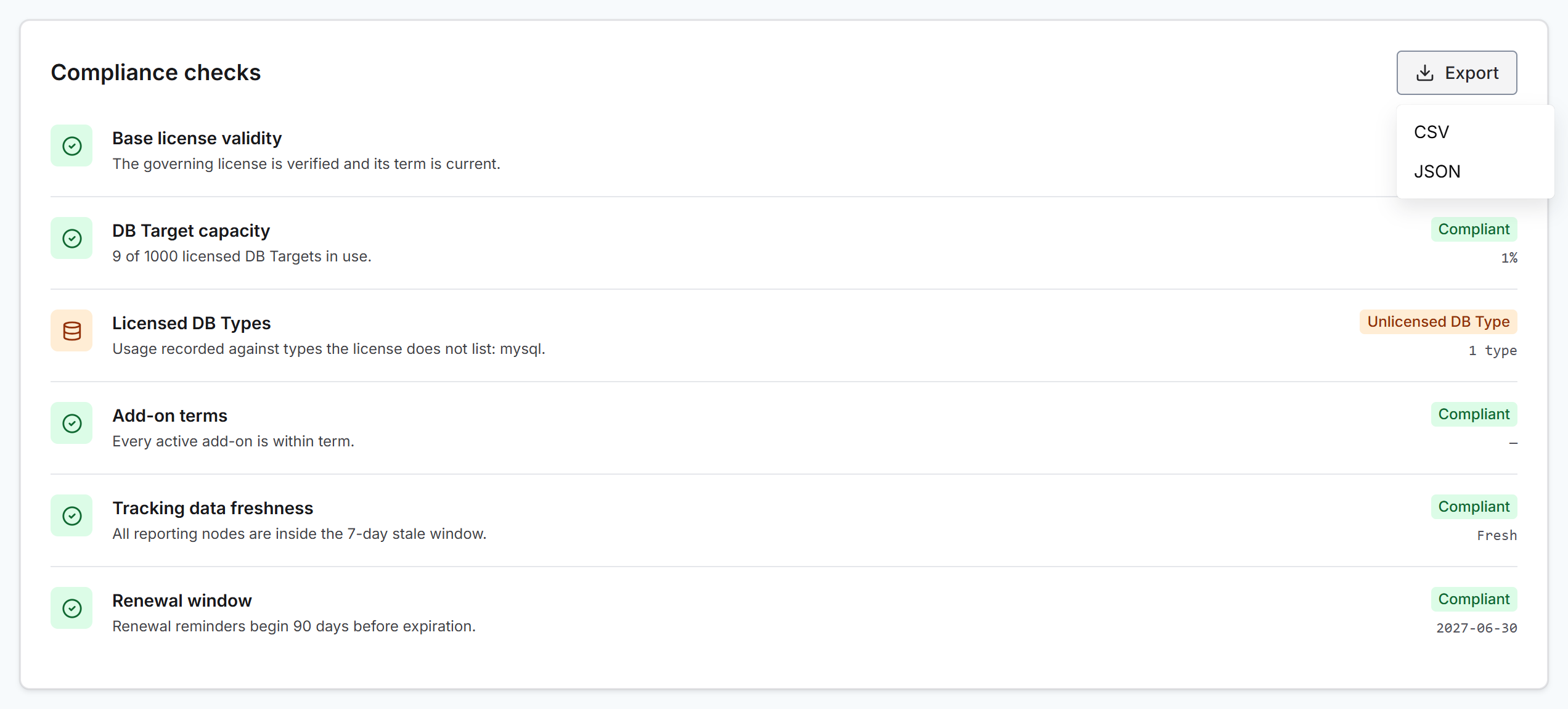
Select Export and choose CSV or JSON to download the compliance posture as a file.
The file records the overall status and when it was evaluated, each finding with its finding code, severity, and message, and the DB Target figures behind them.