- Task
- Version · 6.0
- Manage
Review the effective license
Last updated: September 29, 2026
Read what this installation is entitled to run, and see which imported file each grant came from.
Before you begin
You need to be a member of the Administrators group, or of a group with the Security Reviewer template, which gives read only access. See Liquibase Secure Role-Based Access Control.
At least one license file must be imported. Until then, License Management shows only a
No license importedmessage, with no tabs. See Import license files.
Procedure
Open License Management
Go to Administer and select License Management. The Overview tab opens by default.
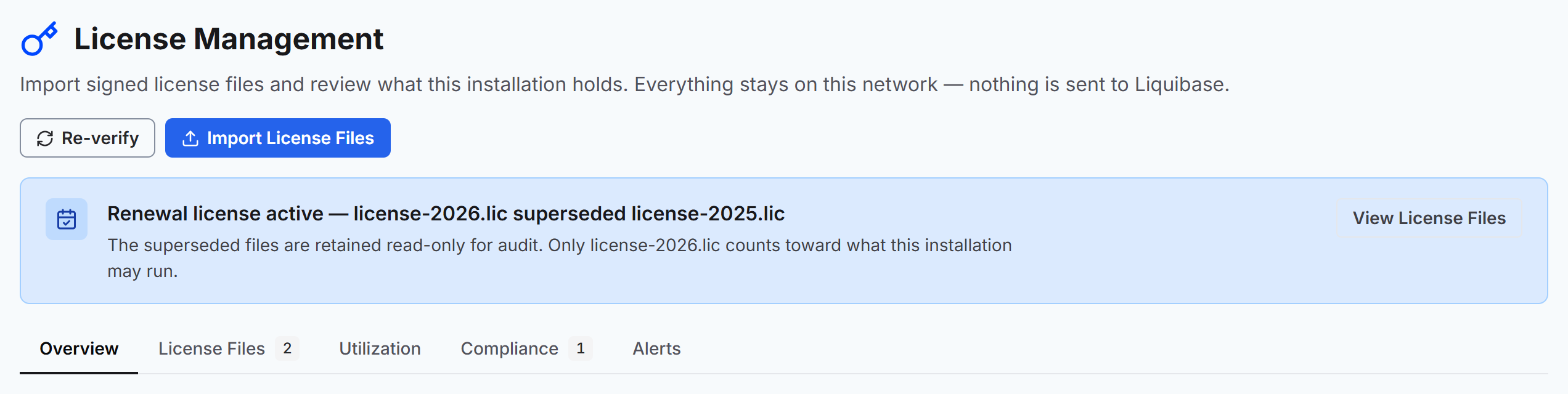
Overview shows the Effective License card. One installation resolves to one effective license, so this card is the whole answer rather than one of several.
Read the commercial identity
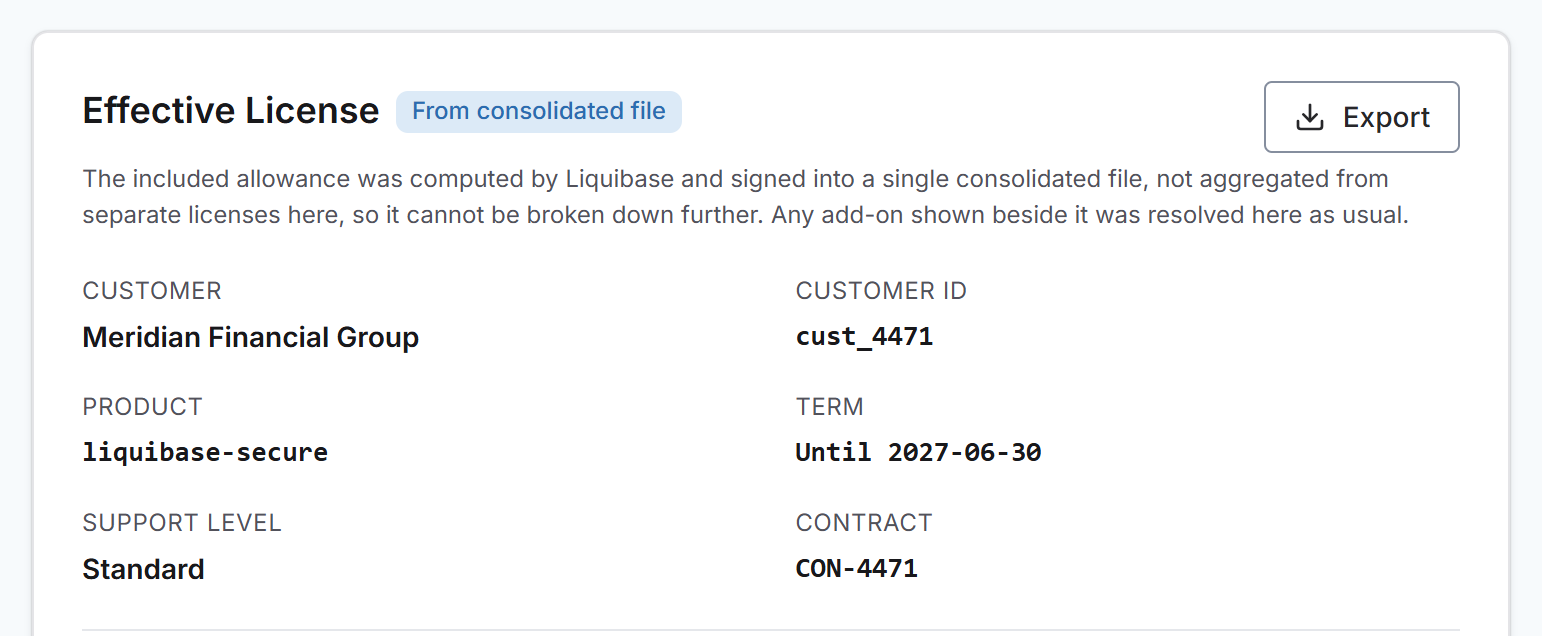
The card states who the license belongs to and what was bought:
CUSTOMER and CUSTOMER ID identify the licensed organization.
CONTRACT and PRODUCT name the commercial agreement and the product.
SUPPORT LEVEL is the support tier carried in the license: Standard, Premium, or Signature.
TERM and the commercial term end date state how long the license runs.
License key material is never displayed. Only the license key identifier is shown, and keys are masked everywhere they could otherwise appear.
Read the grants
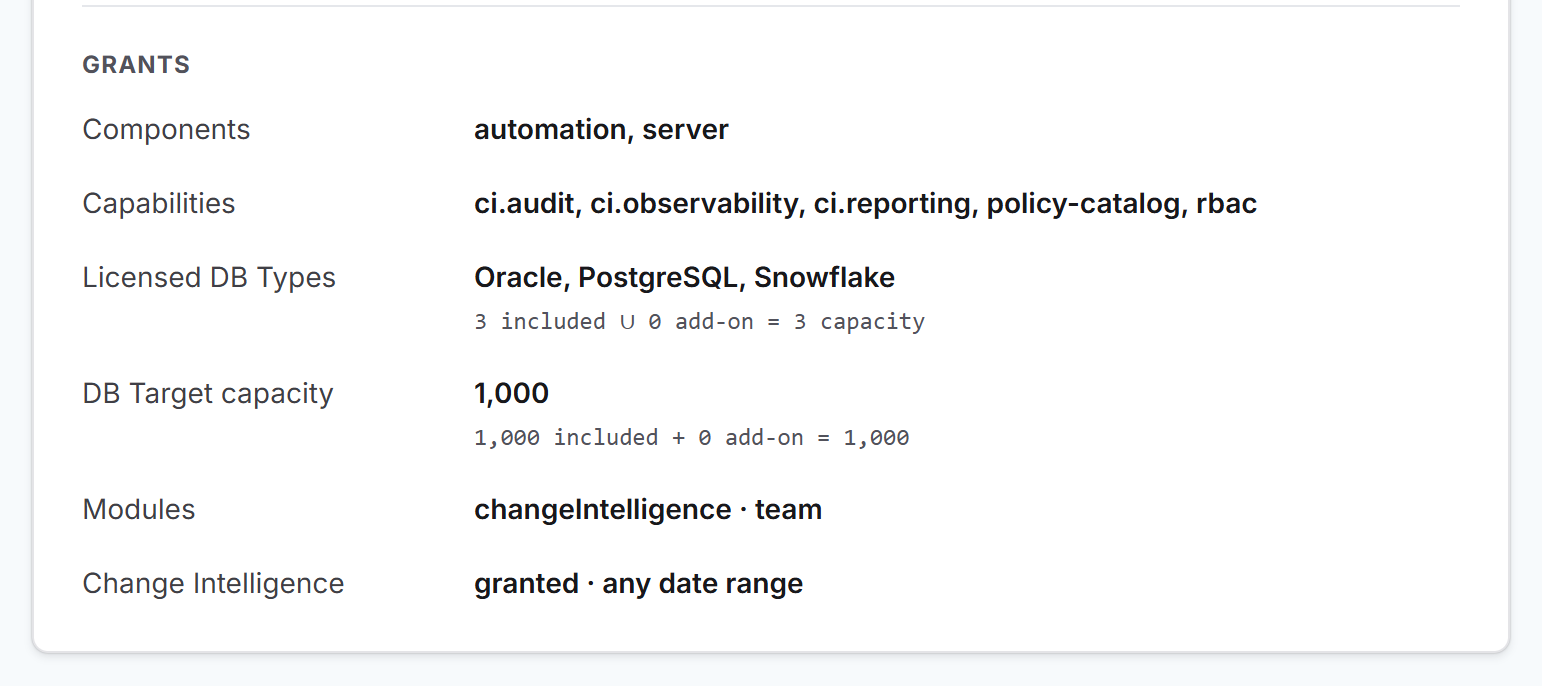
The grants section states what the license permits:
Licensed DB Types are the database types you are entitled to use, with a count of how many types you may use.
DB Target capacity is how many distinct databases you may act on.
Components, Modules, and Capabilities are the parts of Liquibase the license switches on.
Both capacity rows show where their total came from, split into two parts:
Included: the capacity that comes with your base license, which is the license for your Liquibase Secure subscription.
Add-on: extra capacity you bought separately. It arrives in its own add-on license file and adds to the capacity of your base license.
For example, a base license for 750 targets plus an add-on for 250 targets reads 750 included + 250 add-on = 1,000. If no add-on license is in effect, the add-on part is 0.
A consolidated license file works differently. Instead of giving you your base license and your add-ons as separate files, Liquibase can combine them into one consolidated file. Liquibase adds up the capacity before it signs the file, so the file holds a single total for each grant. The card marks this with a From consolidated file badge and shows the whole total as included, even if part of it originally came from an add-on. For example, a consolidated file built from a 750-target base license and a 250-target add-on reads 1,000 included + 0 add-on = 1,000.
If you later import a separate add-on file on top of a consolidated file, that add-on counts as an add-on as usual. The next step shows which file contributed what.
See which file produced each grant
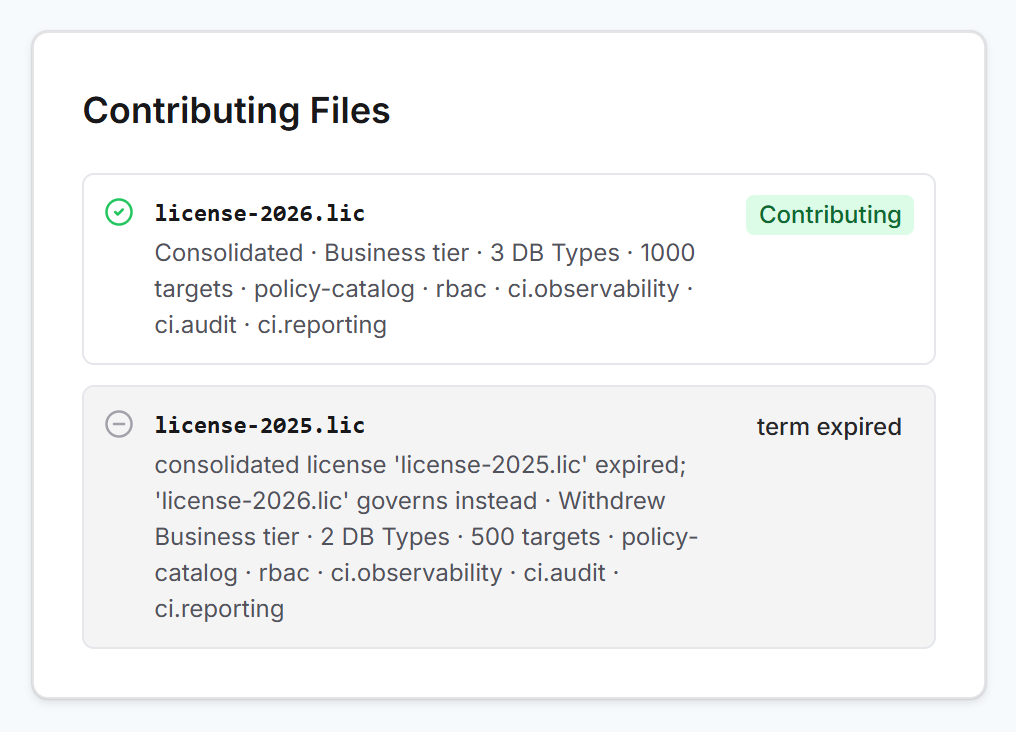
Look at the Contributing Files panel beside the card.
Each contributing file states what it carried into the answer in its own terms rather than the installation's total. An add-on reads as a positive increment, such as +10 targets, next to a card showing the combined figure.
A file that was excluded names the quantities it put at stake as well as the reason it does not count. A file that once contributed and then stopped is described as having withdrawn its grants. A file that never counted is described as stating them, marked as not counted.
Read the state banner
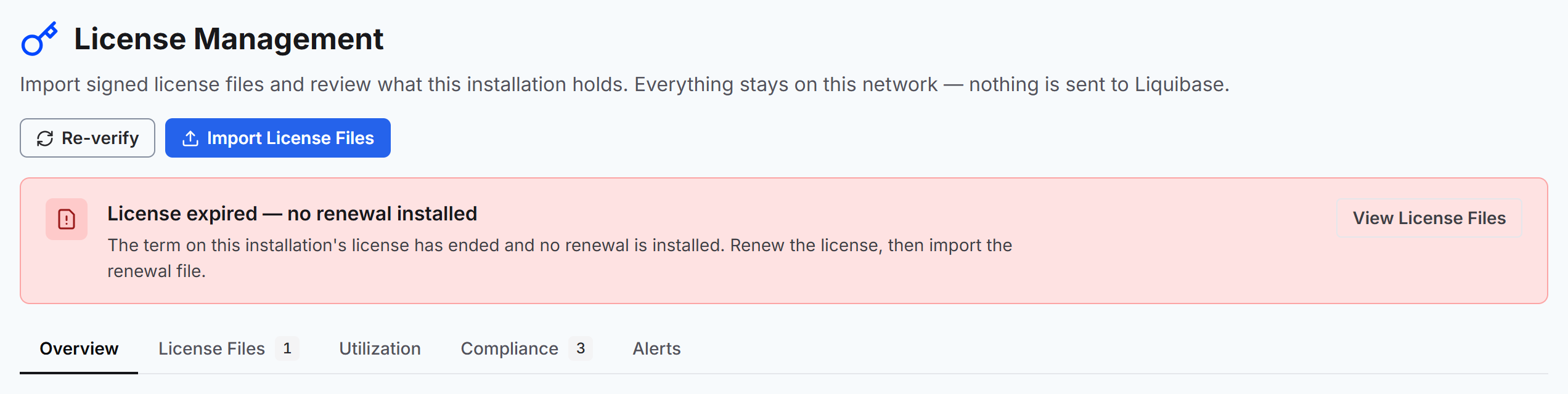
Above the tabs, a banner states anything that needs attention:
No license in effect means nothing stored here licenses the installation.
License expired with no renewal installed means the term has ended.
Out of contract terms names how many licensed DB Targets are in use against how many are granted.
Renewal license active names the file that now governs and the older files it superseded. Superseded files stay in the list read only, and only the governing file counts.
Each banner has one button. On the out of contract banner, Request Expansion opens the Utilization tab, where the overage is broken down. The other banners offer View License Files.
Export the effective license
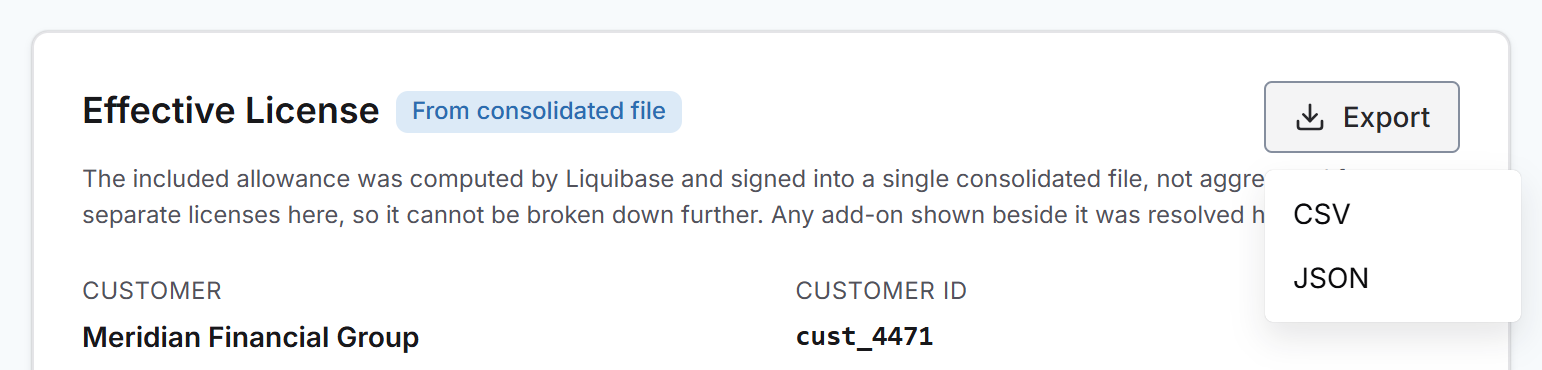
Select Export on the card and choose CSV or JSON to download the effective license as a file.