- Task
- Version · 6.0
- Manage
Register a database connection
Last updated: October 9, 2026
How to create a new database connection in Liquibase Server.
Before you begin
These steps happen in the Liquibase Server web application.
A running server, its URL from your administrator, and a user account. See Manage your account.
If the server is not set up yet, run Liquibase Server locally on your own machine or use an internally deployed server. Both guides are under Set up and configure Liquibase Secure server.
Procedure
Open the Database Connections dashboard
From the Database Connections dashboard, select the New Connection button. This opens the Create Connection page.
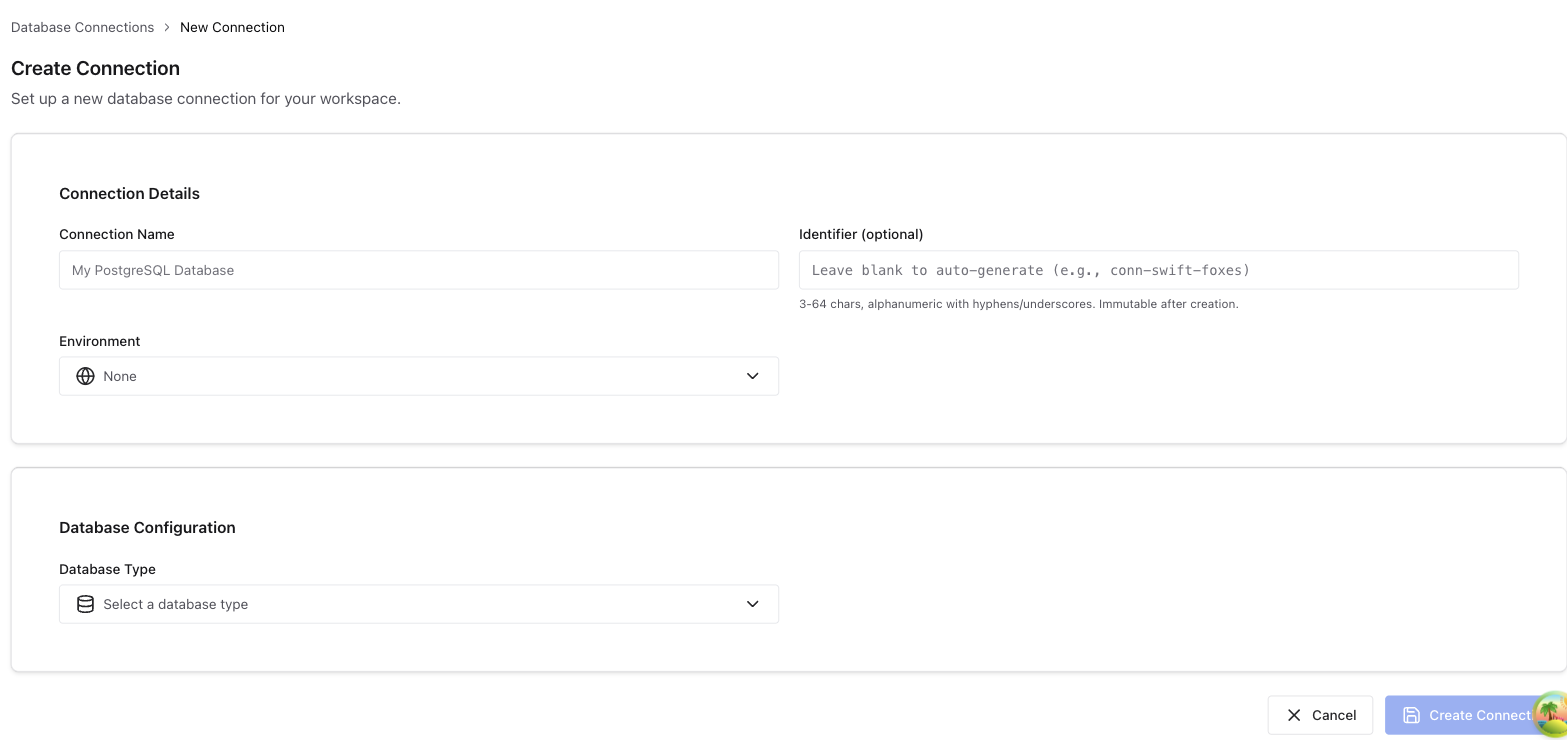
Fill out Connection Details
Field | Description |
|---|---|
Connection Name | A display name for the database connection. |
Identifier (optional) | A unique identifier that links Liquibase operations to this connection. Set |
Environment | The environment this connection belongs to. Options: |
Fill out Database Configuration
Field | Description |
|---|---|
Database Type | The type of database. Options: |
Database URL | The JDBC connection URL for this database. This is the same URL passed to Liquibase via |
Create the connection
Select the Create Connection button.
Link your Liquibase runs to this connection
Registering the connection does not link it to anything by itself. Find the Identifier on the connection details page (chosen or auto-generated) and set it on every Liquibase instance that runs against this database:
LIQUIBASE_PLATFORM_CONNECTION_IDENTIFIER=your-identifier as an environment variable, or liquibase.platform.connectionIdentifier in your properties file.
From the next run onward, operations against this database are attributed to the record. An identifier that matches nothing in your workspace ships the operation unattributed rather than linking it to the wrong connection.