- Task
- Version · 6.0
- Manage
Connect to Liquibase Server
Last updated: October 9, 2026
Connect your Liquibase runs to the server and send your first operation data.
Before you begin
These steps happen in the Liquibase Server web application.
A running server, its URL from your administrator, and a user account. See Manage your account.
If the server is not set up yet, run Liquibase Server locally on your own machine or use an internally deployed server. Both guides are under Set up and configure Liquibase Secure server.
Java 11 or later.
A Liquibase Secure installation. On Liquibase Community the extension stays disabled, so your command runs normally but no operation data is sent.
The address of your server, from your administrator, with
/apion the end. For example,https://liquibase.example.com/api.
Procedure
Install the reporting extension
The reporting extension is bundled with Liquibase Secure 6.0 and later, so there's nothing to download or install. It ships disabled by default; you'll turn it on in Step 4.
Two ways to verify, depending on which piece you mean:
liquibase --versionliquibase-platform statusCreate an account
Open your Change Intelligence dashboard URL in your browser.
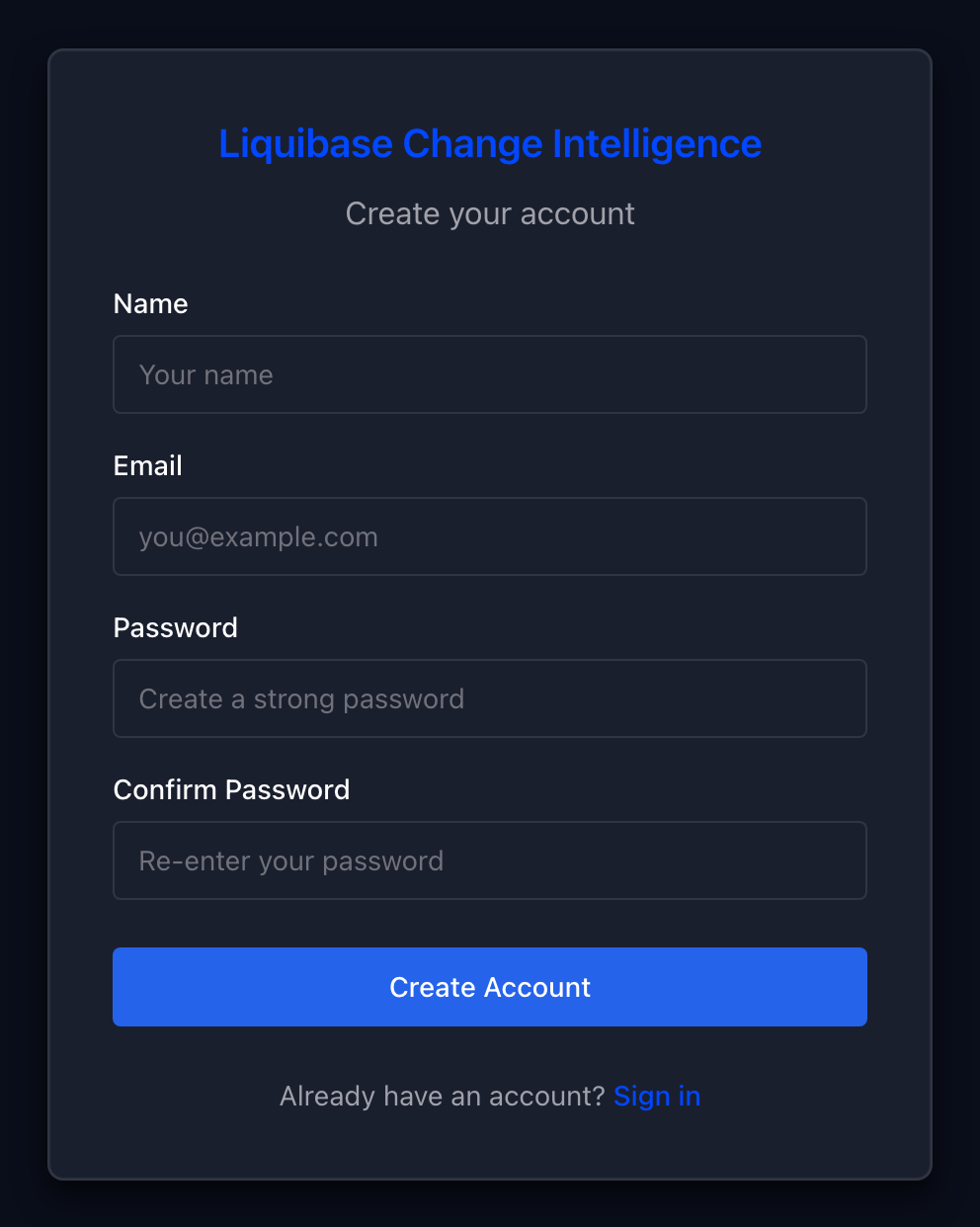
Select the Don't have an account? Create one link to create your account.
Log in to the dashboard.
Create an API key
In the dashboard, select your name in the top right and select API Keys.
Select the + New Key button, name the key, and select Create.
Copy the token. It is only shown once and you will need it in the next step.
Configure operation reporting
Configure the following values for your Liquibase CLI, either as properties in your liquibase.properties file or as environment variables. These are typically configured once per environment in your CI/CD pipeline. Each environment (development, staging, production) points to its own database connection and changelog identifiers and does not need to change going forward.
Note: Values in liquibase.properties persist on their own, which makes it the simplest choice for local use. Environment variables set with export or $env: last only for the current terminal session. To keep environment variables between sessions, add them to your shell profile on macOS and Linux (for example, ~/.zshrc), or set them as User environment variables on Windows under System Properties > Environment Variables.
Be sure to:
Replace
your_api_rootwith the address your team uses to open Liquibase Server, followed by/api. If you open the server athttps://liquibase.example.com, the value ishttps://liquibase.example.com/api. Liquibase works out the rest of the address itself, so nothing goes after/api.Replace
your_api_keywith the API key you generated in Step 3 of this guide.Replace
your_connection_identifierwith the Identifier of a database connection already created in the dashboard (for example,my-app-prod), not its display name. The Identifier is shown on the connection's details page.Replace
your_changelog_identifierwith the Identifier of a changelog already created in the dashboard (for example,my-app-changelog), not its display name. The Identifier is shown on the changelog's details page.
Note: You can supply any of these values from AWS Secrets Manager rather than setting them directly, so the API key never lives in a properties file or a shell profile. See Use the AWS Secrets Manager extension for setup.
Run a Liquibase command
Run a Liquibase command that reports to the server, such as update. Look for a line beginning with [LB-PLATFORM] in the output to confirm the operation was captured. Commands outside the captured set are skipped and report nothing. See Which Liquibase commands report to Liquibase Server?.
Be sure to:
Replace
your_changelog.your_extensionwith the path to your changelog file. For example,changelog.xml,liquibase/changelog.sql.
A successful capture looks like this:
View in the dashboard
Open your dashboard and navigate to All Operations. You should see the operation you just ran, showing the command name, date and time, and the changelog it ran against.
Select the operation to view its details, including:
The status of the operation and how long it took to run
The database it ran against
The exact command that was executed and the Liquibase version used
Execution logs captured for the operation, providing an audit view of everything that occurred
Note: If you did not set LIQUIBASE_PLATFORM_CONNECTION_IDENTIFIER or LIQUIBASE_PLATFORM_CHANGELOG_IDENTIFIER, the operation will still be captured but the database and changelog fields will appear empty, as the operation is not linked to any specific connection or changelog.