- Concept
- Version · 6.0
- Create
Connect Liquibase to your database
Last updated: September 29, 2026
Liquibase works with more than 60 databases, including relational, NoSQL, and graph databases. This guide connects Liquibase to a sample PostgreSQL database for demonstration purposes.
Follow the patterns in this section to set up your preferred database. For the complete list, see What databases are supported by Liquibase?.
Prerequisites
Before proceeding, the following should be completed:
Liquibase is installed and operational
Java is installed. If you used the Liquibase installer, the latest supported Java version is included automatically. Java 8 is the minimum, but an LTS version, 11 or 17, is recommended
The Liquibase Secure license key is installed
See Install Liquibase and apply your license key if any of those is outstanding.
Authentication
In your liquibase.properties file, specify your connection parameters:
url— your JDBC URL, in the formatjdbc:postgresql://<host>:<port>/<dbname>username— the username to access the databasepassword— the password to access the database
For example:
url: jdbc:postgresql://localhost:5432/postgres
username: postgres
password: secret
Test connection
In the command line, cd to your local repository, where you have your liquibase.properties file.
Run the liquibase connect command to check your database connection. It uses the connection information from liquibase.properties and does nothing else:
liquibase connect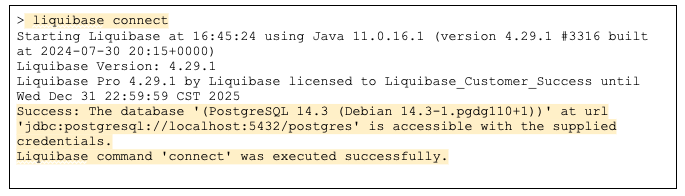
Confirm the network path first
Run connect from the machine that will actually execute Liquibase, not from your own workstation. The build agent is usually in a different network segment than the laptop the connection was first tested on, and that is the single most common surprise in an implementation.
A network path problem found here takes a minute to diagnose. The same problem found inside a pipeline surfaces an hour later as a confusing build failure.
Secure setup
It is a best practice to store sensitive data in a secrets management tool.
Liquibase Secure includes extensions for HashiCorp Vault and AWS Secrets Manager that let Liquibase retrieve database connection information, or any other Liquibase property, at runtime. Nothing lands in your pipeline configuration: the pipeline holds a reference, and Liquibase fetches the secret when it runs. See What are Liquibase secrets management extensions? and What is the Liquibase HashiCorp Vault extension?.
Prefer this when you already run one of those tools, when credentials rotate frequently, or when you need one credential store across several CI/CD tools.
Alternatively, your CI/CD tool's own vault and environment variables can be used. The next three pages cover those methods:
Which method should I use?
Situation | Use |
|---|---|
You already run Vault or AWS Secrets Manager | A secrets management extension |
One CI/CD tool, no central secret store | Your tool's own secret store, GitHub Actions secrets or Azure Key Vault |
Short-lived or IAM-generated credentials | Environment variables, generated inside the job |
Local development against a sandbox |
|
Whichever you choose, add liquibase.properties to .gitignore and commit a liquibase.properties.example holding the keys with no values. A new developer then knows what to supply without anyone ever committing a real credential.
Registering the connection with Liquibase Server
Connecting Liquibase to your database (this page) and registering a database connection in Liquibase Server are two different things. The first is the JDBC connection Liquibase deploys through; the second is a record on the server that operations against this database are attributed to. If your team monitors with the server, they may ask you to set a connection identifier — see Register a database connection.