- Concept
- Version · 6.0
- Manage
What are projects?
Last updated: September 29, 2026
What a project record is, and what its dashboard and details screens show.
A project in the web application is a record that groups your changelogs and database connections so the dashboards can show activity by application, service, or team. It is not the Liquibase project on disk that the CLI works in: nothing you do here touches files or databases. Projects exist to organize what you monitor.
The Projects dashboard
The dashboard lists every project in your workspace. You can search by name, open a project, or create a new one with New Project. Each project shows its associated connections and changelogs and the most recent deployment activity filed under it.
The project details page
Opening a project shows everything filed under it: the database connections and changelogs it groups, and the operations they have reported. This is where a team sees its own slice of the organization's activity. From here you can edit the project's information, change its associations, or archive it. Cloning a project copies its pipelines as well.
The Projects dashboard
Once you have database connections and changelogs configured, projects tie everything together. A project is a group of related database connections and changelogs that belong to the same application, service, or team. For example, an auth service might have a production connection, a staging connection, and one changelog. A project is how you group all of that together in one place.
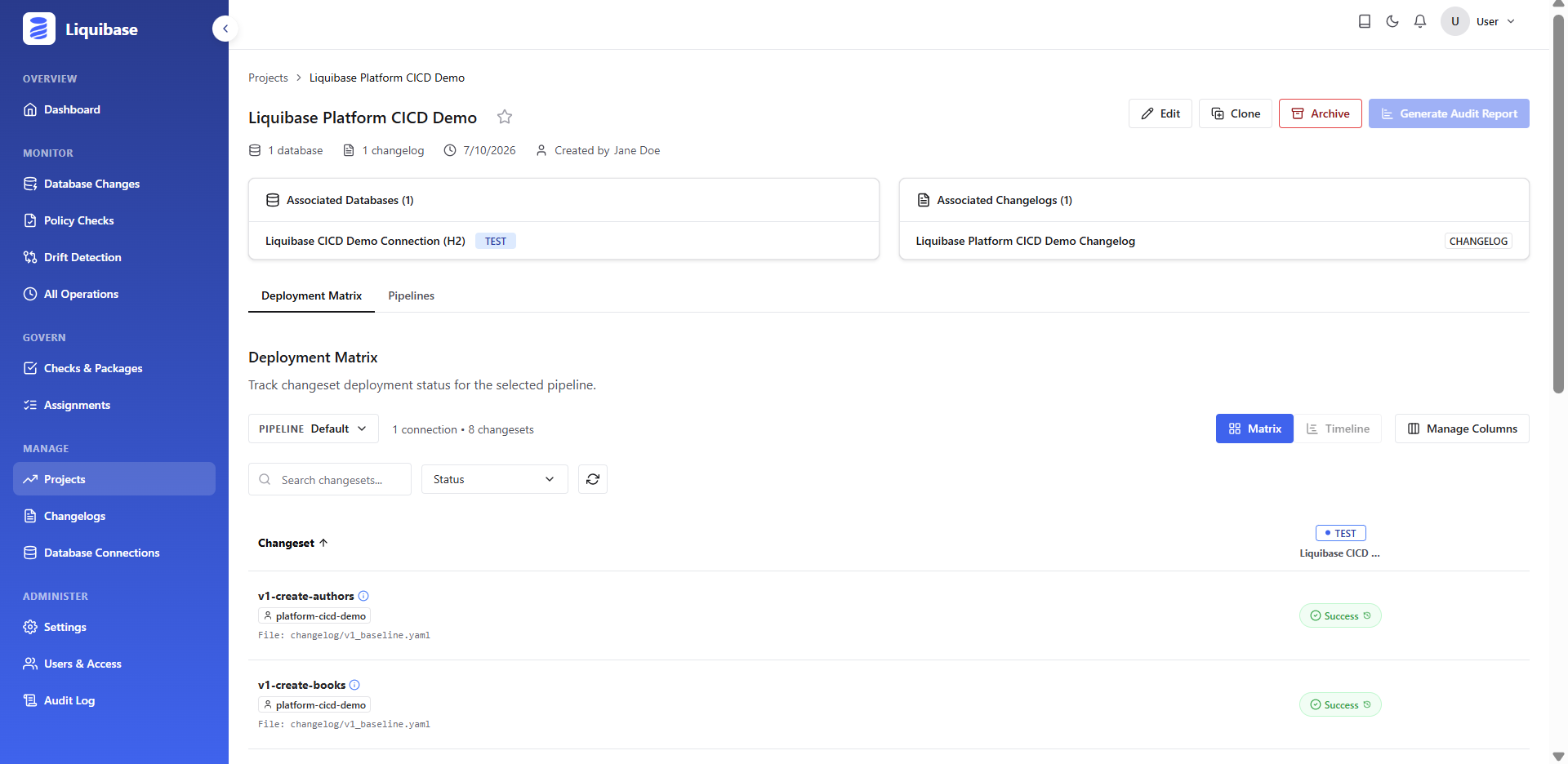
Linking connections and changelogs to a project also unlocks the Deployment Matrix, which shows you all the databases across your environments and the changelogs that have been run on those databases. You can select any status cell in the matrix to see detailed information about the operations run per changeset.
The Projects dashboard lists all projects in your the server account. At a glance, you can see the total number of projects, databases, and changelogs across your organization, along with how many projects have been active this week.
For each project, you can see its name, the number of databases and changelogs associated with it, the environments it spans, and its most recent deployment activity.
You can search for a project using the Filter projects search bar, and narrow the list using the Databases, Environments, and Changelogs dropdown filters. Toggle Show Archived to include archived projects.
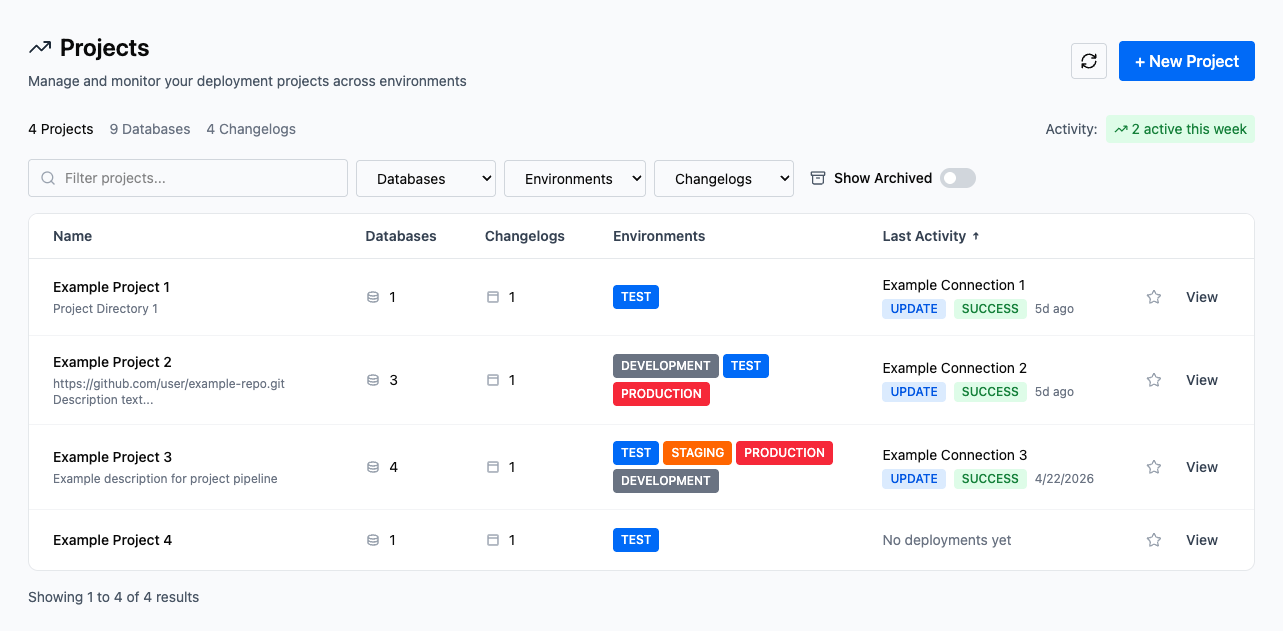
Project fields
Field | Description |
|---|---|
Name | The display name of the project. |
Databases | The number of database connections associated with the project. |
Changelogs | The number of changelogs associated with the project. |
Environments | The environments the project spans, such as Production, Test, or Development. |
Last Activity | The most recent deployment run within the project, including the connection name, command, status, and when it ran. |
The Project details page
Selecting a project from the Projects dashboard opens its detail page. This page gives you a complete view of the project's associated databases and changelogs, along with the deployment status of every changeset tracked in the project.
Project summary
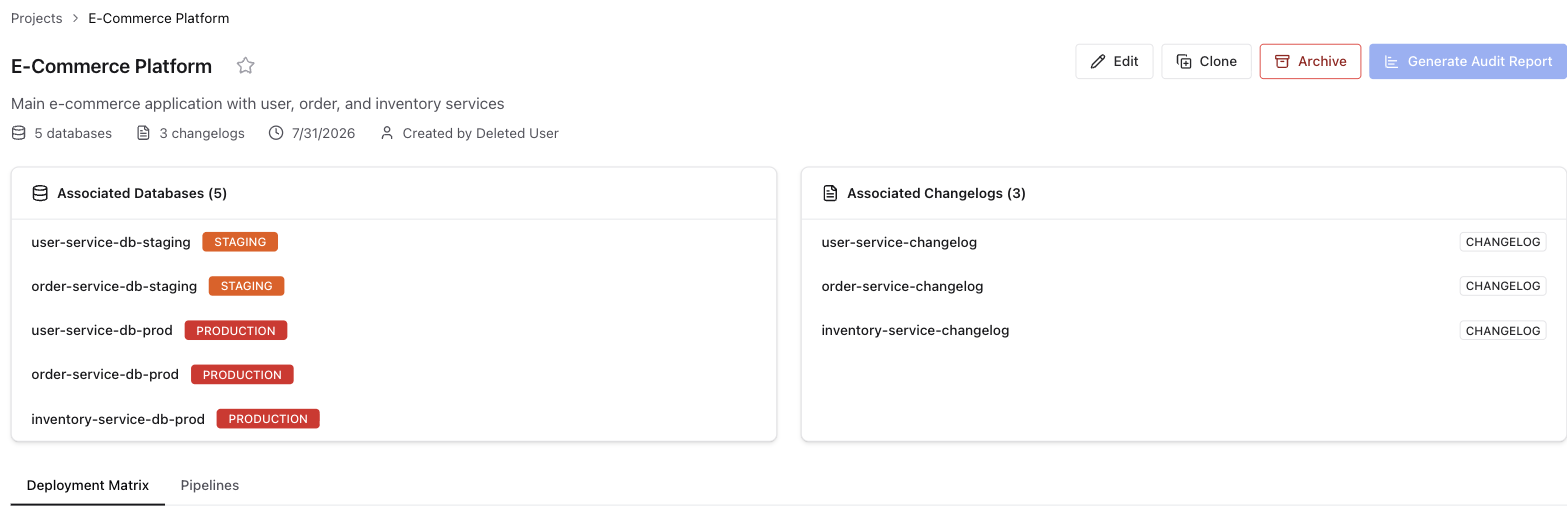
At the top of the page you can see:
The project name and an optional star to mark it as a favorite
Links to the associated Git repository and root changelog file
The number of databases, changelogs, and the date of the most recent activity
Edit — update the project's name, description, and associations
Clone — copy the project into a new one, including its pipelines
Archive — archive the project to remove it from the active list
Generate Audit Report — export a report of deployment activity for the project
Cloning a project
Cloning creates a new project in the same workspace. The clone carries over the original's description, database connection and changelog associations, tags, and active pipelines. Each copied pipeline keeps its name, identifier, description, and connection order. Archived pipelines, database connections, and changelogs are not copied, and restoring one later does not add it to the clone. Deployment history stays with the original project.
Connections and changelogs are shared rather than duplicated, so the clone points at the same records as the original.
Note: The Name field in the Clone Project dialog is optional. Leave it blank and the clone takes the original's name with a unique suffix appended, in the form example-project (Copy) - eadd42. Enter a name that no other project is using and the clone takes it exactly as typed. Enter one that is already taken and it gets the same suffix.
Associated Databases and Changelogs
Two cards show what is connected to the project:
Card | Description |
|---|---|
Associated Databases | The database connections included in the project, each labeled with its environment (for example, Development, Test, Production). |
Associated Changelogs | The changelogs included in the project. |
Tabs
The project detail page has two tabs:
Tab | Description |
|---|---|
Deployment Matrix | A grid showing the deployment status of every changeset across all associated databases. |
Pipelines | The project's pipelines, each showing its ordered chain of connections. |
Deployment Matrix
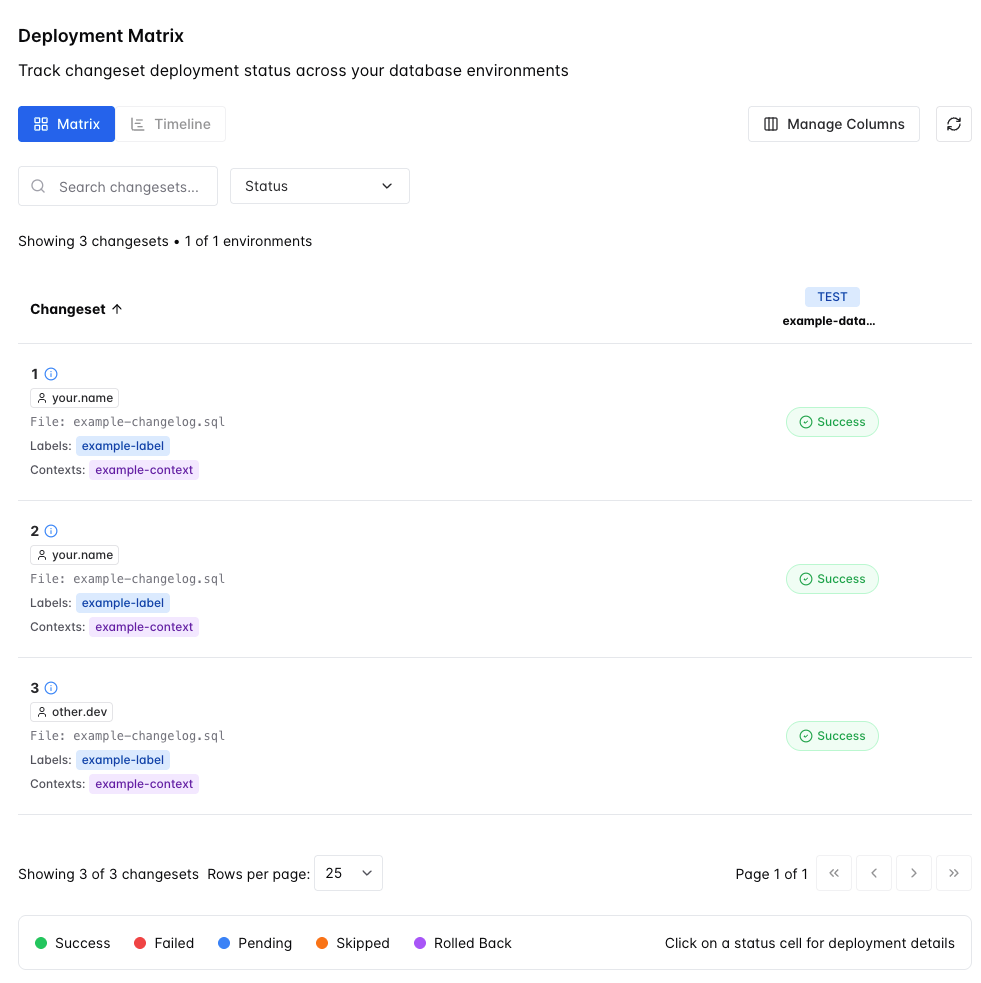
The Deployment Matrix tab shows the deployment status of every changeset in the project's changelogs across all associated database connections. Each row represents one changeset, and each column represents one database connection. This lets you see at a glance which changesets have been applied, rolled back, or are pending in each environment.
Use the Matrix and Timeline toggles to switch between the grid view and a timeline view of deployment activity.
When the project has at least one pipeline, a Pipeline selector appears in the toolbar. It scopes the matrix to a single pipeline, so the columns become that pipeline's connections in the pipeline's order. Each option in the selector shows how many distinct environments the pipeline covers, so two connections in the same environment count once. A connection with no environment set is not counted at all, so a count can be lower than the number of connections for either reason.
The matrix opens on the pipeline you last viewed for that project. On a first visit it opens the first pipeline alphabetically, and it falls back to the first pipeline alphabetically if the one you last viewed has since been archived. Changing the selected pipeline returns you to the first page of results.
Changeset status
Each cell in the matrix shows one of the following statuses:
Status | Description |
|---|---|
Success | The changeset ran successfully on this database. |
Failed | The changeset encountered an error and did not complete. |
Pending | The changeset has not been run on this database. |
Skipped | The changeset was excluded from execution by label or context configuration. |
Rolled Back | The changeset was successfully reversed on this database. |
Pending vs. Skipped: A Pending changeset is one that simply has not run yet: it is in the changelog but has never been executed against this database. A Skipped changeset was explicitly excluded during a Liquibase operation because its labels or contexts did not match the configuration used when the command ran. Pending means "not yet run"; Skipped means "run was attempted but this changeset was intentionally bypassed."
Drill-down drawer
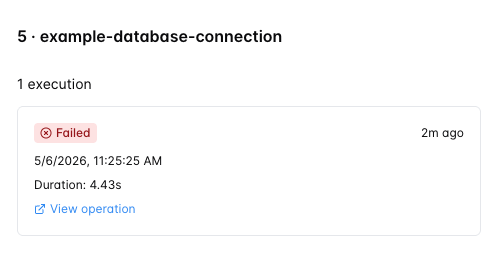
Select the status indicator for any changeset to open a drawer showing the full execution history for that changeset and database combination. The drawer header shows the changeset ID and the database connection name, along with the total number of executions.
For each execution, the drawer shows:
The execution status
The date and time the changeset ran
How long ago it ran
The duration of the execution
A View operation link to the full operation record
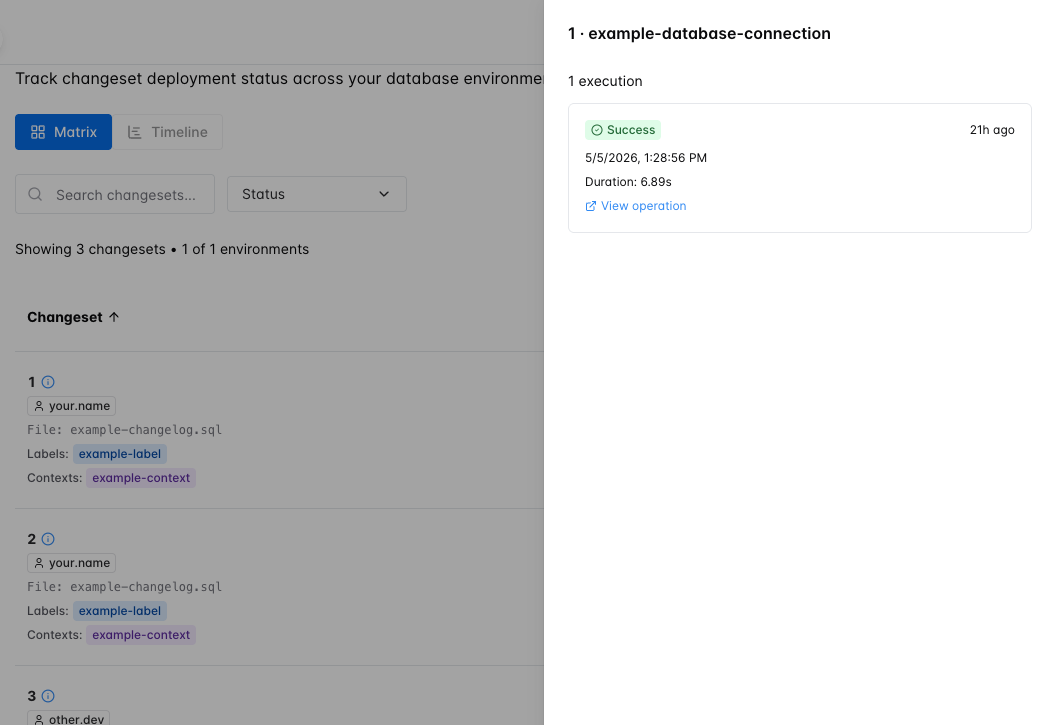
The drawer shows the same fields regardless of status. For failed executions, select View operation to see the full error details.
Filters
Use the filters to narrow the matrix to the changesets and databases you care about:
Filter | Description |
|---|---|
Search changesets | Free-text search across changeset IDs and authors. |
Status | Filter rows by deployment status (Success, Failed, Pending, Skipped, Rolled Back). |
Column management
Select Manage Columns to show or hide individual database columns. This is useful when a project spans many environments and you want to focus on a specific subset of databases without removing them from the project.
Pipelines
The Pipelines tab lists the project's pipelines. A pipeline is an ordered sequence of the project's connections that represents a deployment path, for example the route changes take through Development, Test, and Production. For a fuller explanation, see What is a pipeline?.
Each pipeline in the list shows:
The pipeline name and its Identifier
The description, if one was entered
The ordered chain of connections, numbered by position, each with its environment
A pipeline with no connections shows an empty state instead of a chain.
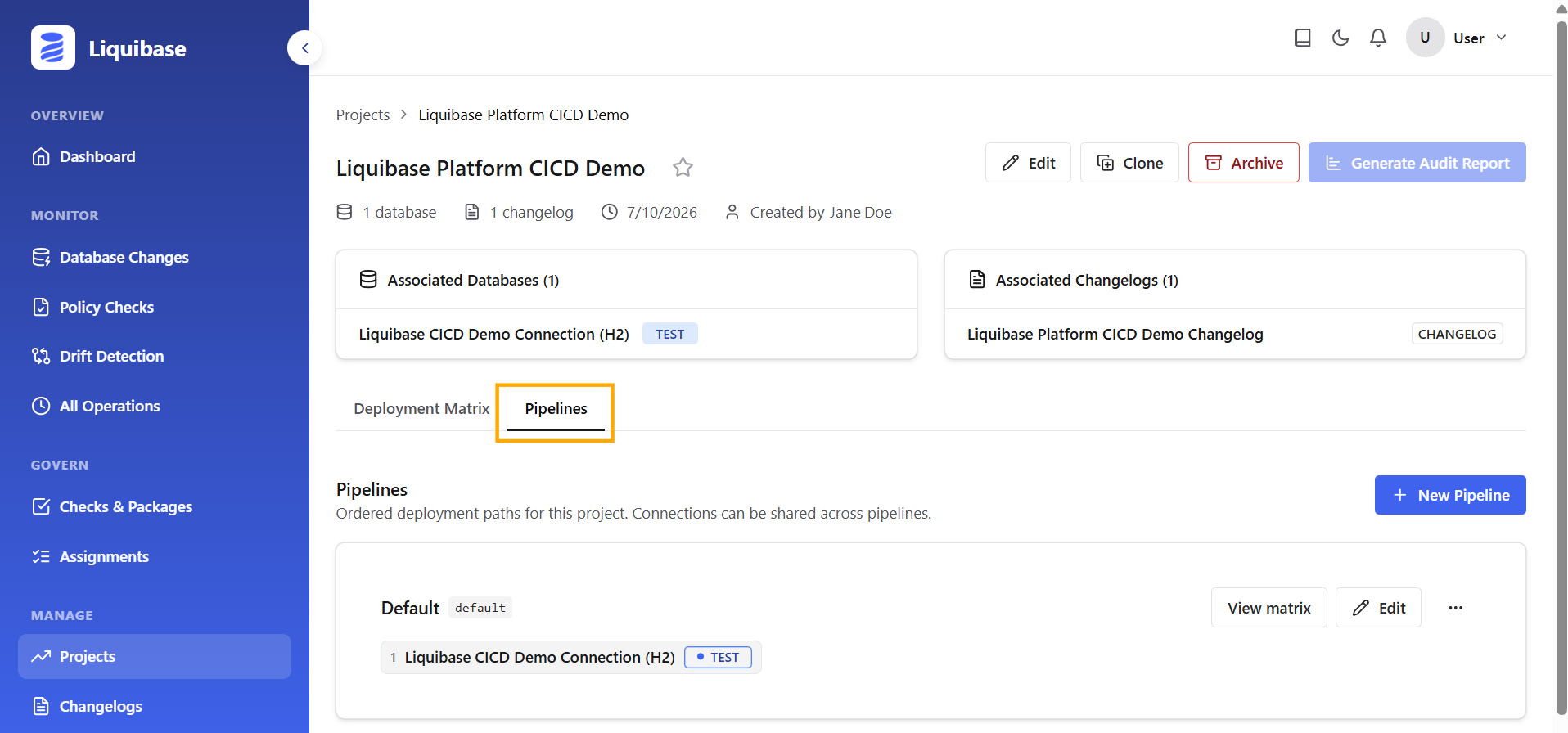
Select + New Pipeline to add a pipeline, Edit to change an existing one, or View matrix to open the Deployment Matrix already scoped to that pipeline.
Note: On an archived project the Pipelines tab is read only. The + New Pipeline, Add to pipeline, and Restore actions are hidden, and the Deployment Matrix tab is not shown at all.
Connections not in a pipeline
Connections that belong to the project but to no pipeline are grouped under Not in any pipeline, with a count of how many there are. These connections do not appear in any Deployment Status Matrix until they are added to a pipeline. Select Add to pipeline on a connection, then choose the pipeline to add it to.
This group is only shown when the project has at least one active pipeline to add connections to.
Recently archived
Archived pipelines are listed under Recently archived, with a count and a Restore button on each row. Restoring re-adds the pipeline with its connection order intact.
Restore is blocked if an active pipeline in the project already uses the same name or Identifier. Names are compared without regard to case. Rename or archive the conflicting pipeline first, then retry. See Archive a pipeline.