- Task
- Version · 6.0
- Govern
Browse the policy catalog
Last updated: September 29, 2026
Every policy check available to your workspace lives in the Govern section of the web application, organized into catalogs and packages. This guide shows you how to find a check, whether you know which package holds it or only part of its name.
Procedure
Open your Policy Checks library
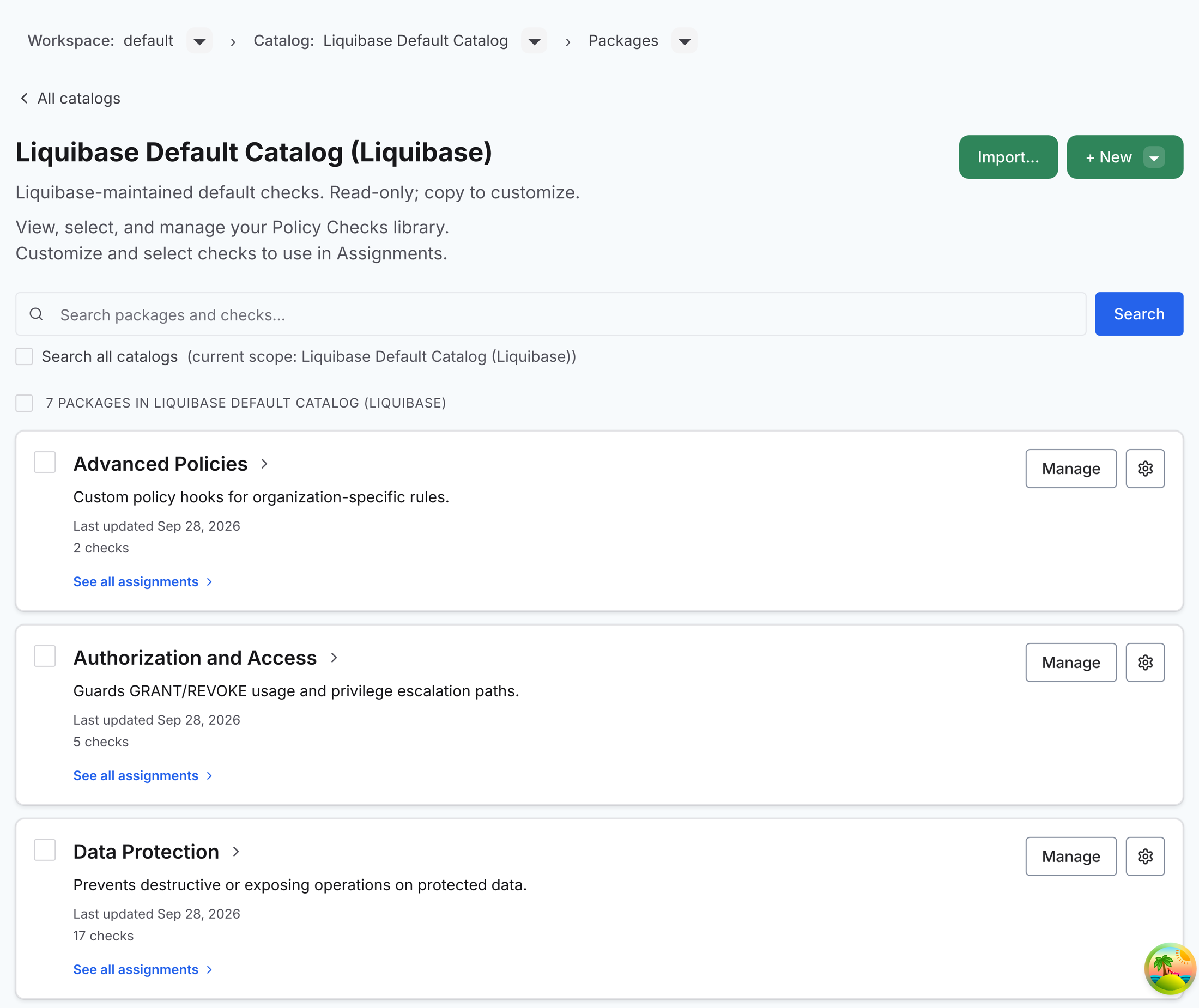
In the web application's sidebar, select Policies under Govern. The Manage All Catalogs page lists your catalogs. Select Manage on a catalog to open its packages. The page is headed with the catalog's name and its creator, such as Liquibase Default Catalog (Liquibase), and a summary line such as 7 packages in Liquibase Default Catalog (Liquibase) sits above the list.
The Catalog breadcrumb above the heading shows which catalog you are browsing. Select it to open the Switch catalog menu and change catalogs, or select All catalogs to go back to Manage All Catalogs.
Every workspace starts with the Liquibase Default Catalog, a read-only copy of the 60 checks built into Liquibase Secure 6.0, grouped into seven packages named after the check categories. The categories include: Advanced Policies, Authorization and Access, Data Protection, Database Compatibility, Metadata Content, Scripting Standards, and Sensitive Data.
Open a package to browse its checks
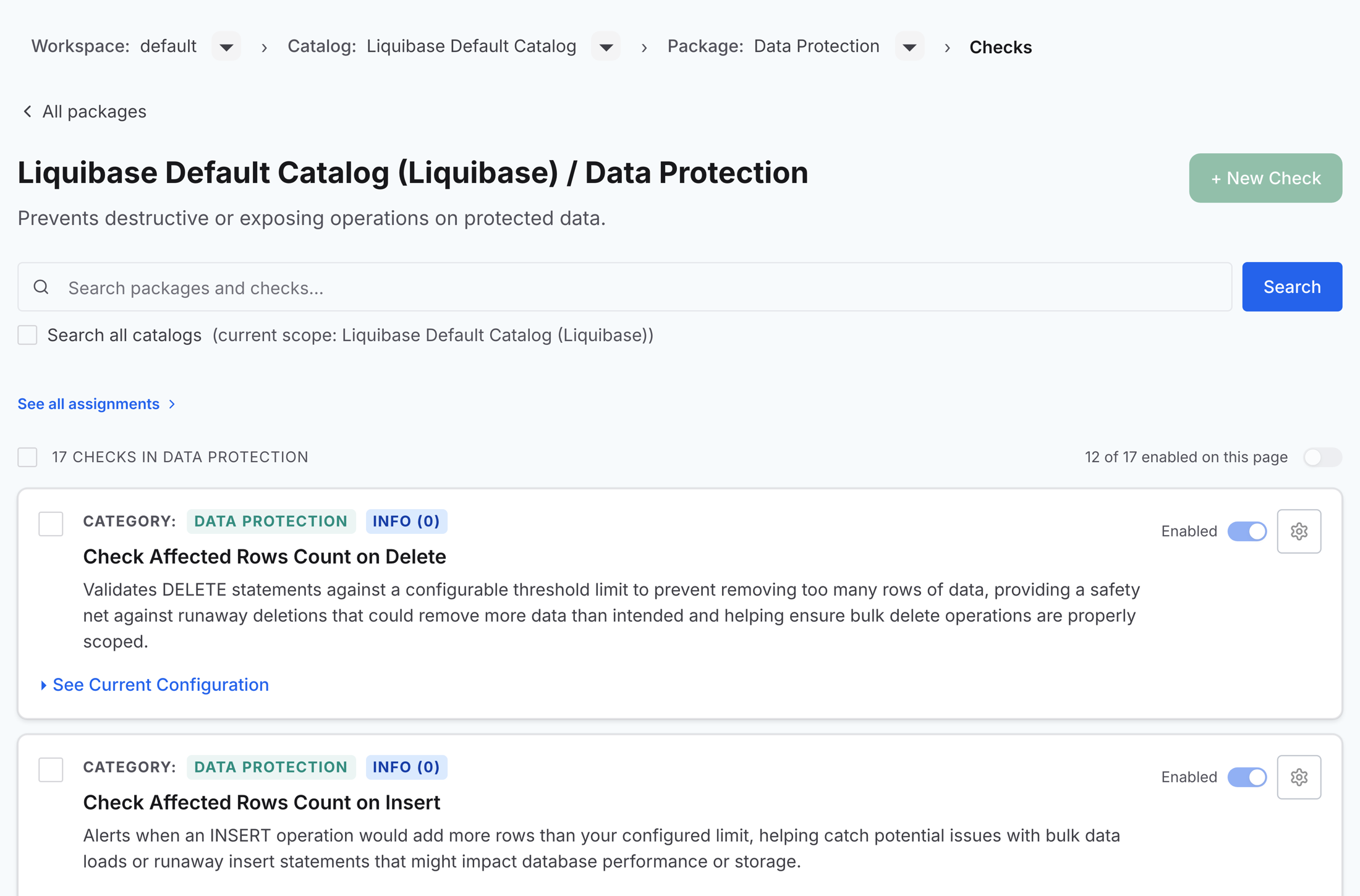
Each package card shows the package name, its description, and how many checks it holds. Select a package to open it. The page is headed with the catalog and package names, such as Liquibase Default Catalog (Liquibase) / Data Protection, and lists every check with:
Category: The check’s category pill.
Severity: The configured severity with its exit code:
INFO(0),MINOR(1),MAJOR(2),CRITICAL(3), orBLOCKER(4).Name and description: The check’s name and what it catches.
Enabled: Whether the check is currently enabled.
Use the Package breadcrumb to jump between packages without going back to the list.
Search across packages and checks
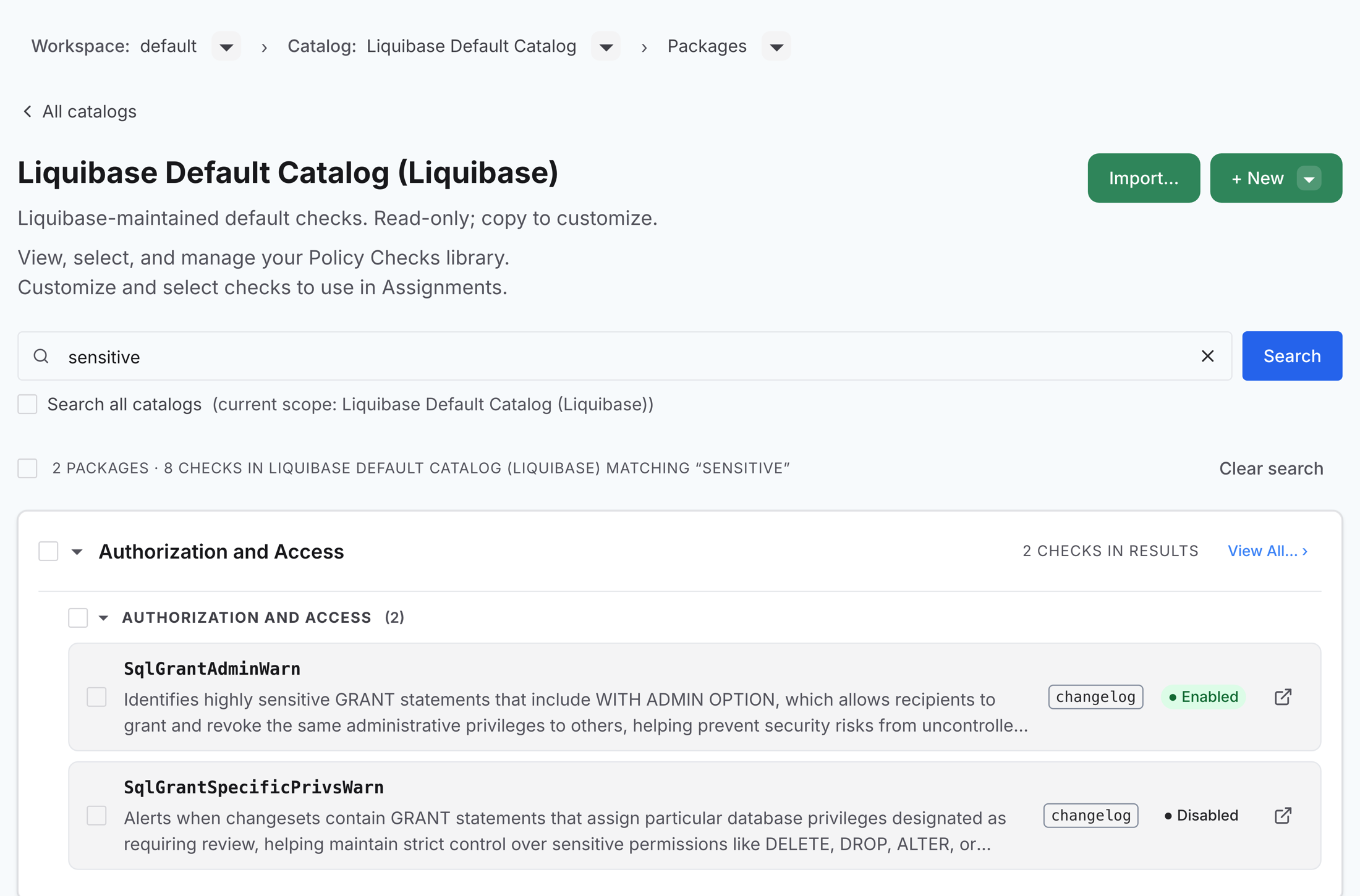
Use the Search packages and checks bar at the top of a catalog's packages. A search covers the current catalog by default. Select Search all catalogs to widen it to everything in the workspace.
Results are grouped by package, and by catalog when you search all catalogs. Matching checks are listed by their short name, such as SqlGrantAdminWarn, with a scope tag (database, changelog, or both) and whether the check is enabled. Select View All on a package group to open those results in that package.
Copy what you find into your own package
Checks in the default catalog are read-only. To customize or regroup them, copy them into a catalog of your own. Select packages on a catalog's page, or checks on a package's page or in the search results. The line above the list counts your selection and offers Copy to…. Choose it, then pick the destination catalog and package in the dialog.
You can copy up to 100 packages or 500 checks at a time. The dialog does not offer the catalog or package your selection is already in. Copies are independent, so configuration changes made later in one package do not affect the other.
What to do next
You have found the checks you want. Organize checks and packages to copy them into a catalog of your own, where you can enable, configure, and assign them. If you already run checks from a settings file, import your existing policy checks instead.