- Task
- Version · 6.0
- Manage
Customize what a template grants a group
Last updated: September 29, 2026
Adjust one assignment without changing the template, by adding permissions beyond its bundle or removing ones it grants.
Before you begin
You need the Customer Admin template on the workspace, and the group must already have the assignment you want to adjust. Templates cannot be edited, so this is how you tailor what a group gets.
Procedure
Open the customization editor
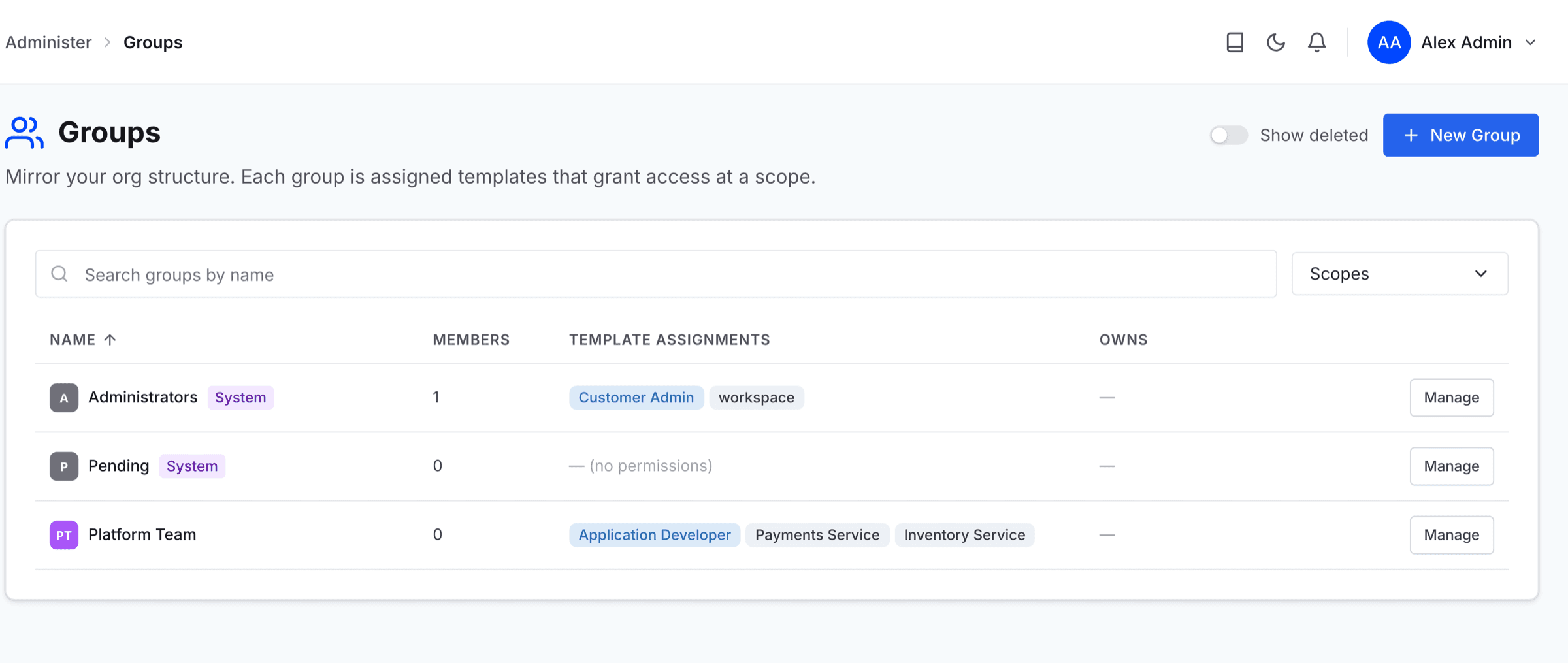
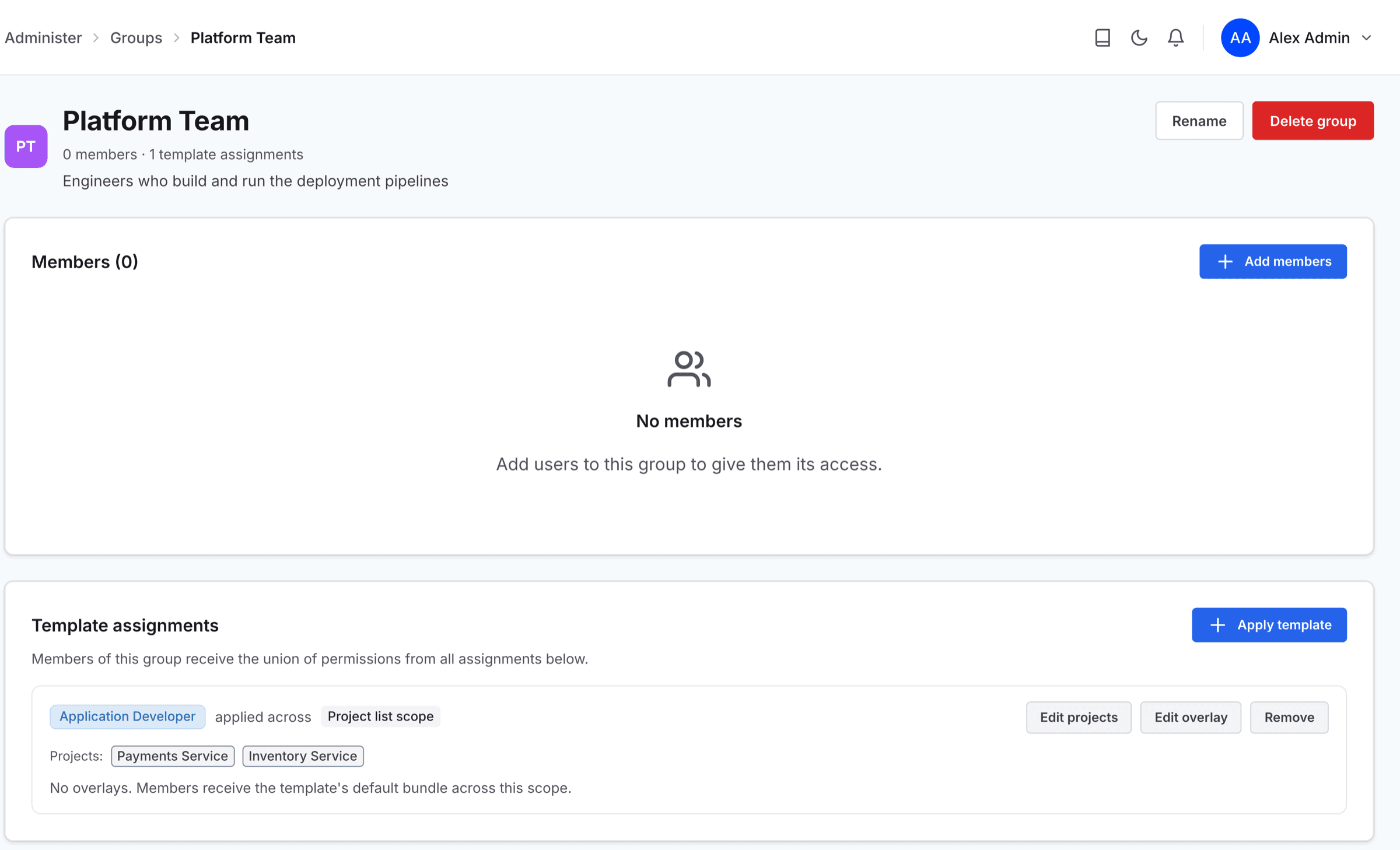
Go to Groups, click the Manage button next to the group you want to customize, and find the assignment under Template assignments.
Click the Edit overlay button on that row. The Customize permissions page opens, named for the group and, on a project or connection list, the targets the assignment covers.
Note: Customizing changes this one assignment. The template itself is untouched, and every other group holding it is unaffected.
Add and remove permissions
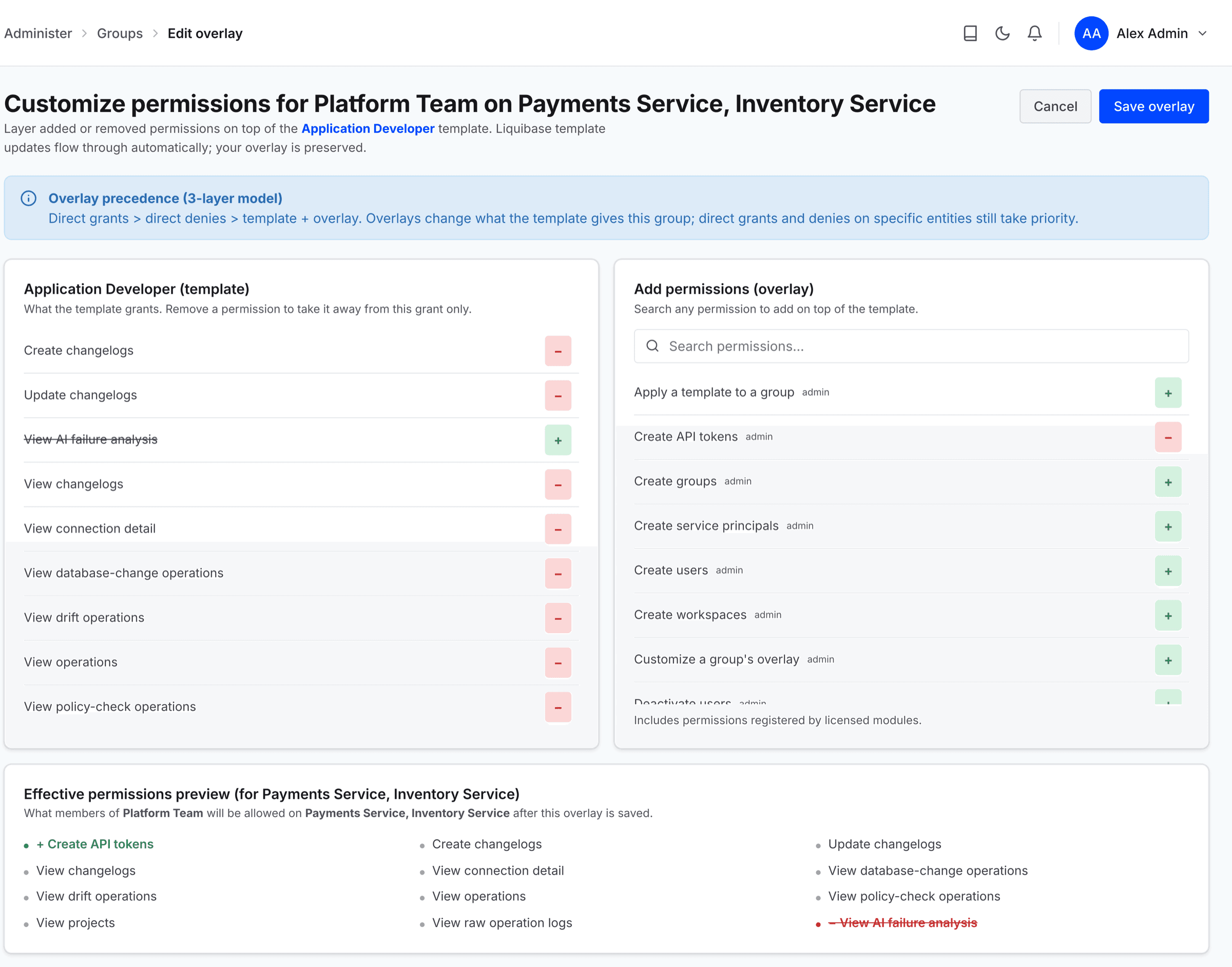
The page shows two panes. On the left, under the template name, are the permissions the template already grants. On the right, under Add permissions (overlay), is the rest of the permission catalog, with a search box.
Click the − button next to a permission on the left to remove it, and the + button next to a permission on the right to add it. A removed permission stays in the list, struck through, so you can add it back. You do not have to do one before the other.
Added permissions apply only to this assignment's targets, so they follow its project or connection list. A removal also applies to permissions the template does not grant yet, so if a later version of the template introduces one you had already removed, it stays removed.
Read the effective result
Effective permissions preview lists what members of the group will be allowed on the assignment's targets once you save. A permission you added is marked with a green +, and one you removed is struck through in red.
Note: A removal can look like it did nothing. Permissions combine most-permissively across everything a person holds, so if another group or a broader assignment still grants it, they keep it. This is expected. Use a direct deny when you need to override a grant outright.
Save
Select Save overlay. The server confirms with Customizations saved, and the assignment's effective permissions change immediately. You return to the group's page, where the assignment's row summarizes the change, for example +1 added, -1 removed.
To undo, reopen the editor and clear what you added or restore what you removed. Revoking the assignment also discards its customizations.
