- Task
- Version · 6.0
- Manage
Add an owner
Last updated: October 15, 2026
Give a person or a group full control of a project, connection, or changelog. Owners can view, edit, archive, restore, and delete the item, and add or remove its other owners.
Before you begin
You can manage the owners of anything you own. To change the owners of something you do not own, you must be a member of the Administrators group. The account that set up the server is a member.
Procedure
Open the item
Go to Projects, Database Connections, or Changelogs in the sidebar, and select the item to open its page.
Open the item's access settings
On a project, select the Access tab.
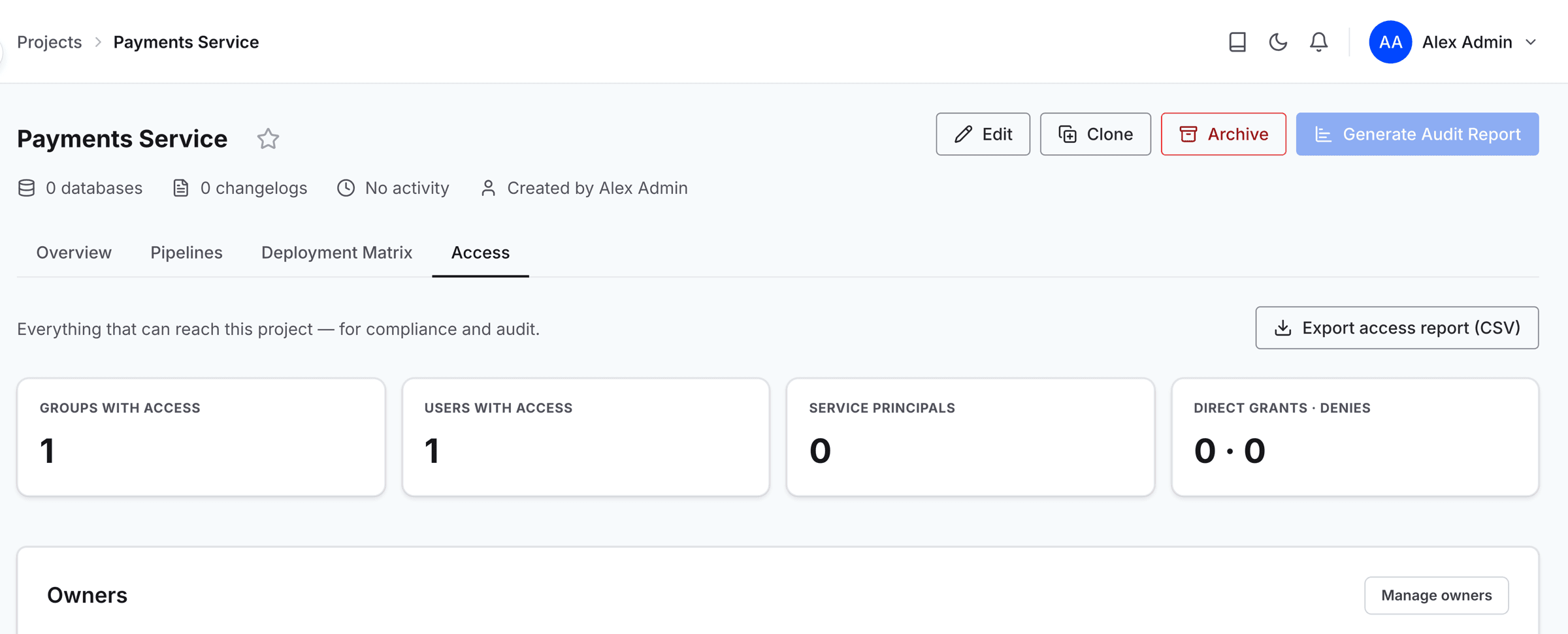
On a connection or changelog, select Access to open the dropdown.

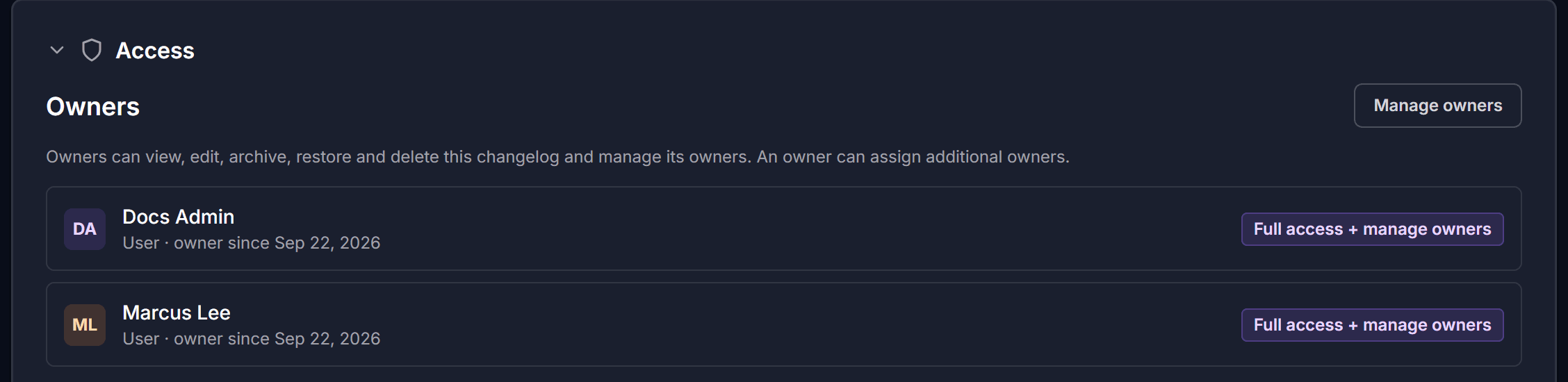
Open the Manage owners dialog
The Owners section lists everyone who owns the item and whether each owner is a user or a group.
Select Manage owners to open the dialog.
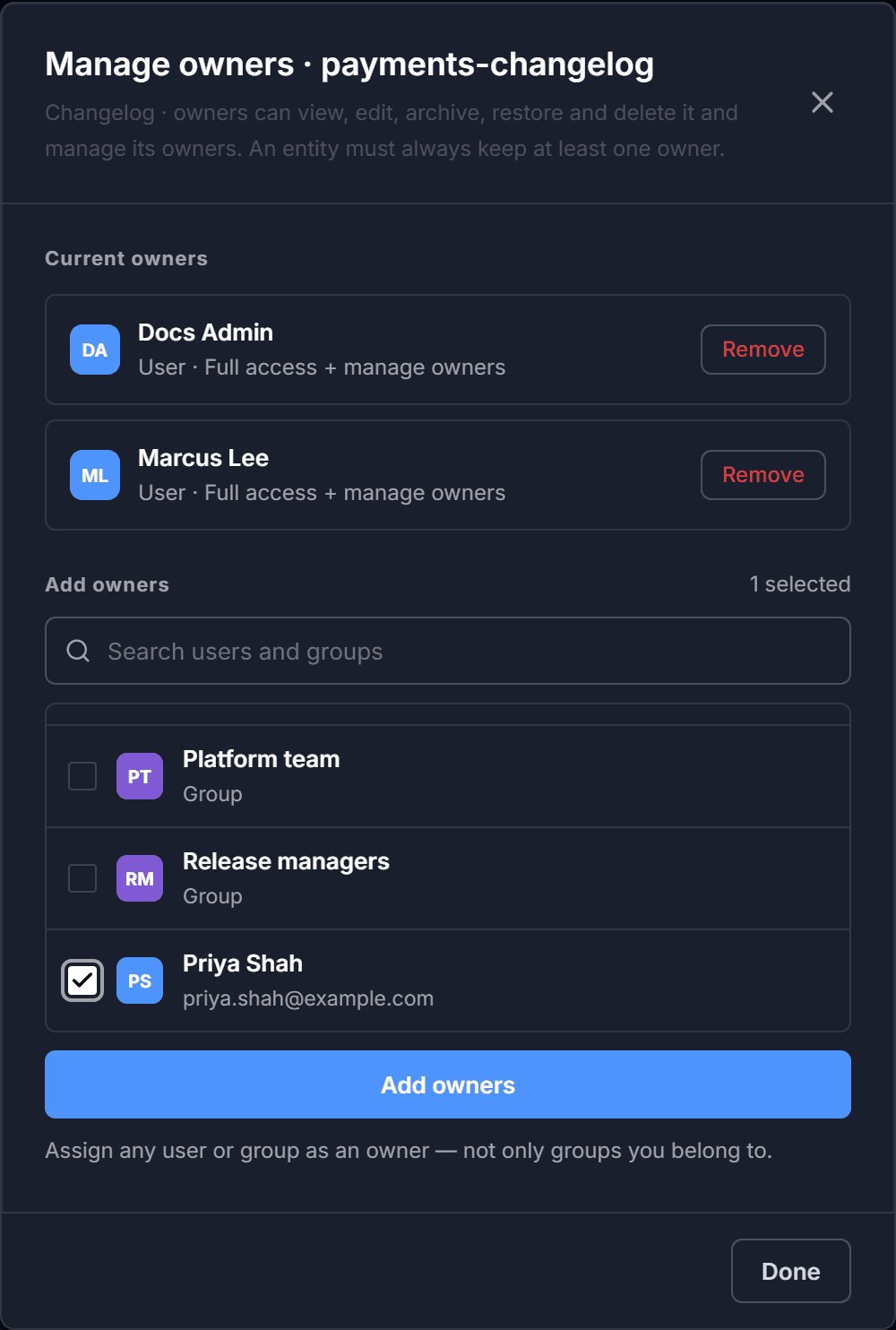
Select the new owners
Under Add owners, search for a person or a group by name or email address, and select the check box beside each one you want. The counter above the list keeps count as you go.
Anyone who already owns the item is left out of the results, so the list only offers people and groups that adding would actually change.
Note: You can make any user or group an owner, including a group you do not belong to yourself.
Save the new owners
Select Add owners.
Close the dialog
When you are finished, select Done.