- Task
- Version · 6.0
- Manage
Grant a group access with a template
Last updated: September 29, 2026
Give a group access by assigning it a permission template against the workspace, a set of projects, or a set of database connections.
Before you begin
You must be a member of the Administrators group. The account that set up the server is a member. The group must already exist. Templates and their scopes are listed in Manage users and access.
Procedure
Open the group
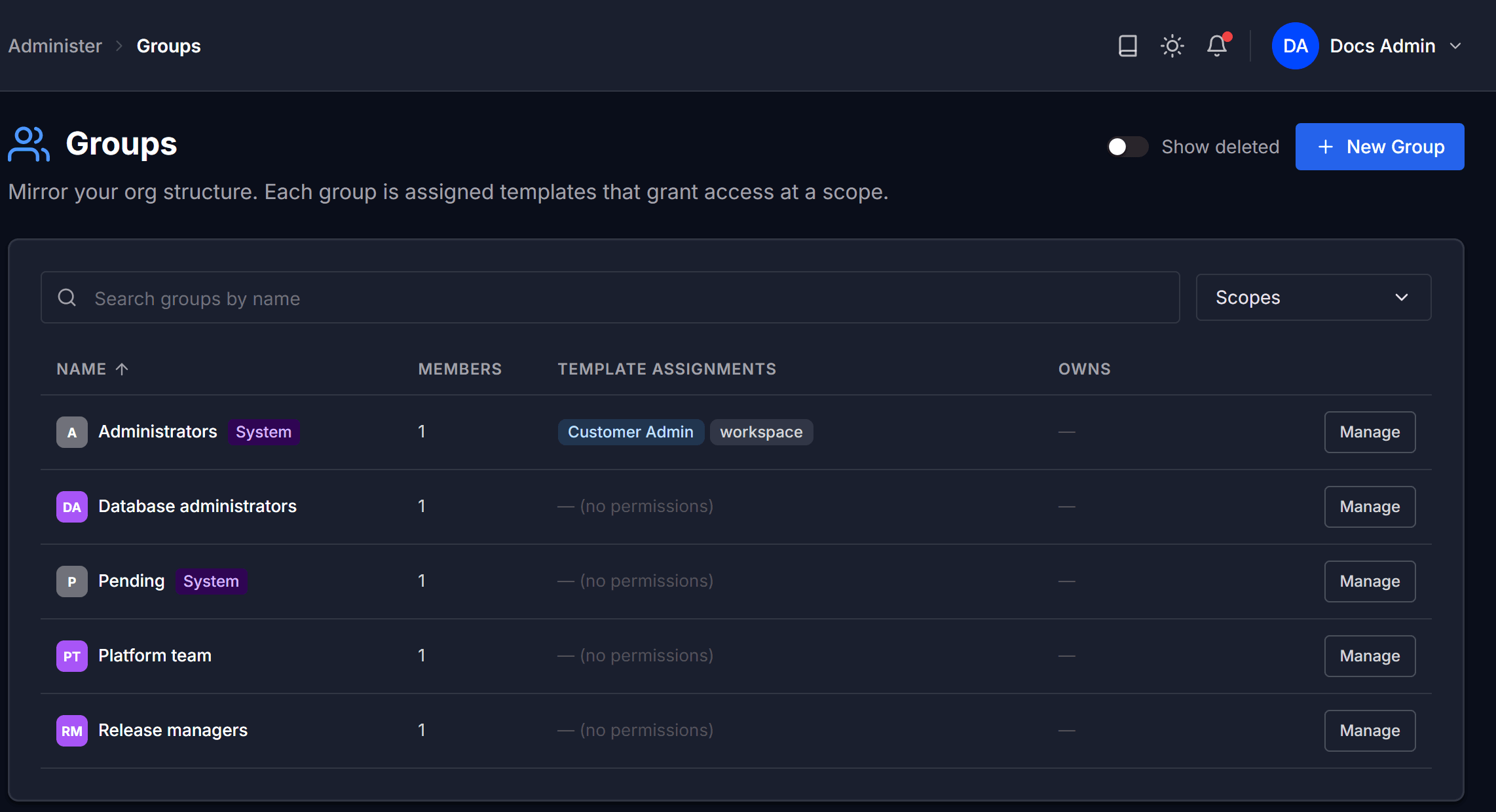
Go to Administer and select Groups. On the group's row, select Manage.
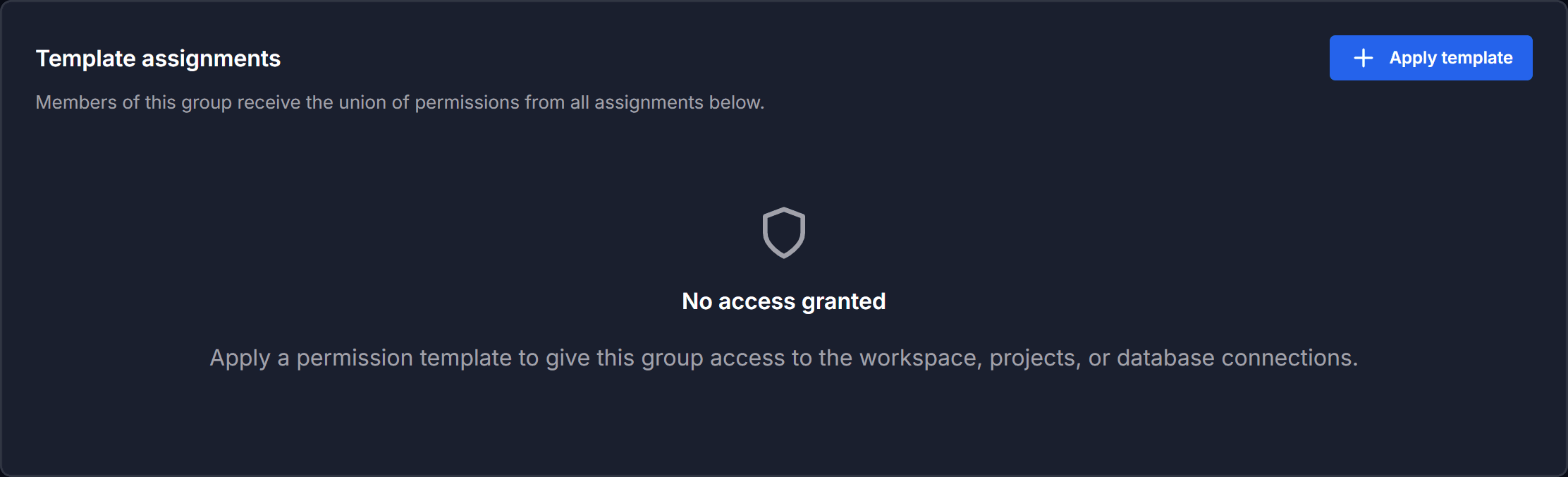
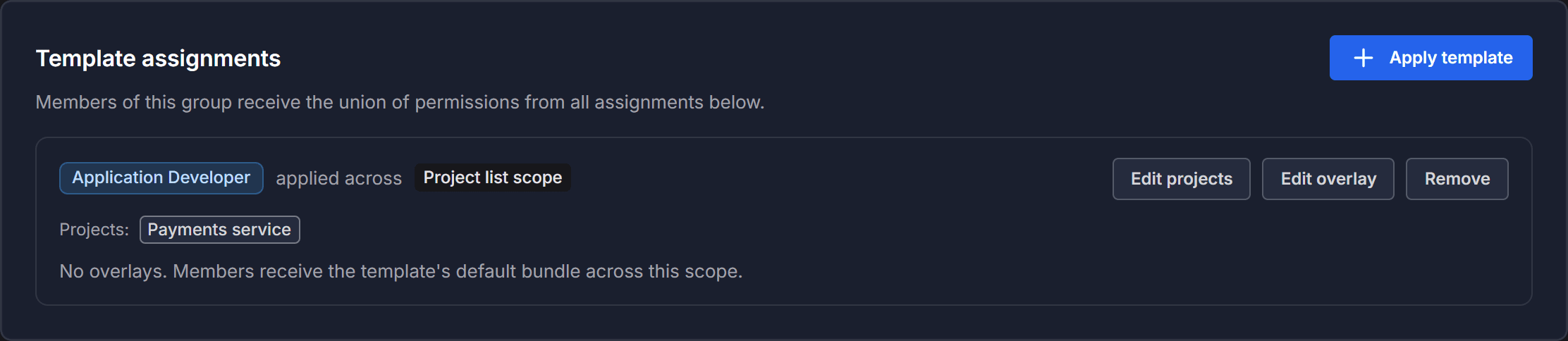
The group's access is listed under Template assignments. A group with no access shows No access granted.
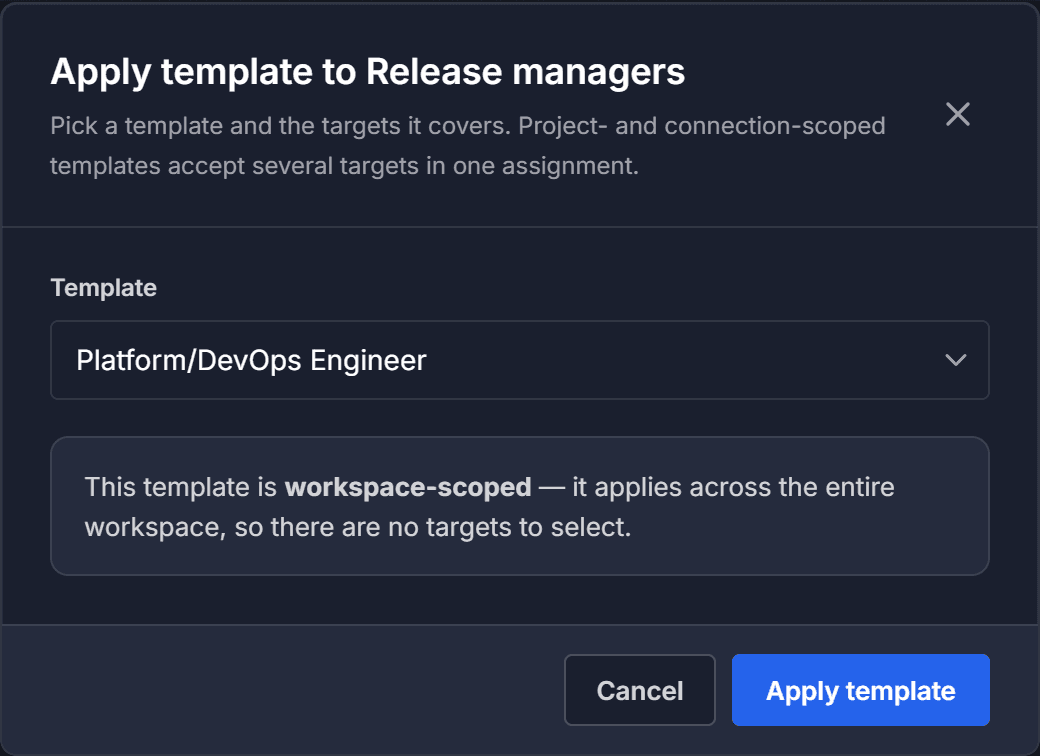
Select Apply template. The dialog opens as Apply template to, followed by the group's name.
Choose the template
Under Template assignments, click Apply template. The dialog then shows what you can target, which depends on the template's scope:
Workspace templates apply across the entire workspace, so there are no targets to select. Customer Admin, Platform/DevOps Engineer, and Security Reviewer are workspace templates.
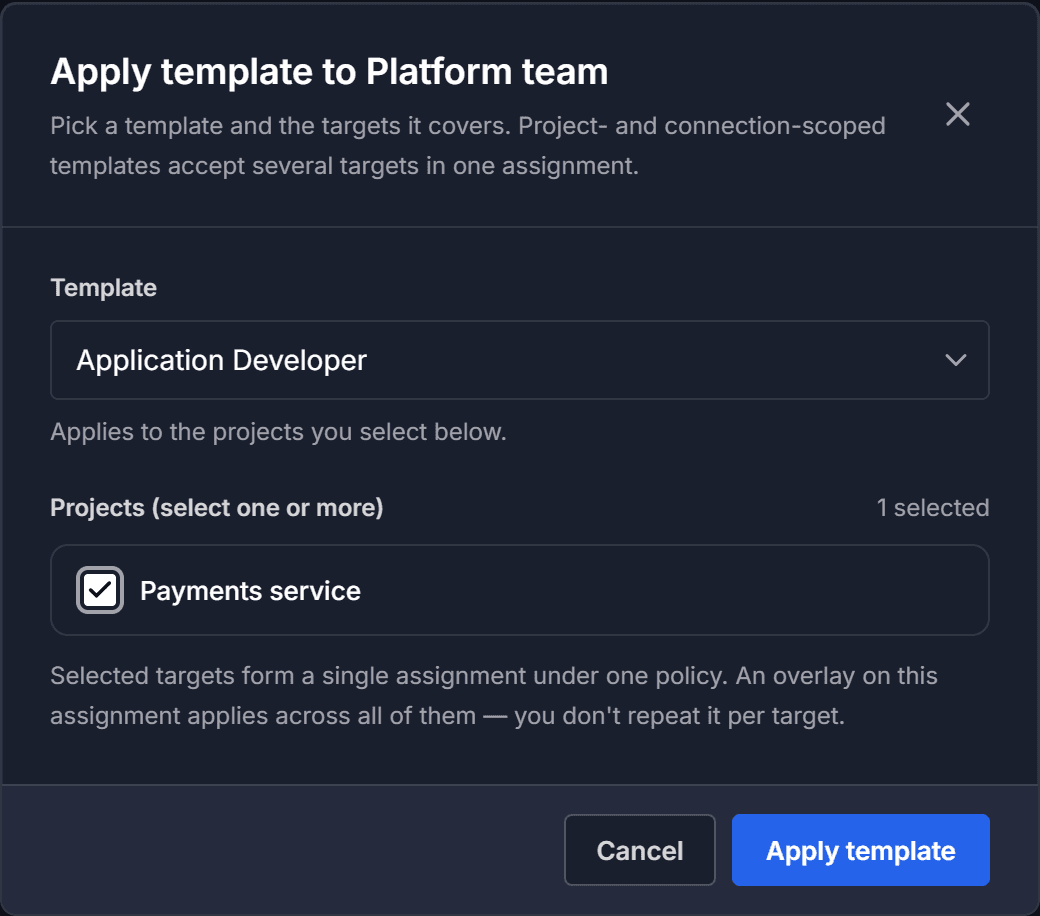
Project list templates show a Projects (select one or more) list. Application Developer is a project list template.
Connection list templates show a Connections (select one or more) list. DBA is the connection list template.
The list leaves out any template the group already has. It also leaves out the Service Principal template, which applies only to service principals, not to groups.
Select the targets
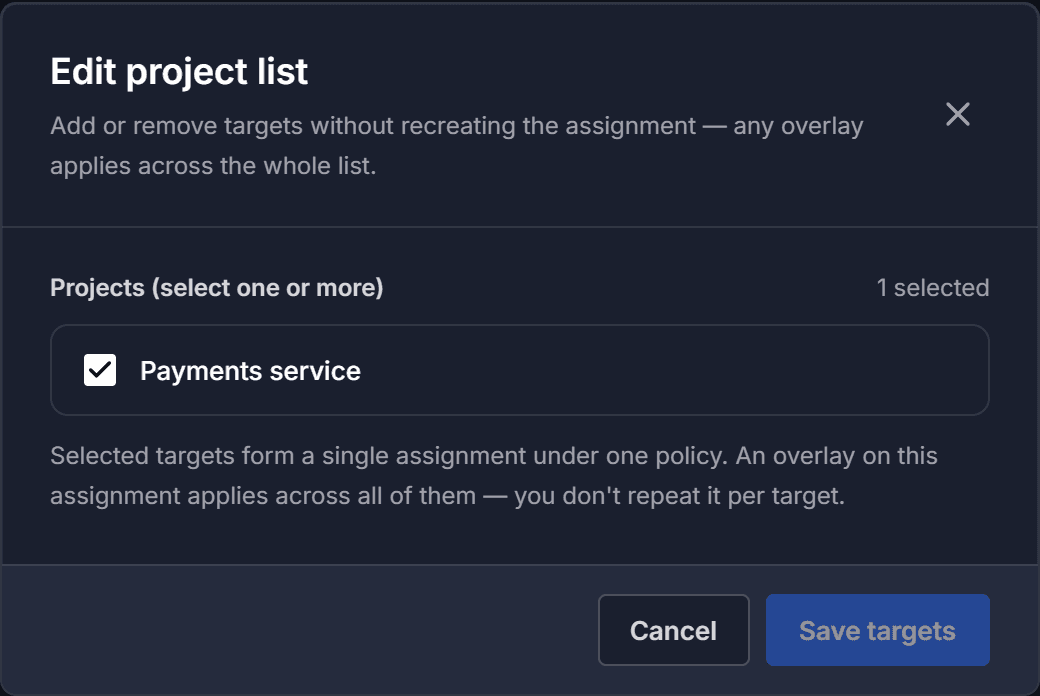
Select every project or connection this group should cover. The dialog counts your selection, and every target you select becomes part of a single assignment.
Use one assignment across several targets rather than repeating the same template. The targets stay editable, and anything you customize later applies across the whole list.
Apply the template
Select Apply template. The new assignment appears under Template assignments, and a confirmation reads Access granted.
Everyone in the group now has that template's permissions on those targets. A workspace assignment also reaches every project and connection inside the workspace.
Change the targets later
On the assignment's row, select Edit projects or Edit connections.
Add or remove projects or connections, then select Save targets. You do not need to remove and re-apply the template, and any customizations on the assignment stay attached and follow the new list.
To change what the template grants on this assignment, select Edit overlay. See Customize what a template grants a group.
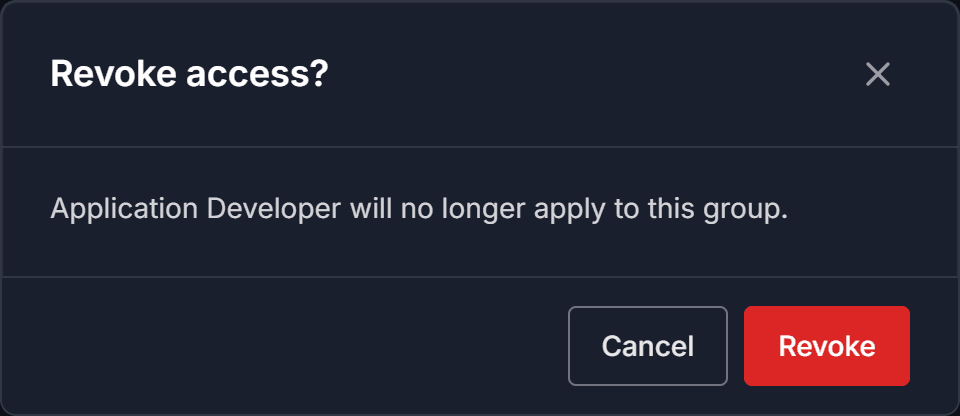
Note: To remove the access entirely, select Remove on the same row, then select Revoke to confirm.