- Concept
- Version · 6.0
- Manage
Signing in with single sign-on
Last updated: September 29, 2026
What a user experiences when a workspace is authenticated against Microsoft Entra, and how to diagnose a sign-in that does not work.
What users see on the sign-in page
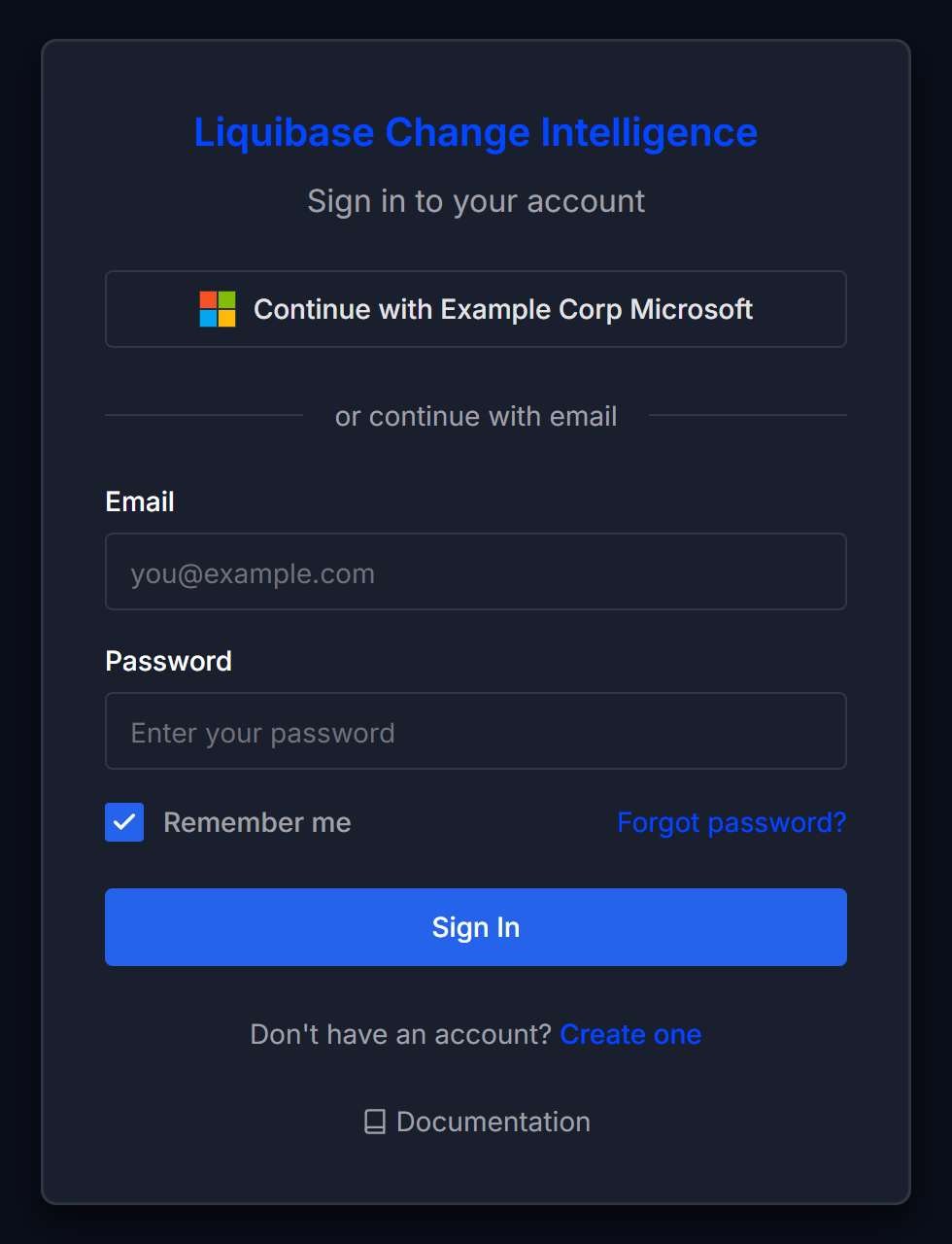
When single sign-on is enabled, a button appears on the sign-in page reading Continue with followed by the display name the administrator configured, such as Continue with Acme Corp Microsoft.
The button looks and behaves the same whether the workspace uses OpenID Connect or SAML 2.0. That is deliberate, and it means there is one sign-in path to describe rather than two.
If several providers are registered, each one gets its own button. When single sign-on is disabled, the button disappears entirely, which reads to a user as the option vanishing rather than a setting being off.
Sign-in is restricted to your tenant
Only users in the configured Microsoft Entra tenant can sign in. Personal Microsoft accounts cannot.
This matters most to someone holding more than one Microsoft identity, such as a consultant with both a client account and their own. They must sign in with the identity that belongs to the configured tenant.
What happens on first sign-in
A user signing in through single sign-on for the first time has an account created from the email claim. What happens next depends on whether an administrator invited them.
Invited users join the groups named in their invitation and can start working straight away. The invitation must be for the address the identity provider sends, and it must not have expired.
Everyone else is added to the Pending group and has no permissions until an administrator moves them.
For someone who was not invited, this is the single most confusing moment in the whole path, because the sign-in succeeds and the application is empty. That is correct behavior, and it looks exactly like a broken login.
The user sees a screen headed Your account is awaiting access, telling them they signed in successfully but an administrator has not granted them access yet, along with the address they signed in as and a Sign out action.
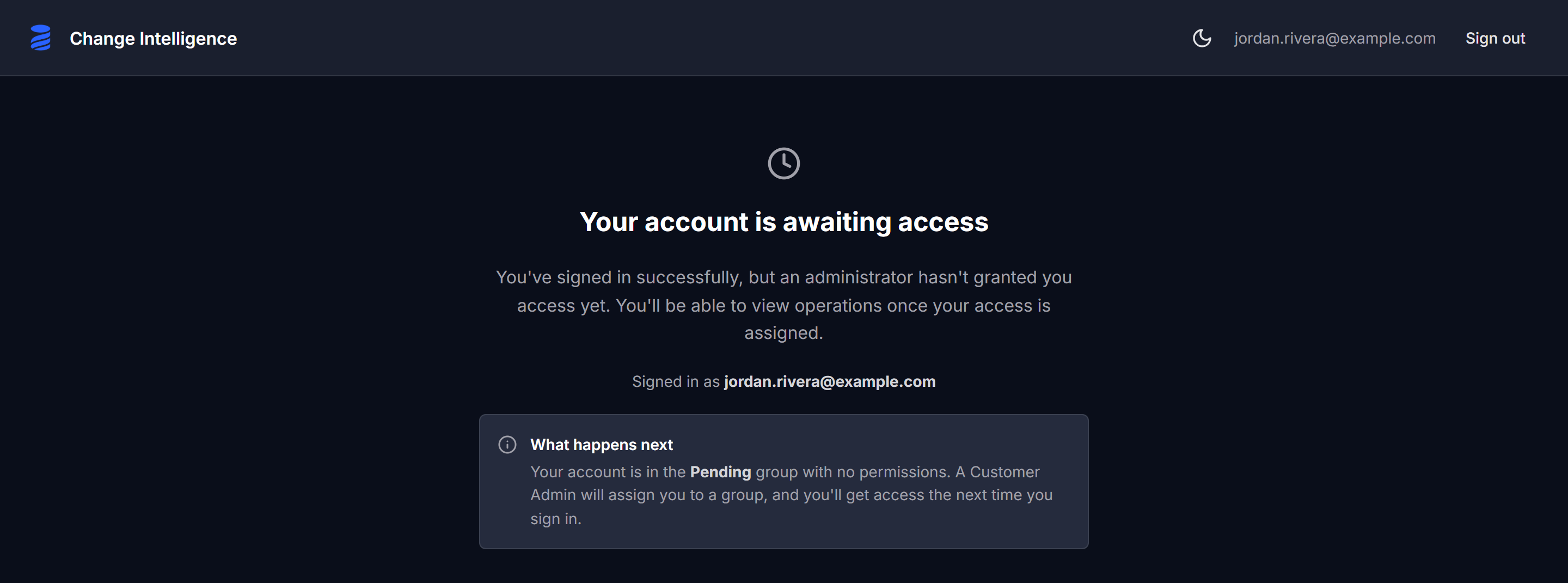
An administrator resolves it by assigning them to a group. See Invite and manage users.
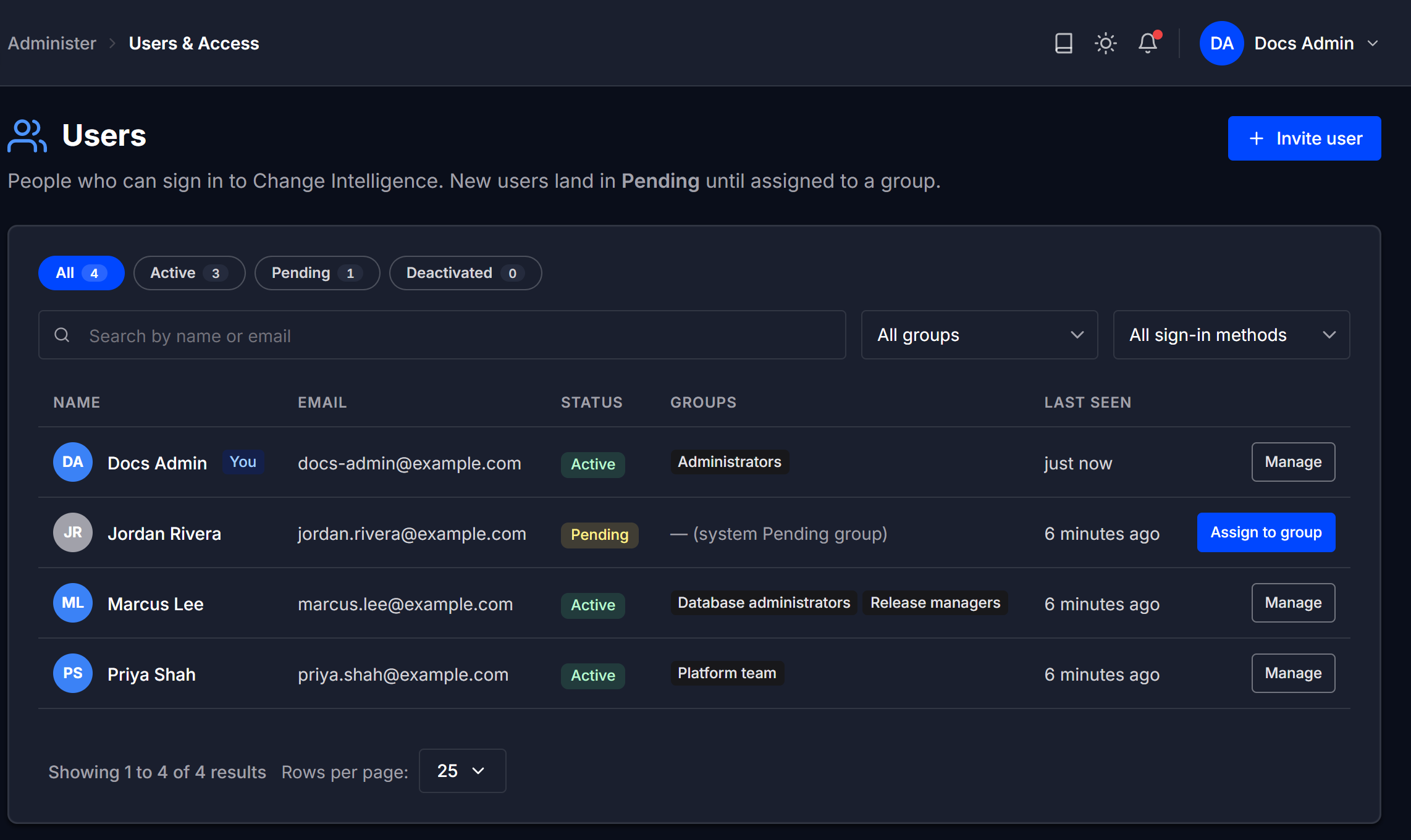
Liquibase Secure does not use the groups your IT team manages in Microsoft Entra, such as a Database Administrators group. Access comes only from groups in Liquibase Secure, either named in an invitation or assigned by an administrator.
Single sign-on and passwords coexist
Enabling single sign-on does not disable password sign-in. Both paths stay on the sign-in page.
Both are needed. The first administrator has to be able to sign in before single sign-on exists, and workspaces without single sign-on keep using passwords.
A user has exactly one identity, either single sign-on or password. There is no linking or merging of the two, so an account created with a password does not become a single sign-on account because the same person later signs in through the identity provider.
Multi-factor authentication comes from your own identity provider. Liquibase Secure does not offer two-factor authentication of its own, so enforce it in Entra.
Closing the instance to new accounts
An operator can disable self-service registration, which closes the create-account path.
Note: This is not a single sign-on only mode. Password sign-in keeps working, and only account creation closes. The distinction is deliberate, so that an instance cannot be locked out from its own sign-in page.
Troubleshooting
I signed in but I cannot see anything
Your sign-in worked. Your account is in the Pending group with no permissions, and the screen headed Your account is awaiting access is what that looks like.
Ask a workspace administrator to assign you to a group.
If you were invited, check that you signed in with the address the invitation was sent to. An expired invitation is not applied, so an administrator assigns your groups directly instead.
This happens even if you belong to groups in Microsoft Entra. Liquibase Secure does not use Entra groups, so your access comes only from the groups an administrator assigns you in Liquibase Secure.
I reached a Microsoft error page and never came back
On the OpenID Connect path, an account outside the configured tenant is refused by Microsoft at its own tenant-scoped endpoint. Entra reports AADSTS50020 and the user stays on Microsoft's error page rather than returning to Liquibase Secure.
Tenant restriction is working as intended here. Sign in with an account that belongs to the configured tenant.
My SAML sign-in was refused
A SAML sign-in is refused when the email address already belongs to a password account. A user has exactly one identity, and the existing password account owns that address.
Sign in with the password for that account, or ask an administrator to invite you at a different address.
Sign-in suddenly fails for everyone
An expired credential on the provider reaches users as a failed sign-in even though nothing about their account changed.
Check the provider configuration. On OpenID Connect, the client secret expires. On SAML 2.0, the signing certificate expires, typically every one to three years. Both are replaced from the Single Sign-On page without downtime. See Configure single sign-on with Microsoft Entra.
Everyone was signed out at once
Disabling or removing a provider signs out every user who authenticated through it, on their next request. Password users and users of a different provider are unaffected.
I cannot switch Microsoft accounts
Signing out of Liquibase Secure does not sign you out of Microsoft. The next sign-in attempt reuses the Microsoft session you still hold.
Sign out at Microsoft as well, or use a private browser window, then sign in with the account you want.