- Task
- Version · 6.0
- Manage
Delete a group
Last updated: October 15, 2026
Remove a group you no longer need, along with the access it granted.
Before you begin
You must be a member of the Administrators group. The account that set up the server is a member.
Note: The two system groups, Administrators and Pending, carry a System badge and cannot be renamed or deleted, so their pages have no Rename or Delete group button.
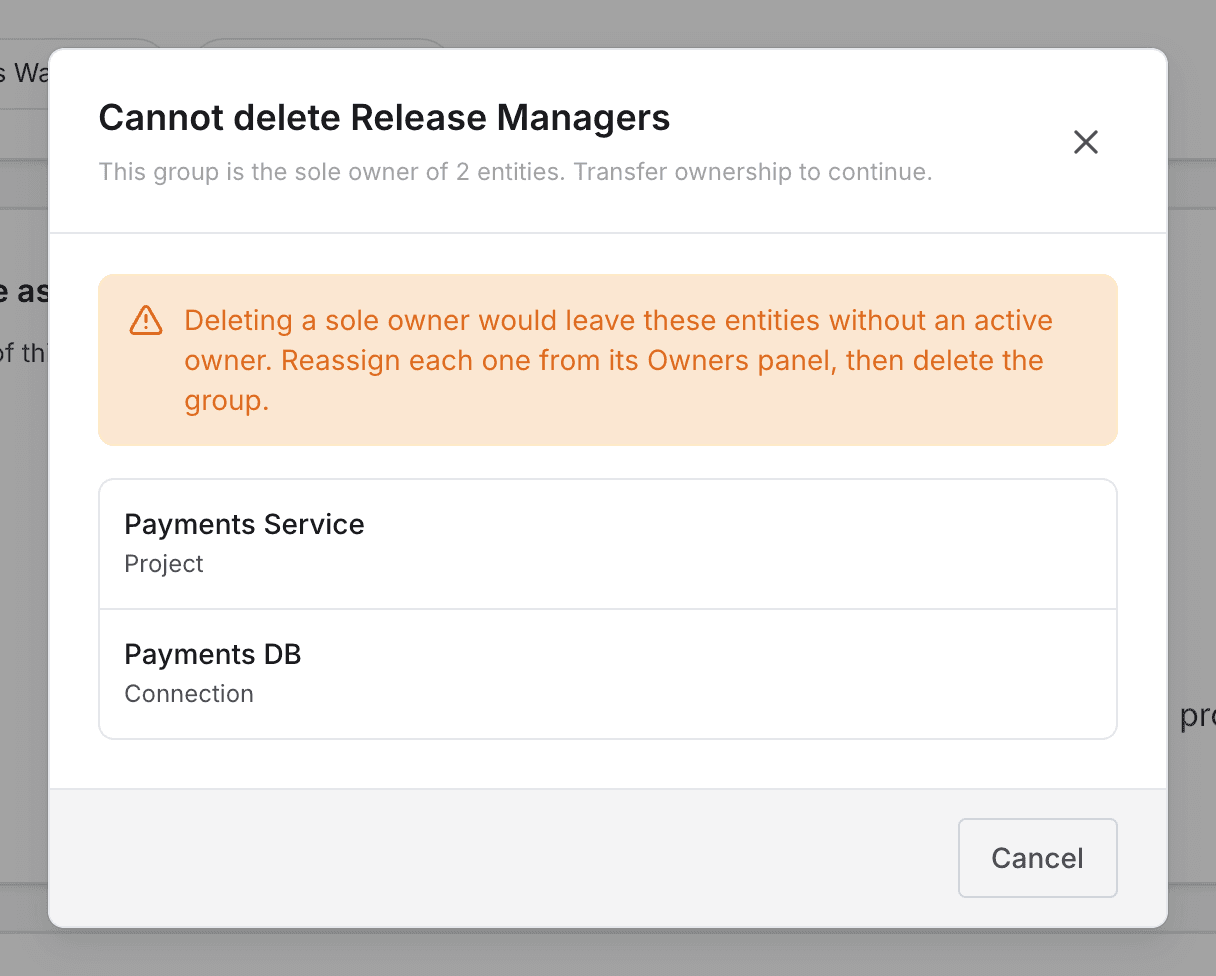
A group that is the only owner of a project, connection, or changelog cannot be deleted. The Owned entities section on the group's page marks those items Sole owner. Add another owner to each of them before you delete the group.
Procedure
Open the groups list
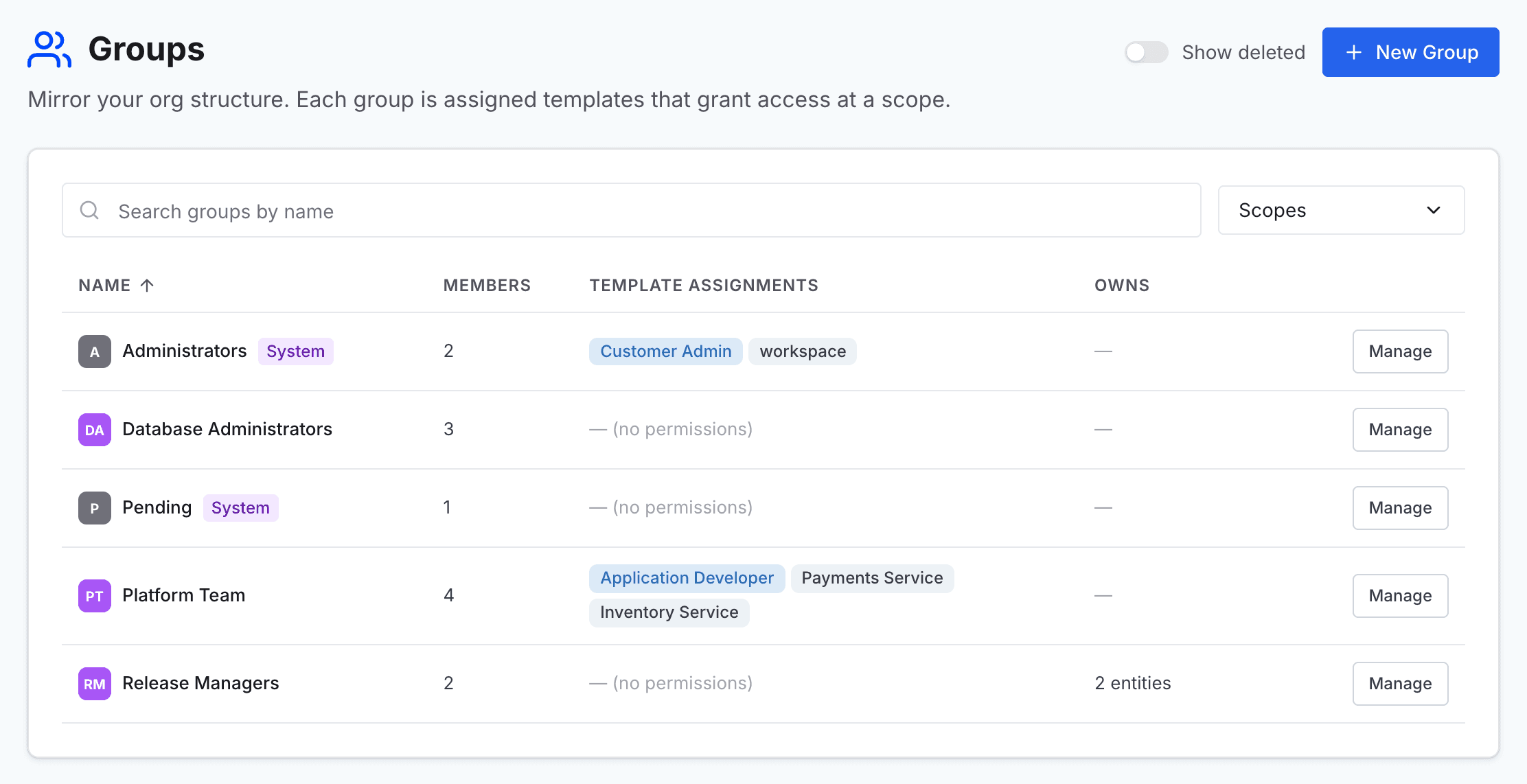
Go to Administer and select Groups.
Open the group
Find the group in the list, and select Manage on its row to open the group's page.
Start the deletion
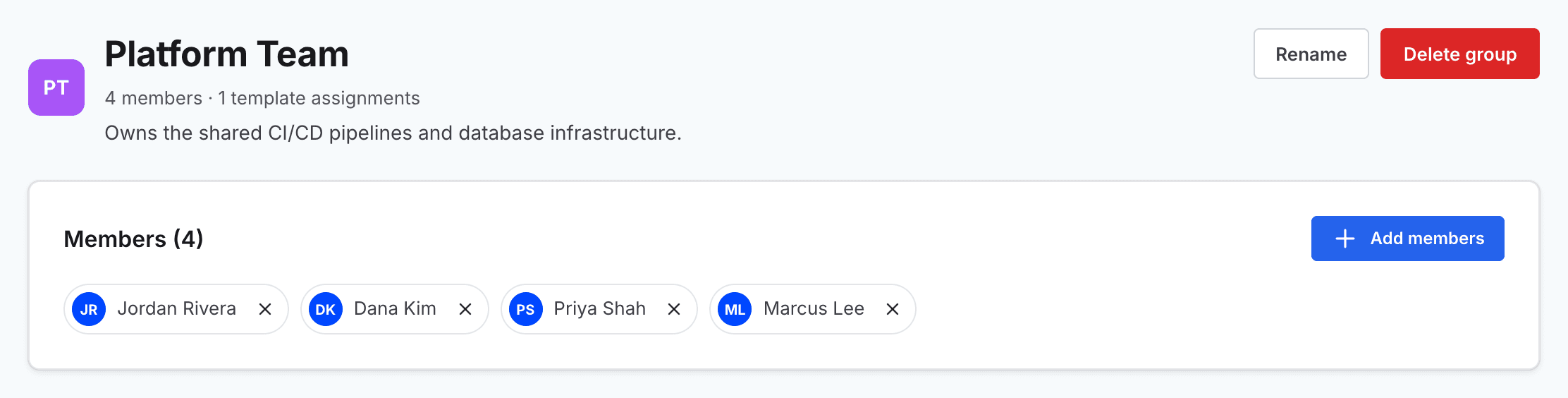
Select Delete group.
Confirm the deletion
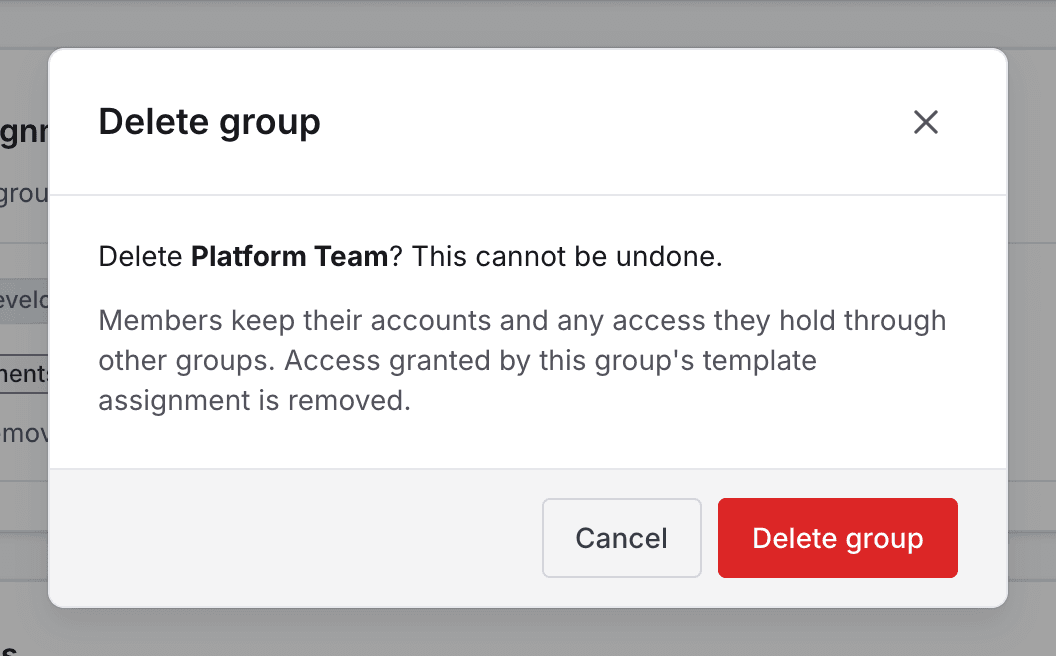
In the Delete group dialog, select Delete group again. A deletion cannot be undone. Members keep their accounts and any access they hold through other groups, and the access this group granted is removed. You return to the groups list.
Note: If the group is still the only owner of something, the dialog changes to Cannot delete and lists those items instead. Select Cancel, add another owner to each item, and then start again.