- Task
- Version · 6.0
- Manage
Remove a member from a group
Last updated: October 15, 2026
Take away the access a group gives someone without changing what they get from their other groups.
Before you begin
You must be a member of the Administrators group. The account that set up the server is a member.
Procedure
1
Open the groups list
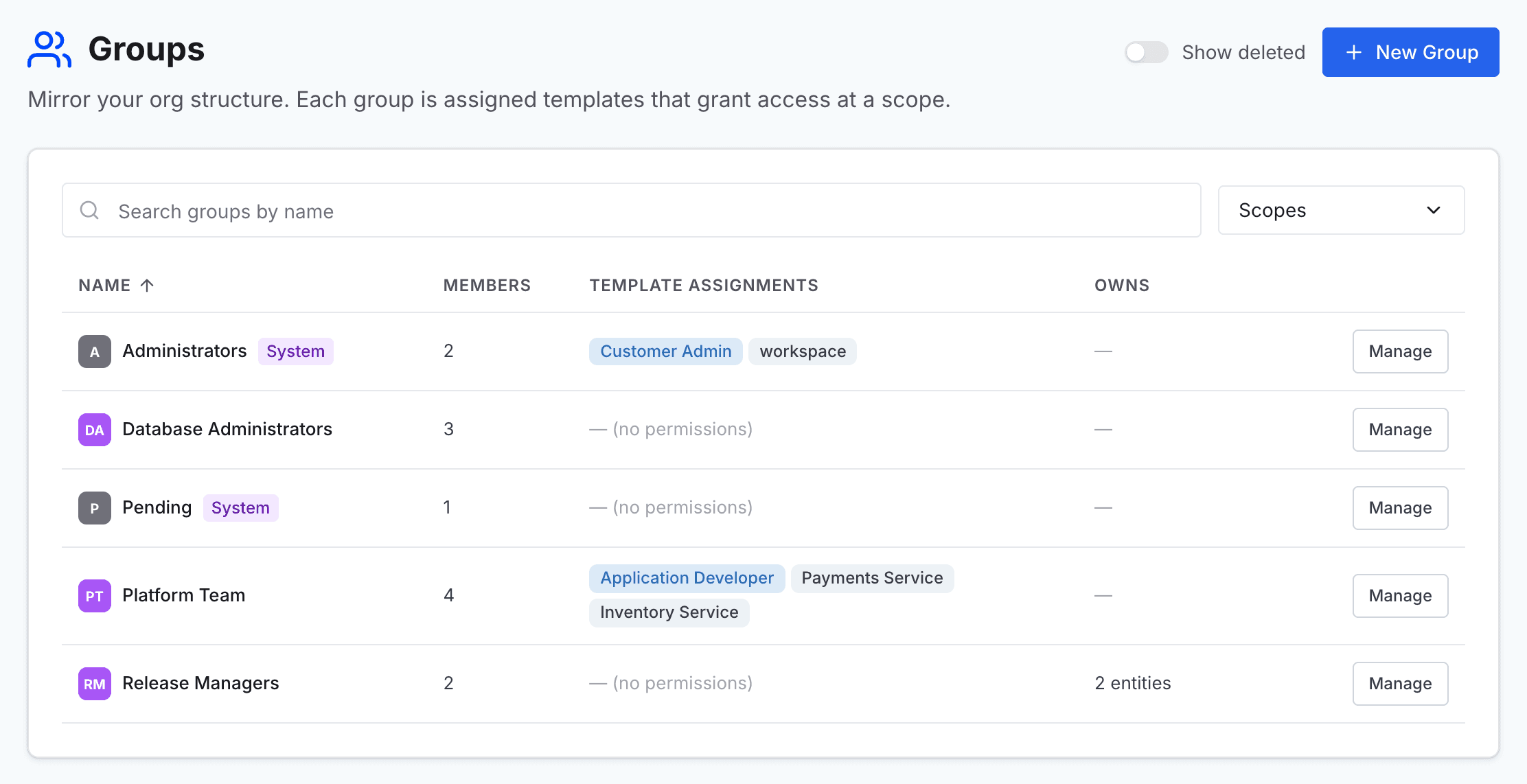
Go to Administer and select Groups.
2
Open the group
Find the group in the list, and select Manage on its row to open the group's page.
3
Choose the member to remove
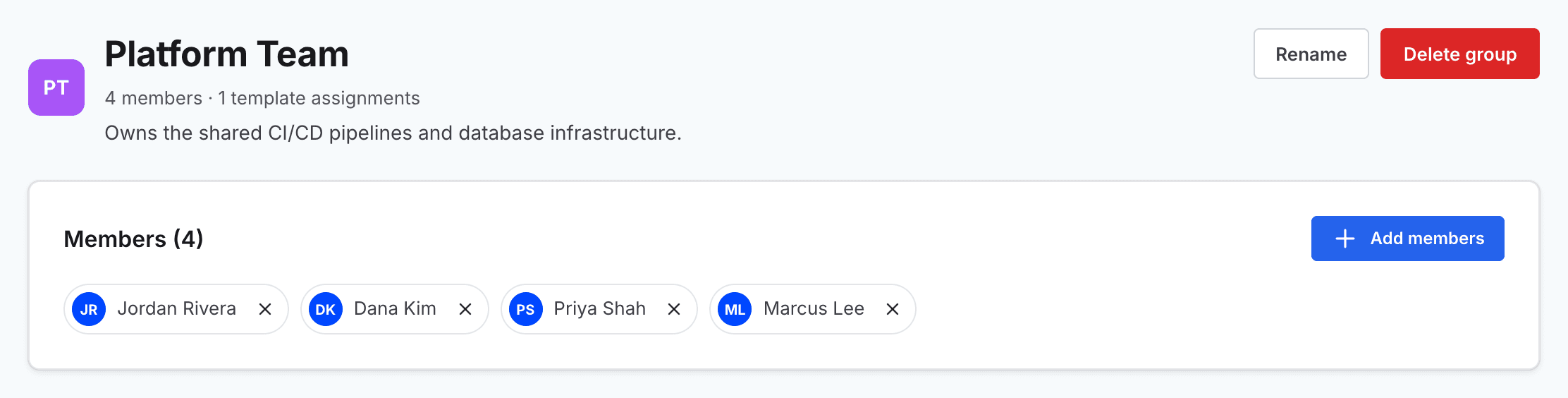
In the Members section, select the × on the person's name.
When the group has more members than the section shows, select View all members, find the person, and select the trash icon on their row.
4
Confirm the removal
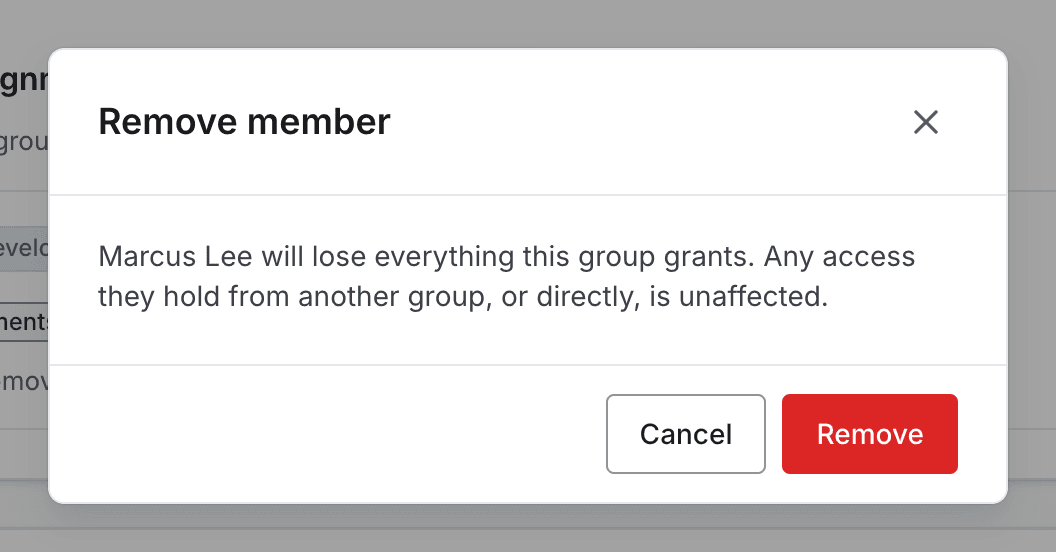
In the Remove member dialog, select Remove.
The person loses everything this group grants. Access they hold from another group, or directly, is unaffected.