- Task
- Version · 6.0
- Manage
Rename a group
Last updated: October 15, 2026
Keep a group's name in step with the team or role it stands for.
Before you begin
You must be a member of the Administrators group. The account that set up the server is a member.
Note: The two system groups, Administrators and Pending, carry a System badge and cannot be renamed or deleted, so their pages have no Rename or Delete group button.
Procedure
1
Open the groups list
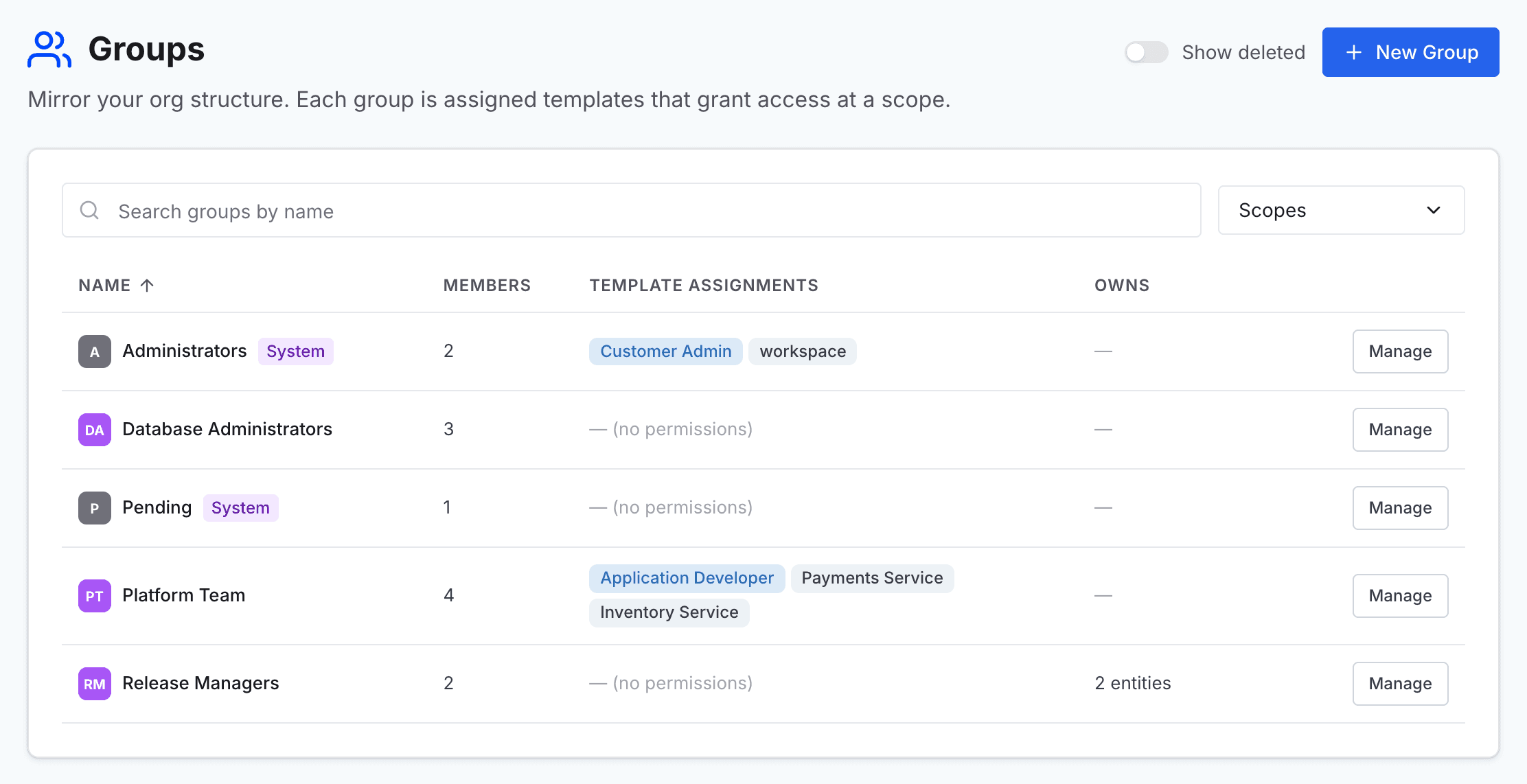
Go to Administer and select Groups.
2
Open the group
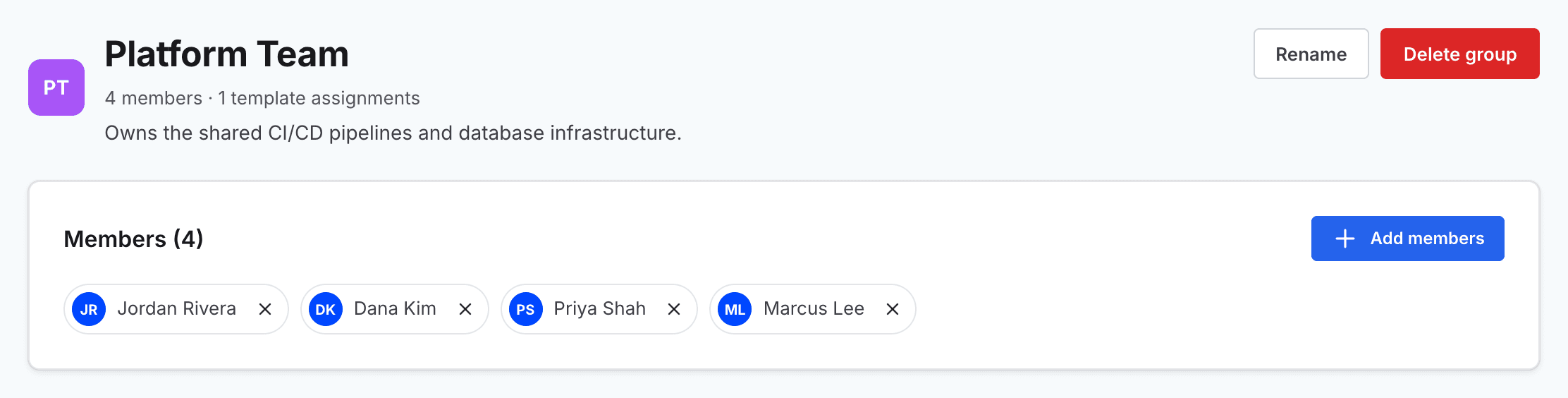
Find the group in the list, and select Manage on its row to open the group's page.
3
Open the rename dialog
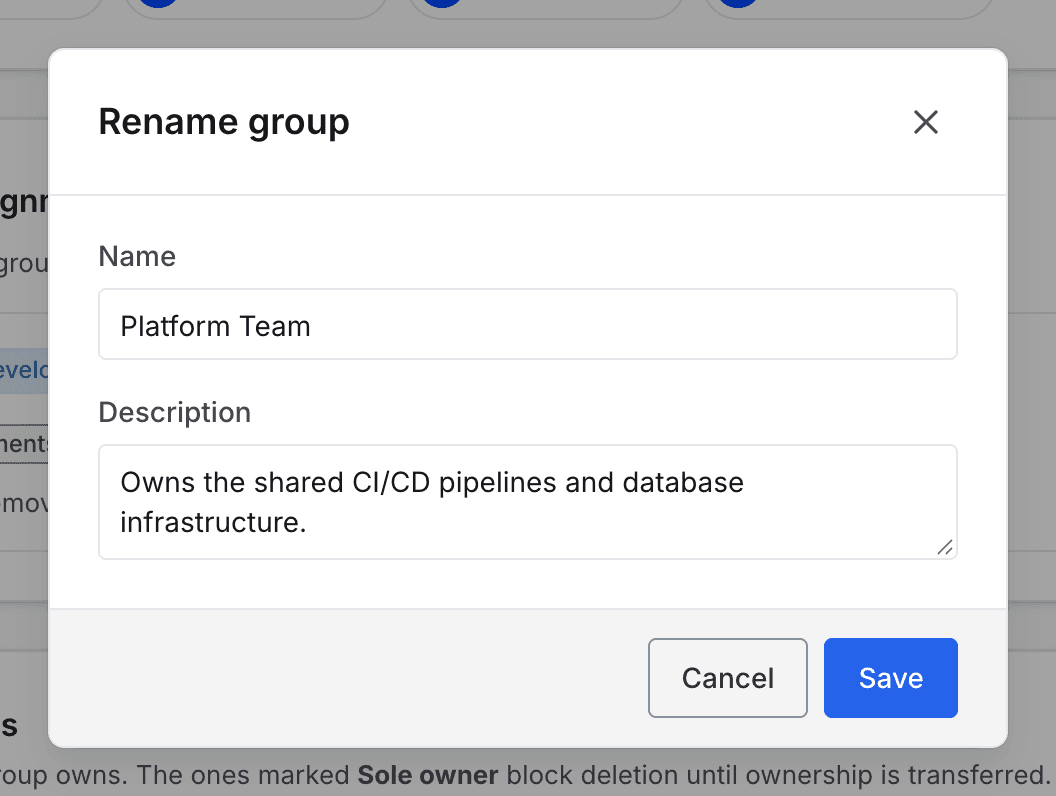
Select Rename. The Rename group dialog opens with the current name and description filled in.
4
Change the name
Change the Name, and the Description if it no longer fits.
5
Save the change
Select Save.